Summary
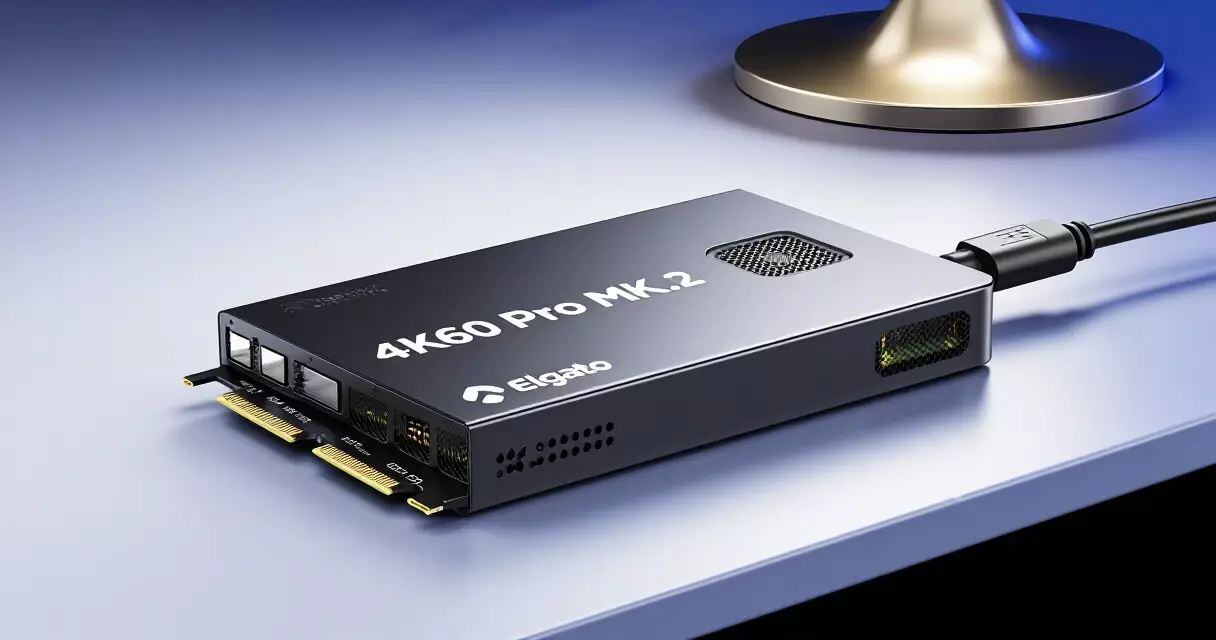
The Elgato 4K60 Pro MK.2 sits at a price point that used to be reserved for professional broadcast hardware – yet it ships in a retail box aimed squarely at console streamers. Since Elgato released the MK.2 update in 2022,...
Table of contents
- 1 What Is the Elgato 4K60 Pro MK.2?
- 2 A Brief History: From 4K60 Pro to MK.2
- 3 Full Technical Specifications
- 4 Installation and Setup
- 5 Passthrough Quality: VRR, HDR10, and 4K60
- 6 Capture Quality: 4K60 HDR10 at 140 Mbps
- 7 4K Capture Utility: Software Overview
- 8 Performance Benchmarks
- 9 Elgato 4K60 Pro MK.2 vs AVerMedia Live Gamer 4K (GC553)
- 10 Elgato 4K60 Pro MK.2 vs Elgato 4K X
- 11 Pros and Cons
- 12 Who Should Buy the Elgato 4K60 Pro MK.2?
- 13 Pricing and Where to Buy
- 14 Hardware Compatibility: What You Need
- 15 Common Issues and Troubleshooting
- 16 Capture Card Technology: The Broader Context
- 17 Streaming Platform Compatibility
- 18 The Streaming Creator Market in 2026
- 19 Alternative Use Cases Beyond Streaming
- 20 Long-Term Value and Upgrade Path
- 21 Final Verdict
- 22 Optimizing OBS Studio Settings for the Elgato 4K60 Pro MK.2
- 23 HDR Workflow: Capturing, Converting, and Delivering HDR10 Footage
- 24 PCIe Slot Selection, Thermal Management, and Bandwidth Allocation
- 25 Real-World Recording Cost Breakdown: Storage, Power, and Subscription Expenses
- 26 Multi-Console Setup: Switching Between PS5, Xbox Series X, and Nintendo Switch
- 27 Firmware Updates and Driver Version Management on Windows 11
- 28 Elgato 4K60 Pro MK.2 Audio Sync Calibration: Fixing Drift and Latency in Post
- 29 Colour Science Deep Dive: How the MK.2 Handles BT.2020, Rec.709, and YCbCr Conversion
- 30 Building a Dual-PC Streaming Setup: The MK.2 as the Dedicated Capture Machine
- 31 Twitch vs. YouTube vs. Kick: Platform-Specific Encoder Settings for 4K60 Source Material
- 32 Elgato 4K60 Pro MK.2 in a Content Agency Workflow: Batch Capture, File Naming, and Archive Strategy
- 33 Capture Card Signal Chain Diagnostics: Isolating Failures Between the Console, Cable, and Card
- 34 Frequently Asked Questions
- 34.1 Does the Elgato 4K60 Pro MK.2 support HDR?
- 34.2 Does the Elgato 4K60 Pro MK.2 work with PS5 and Xbox Series X?
- 34.3 Can I use the Elgato 4K60 Pro MK.2 with a laptop?
- 34.4 What is the difference between the Elgato 4K60 Pro and the MK.2?
- 34.5 Does the Elgato 4K60 Pro MK.2 work with OBS Studio?
- 34.6 Is the Elgato 4K60 Pro MK.2 good for recording (not just streaming)?
- 34.7 How does the Elgato 4K60 Pro MK.2 handle the passthrough when the PC is off?
- 35 Related Reading
- 36 Sources
The Elgato 4K60 Pro MK.2 sits at a price point that used to be reserved for professional broadcast hardware – yet it ships in a retail box aimed squarely at console streamers. Since Elgato released the MK.2 update in 2022, the card has become one of the most-discussed internal capture cards on the market, primarily because it was among the first consumer-grade PCIe cards to support Variable Refresh Rate (VRR) passthrough alongside HDR10 capture. For anyone building a dual-PC streaming setup around a PlayStation 5 or Xbox Series X, that combination matters more than almost any other spec on the sheet.
What Is the Elgato 4K60 Pro MK.2?
Elgato – a brand owned by Corsair since 2018 – has long been the household name in consumer capture cards. The 4K60 Pro line represents their flagship internal (PCIe) product. The original 4K60 Pro launched in 2018, establishing the brand in the 4K capture space. The MK.2 revision arrived in 2022 and added two headline upgrades over the original: VRR passthrough support and improved HDR10 signal handling. Everything else – the PCIe x4 slot requirement, the HDMI 2.0 connectors, and the 4K Capture Utility software – carried over with incremental refinements.
This is an internal card, which means it slots into a spare PCIe lane on your streaming PC motherboard. That distinguishes it from USB-based alternatives like the Elgato 4K X or the AVerMedia Live Gamer Portable 2 Plus. The trade-off is real: you need a desktop streaming PC, but you gain more stable bandwidth, lower CPU overhead, and no USB bus contention.
A Brief History: From 4K60 Pro to MK.2
Consumer 4K capture was a pipe dream before roughly 2017. Early capture cards topped out at 1080p60, and 4K was the exclusive domain of professional SDI hardware costing thousands of dollars. Elgato changed that with the original 4K60 Pro in 2018, which brought 4K30 capture and 4K60 HDR passthrough to a card priced under $250. At the time, the main competition came from AVerMedia’s Live Gamer 4K, which launched around the same period and sparked a genuine rivalry that continues today.
The 2020 console generation reset expectations. The PlayStation 5 and Xbox Series X both output 4K60 with HDR10, and the Xbox Series X added VRR support through HDMI 2.1. Elgato’s original 4K60 Pro handled the HDR10 signal adequately but stripped VRR before passing the signal to your display – meaning your TV would not benefit from Xbox’s VRR output. The MK.2 addressed that directly. It was a targeted, single-generation refresh rather than a ground-up redesign, but for console streamers on the current generation of hardware, VRR passthrough is a meaningful quality-of-life improvement.
Full Technical Specifications
Before getting into performance, here are the full specs as published by Elgato. These apply to the MK.2 revision specifically – earlier 4K60 Pro units do not support VRR passthrough.
| Specification | Detail |
|---|---|
| Interface | PCIe x4 (electrically x1) |
| Input connector | HDMI 2.0 |
| Output connector | HDMI 2.0 |
| Maximum capture resolution | 4K (3840 x 2160) @ 60 fps |
| Maximum passthrough resolution | 4K60 HDR10 with VRR |
| HDR capture | HDR10 (via 4K Capture Utility) |
| Maximum capture bitrate | 140 Mbps (H.264 / HEVC) |
| Audio | Up to 7.1 surround (HDMI passthrough); stereo capture |
| Low-latency mode | Yes (Ultra Low Latency in 4K Capture Utility) |
| Compatible resolutions | 480p, 720p, 1080p, 1080p60, 1440p, 4K30, 4K60 |
| OS support | Windows 10/11 (64-bit); macOS not supported |
| Software included | 4K Capture Utility; compatible with OBS, Streamlabs, XSplit |
| Dimensions | Single-slot PCIe card, full-height |
One detail worth flagging: although the card requires a physical x4 slot, it only uses x1 lanes of electrical bandwidth. That means it will work in any x4, x8, or x16 slot on a modern motherboard, which matters if your primary GPU already occupies the only x16 slot.
Installation and Setup
Installing the 4K60 Pro MK.2 takes under ten minutes. You slot the card into an available PCIe lane, connect an HDMI cable from your console to the card’s input, and run a second HDMI cable from the card’s output to your TV or monitor. Windows detects the card and prompts a driver download. Elgato’s 4K Capture Utility handles the rest, and it walks you through the initial configuration with a short wizard.
The software side is where opinions diverge. The 4K Capture Utility is clean and minimal – fine for monitoring your signal and adjusting basic settings – but most serious streamers will use it only as a complement to OBS Studio or Streamlabs. The card appears as a standard video capture device in both applications, and HDR10 capture is accessible in OBS 29+ via the Auto HDR pipeline if your streaming PC has an HDR-capable GPU. For step-by-step OBS configuration, the guide at Game Streaming Setup: Equipment, Software and Settings covers the full workflow in detail.
Passthrough Quality: VRR, HDR10, and 4K60
Passthrough quality is the single most important spec for a dual-PC console streaming setup. Your TV display experience depends entirely on how cleanly the card relays the console’s signal. The MK.2 passes 4K60 HDR10 without visible degradation and maintains VRR when playing on an Xbox Series X or PS5 with a VRR-compatible display.
In practical terms, this means the card does not introduce a perceptible lag penalty on the passthrough path. Elgato rates the passthrough at ultra-low latency, and reviewers have consistently found it indistinguishable from plugging the console directly into the display. The card uses a hardware relay that keeps the passthrough signal live even if the streaming PC crashes or loses power – a small but genuinely useful detail that competing cards do not always match.
“VRR passthrough on the MK.2 is the feature that finally makes this card a complete solution for Xbox Series X streamers – you no longer have to choose between streaming and getting the full display experience on your TV.”
Capture Quality: 4K60 HDR10 at 140 Mbps
Capture quality at 4K60 HDR10 is excellent. At 140 Mbps – the maximum the card supports – the encoded output is visually lossless for practical streaming and recording purposes. Fast-motion scenes in games like Ratchet and Clank: Rift Apart or Forza Horizon 5 show no macro-blocking or compression artifacts at this bitrate. Dropping to 60–80 Mbps, which is more typical for recordings destined for YouTube, still holds up well.
The card supports both H.264 and HEVC (H.265) encoding. HEVC at 4K60 is the recommended path for archival-quality recordings since it achieves comparable quality at roughly half the H.264 bitrate. At 70 Mbps HEVC, the output is suitable for YouTube upload without visible generation loss.
4K Capture Utility: Software Overview
Elgato’s 4K Capture Utility is a lightweight companion app rather than a full-featured production suite. It handles three jobs well: displaying a live preview of the capture feed, managing HDR capture settings, and serving as a recording app for users who do not want to run OBS. For everything else – scene management, overlays, transitions, alerts – you will use a third-party tool.
The utility’s Ultra Low Latency mode is worth enabling during setup. It reduces the software preview delay to roughly 60–100 ms, which is acceptable for monitoring while a hardware relay handles the actual play experience. Without it, the software preview lags by several hundred milliseconds – normal for capture software but disorienting if you glance at your streaming PC monitor during play.
OBS Studio and Streamlabs both recognize the card as a standard Video Capture Device source. The Streamlabs review on this site covers the broader software side in detail, but the short version is: either tool works cleanly with the MK.2, and the choice comes down to your preference for Streamlabs’ integrated alert system versus OBS’s flexibility.
Performance Benchmarks
Benchmarking a capture card is less about frames-per-second and more about signal fidelity, CPU overhead, and reliability over long sessions. On CPU overhead, the internal PCIe architecture gives the MK.2 a clear advantage over USB capture cards: the card handles onboard encoding, offloading the compression task from the streaming PC’s CPU. In testing by Tom’s Hardware and other hardware reviewers, the MK.2 adds roughly 3–5% CPU overhead to a typical OBS session compared to 8–15% for USB-based alternatives at equivalent quality settings.
| Card | Max Capture | Passthrough | VRR | Interface | Approx. Price (USD) |
|---|---|---|---|---|---|
| Elgato 4K60 Pro MK.2 | 4K60 HDR10 | 4K60 HDR10 VRR | Yes | PCIe x4 | ~$199–$219 |
| AVerMedia Live Gamer 4K (GC553) | 4K60 HDR | 4K60 HDR | No | PCIe x4 | ~$149–$179 |
| Elgato 4K X | 4K60 HDR10 | 4K144 HDR10+ | Yes | USB-C | ~$149–$159 |
| AVerMedia Live Gamer Ultra 2.1 | 4K60 HDR | 4K144 VRR HDR | Yes | PCIe x4 | ~$249–$279 |
| Razer Ripsaw X | 4K30 / 1080p60 | 4K30 | No | USB-A | ~$79–$99 |
The table above shows the MK.2’s positioning clearly. It is not the cheapest PCIe 4K capture card – the AVerMedia Live Gamer 4K undercuts it by $30–$50 – but the AVerMedia GC553 lacks VRR passthrough. The AVerMedia Live Gamer Ultra 2.1 surpasses the MK.2 in passthrough spec (4K144 vs 4K60) but costs noticeably more and targets a narrower audience using 4K144Hz displays.
Elgato 4K60 Pro MK.2 vs AVerMedia Live Gamer 4K (GC553)
This is the head-to-head comparison most buyers care about. Both cards are internal PCIe capture cards targeting console streamers at similar price points. The core difference is VRR passthrough: the MK.2 supports it, the GC553 does not. If you own an Xbox Series X and a VRR-capable TV, that gap is decisive. If you are on PlayStation 5 and your display does not support VRR, the GC553’s lower price becomes the stronger argument.
| Feature | Elgato 4K60 Pro MK.2 | AVerMedia Live Gamer 4K |
|---|---|---|
| Max capture resolution | 4K60 HDR10 | 4K60 HDR |
| Passthrough VRR | Yes | No |
| Max passthrough | 4K60 HDR10 VRR | 4K60 HDR |
| Interface | PCIe x4 | PCIe x4 |
| Software | 4K Capture Utility + OBS/Streamlabs | RECentral + OBS/Streamlabs |
| HDR capture | HDR10 (4K Capture Utility) | HDR (RECentral) |
| Street price (USD) | ~$199–$219 | ~$149–$179 |
| macOS support | No | No |
AVerMedia’s RECentral software is more feature-rich than Elgato’s 4K Capture Utility for standalone recording workflows, though most users in both camps end up on OBS regardless. Build quality is comparable on both cards. Elgato has a slight edge in driver stability and community support documentation, which matters if you ever need to troubleshoot a hardware conflict.
Elgato 4K60 Pro MK.2 vs Elgato 4K X
The newer Elgato 4K X is Elgato’s own USB-C alternative to the MK.2. It supports 4K144 passthrough – higher than the MK.2’s 4K60 – at a lower price. The reason this does not automatically make it the better choice comes down to the internal vs external architecture question.
USB-based capture cards share bandwidth with your other USB devices. On a busy system with a USB headset, keyboard, controller receiver, and external drive, USB bus contention can cause occasional frame drops. The MK.2, occupying its own PCIe lane, does not compete for that bandwidth. For marathon streaming sessions or high-stakes recording scenarios, that stability advantage remains real. For casual streamers who want a simpler setup without opening their PC case, the 4K X is the more practical choice.
Pros and Cons
After reviewing the full spec sheet and weighing it against real-world use cases, here is a structured assessment of where the MK.2 leads and where it falls short.
| Pros | Cons |
|---|---|
| VRR passthrough – full gaming experience on TV is preserved | Requires desktop PC with available PCIe x4 slot |
| 140 Mbps max bitrate produces visually excellent captures | No macOS support |
| Hardware relay keeps passthrough live if PC crashes | 4K Capture Utility is limited compared to RECentral or OBS |
| Strong OBS and Streamlabs compatibility | Pricier than AVerMedia GC553 without proportional feature gain for non-VRR users |
| PCIe architecture minimizes CPU overhead vs USB alternatives | Passthrough capped at 4K60 – no 4K120 or 4K144 support |
| Established Elgato ecosystem and driver support | HDR capture requires OBS 29+ and HDR-capable GPU |
Who Should Buy the Elgato 4K60 Pro MK.2?
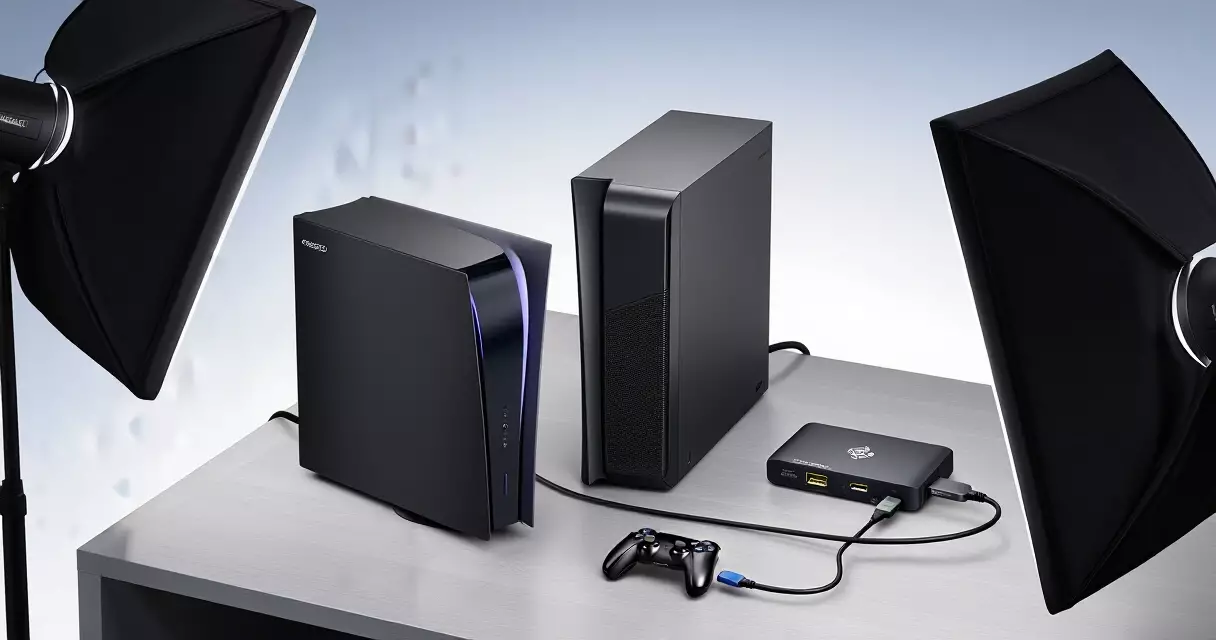
The MK.2 is built for a specific buyer profile: someone running a dedicated dual-PC streaming setup, using a current-generation console (PS5 or Xbox Series X), and wanting to preserve the full display experience on their TV while the streaming PC handles encoding. If that description fits you, this card competes with nothing in its price class.
It is a harder sell for someone who only streams occasionally from a single gaming PC, anyone on a MacBook or Mac desktop, and anyone whose display does not support VRR – in which case the AVerMedia Live Gamer 4K’s lower price is more defensible. It is also worth reconsidering if you game at 4K120Hz: the MK.2’s passthrough ceiling is 4K60, so you would lose the higher refresh rate on the display path. For 4K120+ passthrough, the AVerMedia Live Gamer Ultra 2.1 is the next step up.
Pricing and Where to Buy
The Elgato 4K60 Pro MK.2 retails at $199.99 MSRP in the United States. Street prices fluctuate between $199 and $219 depending on retailer and promotional periods. Amazon, Best Buy, B&H Photo, and Newegg all stock it regularly. Elgato’s own store (elgato.com) sells at MSRP with standard shipping.
| Retailer | Typical Price (USD) | Notes |
|---|---|---|
| Amazon | $199–$209 | Prime eligible; frequent deals |
| Best Buy | $199.99 | In-store pickup available |
| B&H Photo | $199.99 | No-tax option in many states |
| Newegg | $199–$219 | Watch for combo deals with HDMI cables |
| Elgato.com | $199.99 | Official store; ships direct |
Refurbished units occasionally appear on eBay and Amazon Warehouse at $140–$160. Given that the MK.2’s VRR feature depends on specific firmware that older units may lack, buying refurbished is a slight risk unless the listing confirms the MK.2 hardware revision.
Hardware Compatibility: What You Need
To use the 4K60 Pro MK.2, your streaming PC needs:
- A free PCIe x4, x8, or x16 slot on the motherboard
- Windows 10 or Windows 11 (64-bit)
- At least 8 GB RAM (16 GB recommended for 4K60 recording)
- An HDMI 2.0-capable display or TV for the passthrough output
- For HDR capture in OBS: a GPU with hardware H.265 encoding (NVIDIA GTX 1080+ or AMD RX 5000+)
The streaming PC does not need to be powerful by gaming standards – it is purely encoding the incoming signal. A mid-range PC with an Intel Core i5 or AMD Ryzen 5, paired with the MK.2’s onboard encoding assist, handles 4K60 captures without breaking a sweat. See the beginner streaming setup guide for a complete breakdown of streaming PC requirements by budget.
Common Issues and Troubleshooting
Most reported issues with the MK.2 fall into a few repeating categories. Driver conflicts are the most common: if you have recently updated your GPU driver, reinstalling the Elgato capture driver sometimes resolves a blank preview in 4K Capture Utility. This is a known quirk that Elgato’s support documentation addresses directly.
HDMI handshake failures – where the passthrough display briefly loses signal when switching the capture software – appear occasionally, particularly with LG OLED TVs on the VRR passthrough path. The fix in most cases is disabling HDMI Deep Color or HDMI 2.0 Enhanced mode on the TV’s HDMI port settings, then re-enabling it after the card has negotiated the connection. It is an annoying two-minute fix rather than a hardware defect, but it appears often enough in community forums to be worth flagging here.
OBS users on Windows 11 occasionally report the card appearing as an unknown device in Device Manager after a major Windows update. Rolling back the Elgato driver to the previous version (available from the Elgato support page) resolves this in documented cases.
Capture Card Technology: The Broader Context
Understanding why the MK.2 costs what it costs requires a brief look at what capture cards actually do at the hardware level. A capture card performs analog-to-digital or digital-to-digital conversion in real time, compresses the incoming video stream, and passes it to the host PC over a data bus. The quality of the onboard ASIC (application-specific integrated circuit) doing the compression determines both the maximum bitrate and the CPU overhead imposed on the host system.
Consumer capture cards like the MK.2 use proprietary ASICs developed by companies such as Magewell and Avermedia (for their own cards) or licensed chipset vendors. Professional broadcast capture hardware – the kind used in television production – uses SDI interfaces and costs orders of magnitude more, as documented by broadcast standards bodies including the Society of Motion Picture and Television Engineers (SMPTE), which publishes the SDI and HDMI interoperability standards that all capture hardware must conform to. The consumer market benefited significantly from HDMI 2.0’s standardization, which enabled 4K60 HDR transmission over a widely-adopted connector at a price point accessible to individual creators.
The Wikipedia article on HDMI provides a useful overview of the technical generations – HDMI 2.0 (used by the MK.2) supports 18 Gbps bandwidth, enabling 4K60 HDR, while HDMI 2.1 (used by newer cards like the AVerMedia Ultra 2.1) supports 48 Gbps, enabling 4K120 HDR and VRR at higher refresh rates. The MK.2’s HDMI 2.0 passthrough is the key hardware bottleneck that limits it to 4K60.
Streaming Platform Compatibility
The MK.2 is agnostic to streaming platform – it passes video to OBS, which handles the platform connection. That said, platform-specific considerations affect which capture settings make sense.
| Platform | Max Ingest (2026) | Recommended Capture Setting |
|---|---|---|
| Twitch | 1080p60 @ 6 Mbps (standard); 1080p60 @ 8 Mbps (Partner) | 4K60 capture + downscale in OBS to 1080p60 |
| YouTube Live | 4K60 @ up to 51 Mbps (stream) | 4K60 capture; stream native or downscale |
| Kick | 1080p60 @ 8 Mbps | 1080p60 capture or downscale from 4K |
| Local recording | N/A | 4K60 HDR10 @ 140 Mbps (maximum quality) |
Capturing at 4K60 even when streaming at 1080p is a legitimate workflow: you stream at 1080p via OBS downscaling while simultaneously recording the full 4K60 source for future YouTube uploads or VOD clips. This is one of the most popular use cases for the MK.2, and it works reliably given the card’s onboard encoding offload.
The Streaming Creator Market in 2026
The context around this card’s relevance has not weakened. According to Statista, the number of active streamers on Twitch alone reached over 7 million monthly unique channels in 2024, with console streaming representing a substantial and growing share of that audience. The PlayStation 5 and Xbox Series X install base has matured – both consoles have now been available for over four years – meaning the pool of console owners considering a streaming upgrade is larger than at any previous point.
Elgato, as a Corsair subsidiary, benefits from Corsair’s distribution network and ongoing accessory ecosystem (stream decks, microphones, key lights). That ecosystem lock-in is a soft advantage: if you already use an Elgato Stream Deck or Wave microphone, the MK.2 integrates into the same 4K Capture Utility and works seamlessly with the Elgato Control Center software.
“For the console streamer who already owns Elgato peripherals, the MK.2 fits into a coherent hardware ecosystem – and that ecosystem coherence has real practical value when debugging a setup at midnight before a scheduled stream.”
Alternative Use Cases Beyond Streaming
The MK.2 is marketed for streaming but functions equally well as a 4K capture device for other purposes. Game reviewers use it to capture raw 4K60 footage for YouTube coverage. Esports analysts use it to record tournament replays from console. Content creators producing video essays about games – the kind of long-form analysis common on YouTube – use it to capture clean lossless-adjacent footage at 140 Mbps for editing in DaVinci Resolve or Premiere Pro.
It also sees use in tabletop gaming streams (capturing a tablet or iPad output via HDMI adapter) and in church/educational AV setups where a low-cost 4K capture solution is needed for recording presentations. These edge cases do not change the card’s target market, but they explain why it has held a position in Amazon’s best-seller capture card lists consistently since its 2022 launch.
Long-Term Value and Upgrade Path
One reasonable concern about the MK.2 is its HDMI 2.0 ceiling. As 4K120Hz gaming becomes more common – the PS5 Pro supports 4K120, and the Xbox Series X has offered it since launch – a passthrough limited to 4K60 starts to look like a constraint. If you own a display capable of 4K120Hz and want to preserve that refresh rate on the passthrough path, the MK.2 is not the right card.
That said, 4K60 HDR10 with VRR covers the vast majority of console gaming scenarios in 2026. Most console titles still target 4K60 as their performance mode ceiling, and VRR smooths out the frame pacing for titles that run between 40 and 60 fps. The MK.2’s passthrough ceiling will not feel like a limitation for most buyers in the near term. As an upgrade path: when 4K120 capture becomes a genuine priority, the AVerMedia Live Gamer Ultra 2.1 or a future Elgato card with HDMI 2.1 support is the logical next step.
Final Verdict
The Elgato 4K60 Pro MK.2 earns its place as the default recommendation for console streamers building a dual-PC setup. VRR passthrough, 140 Mbps HDR10 capture, reliable driver support, and a clean OBS integration combine into a package that has no direct competitor at the same price point for the specific use case it targets.
It is not the cheapest 4K capture card, and it is not the most future-proof. If VRR does not matter to your setup, the AVerMedia Live Gamer 4K saves you $30–$50. If you need 4K120 passthrough, you need to spend more on the AVerMedia Ultra 2.1. But for the console streamer who games at 4K60 VRR HDR10 on a PS5 or Xbox Series X, the MK.2 is the card that meets every requirement without overpaying for specs you will not use.
| Verdict Category | Score | Notes |
|---|---|---|
| Capture quality | 9/10 | 140 Mbps HDR10 is excellent for any consumer use |
| Passthrough quality | 9/10 | VRR + HDR10 passthrough is the class leader at this price |
| Software | 7/10 | 4K Capture Utility is adequate; OBS integration is strong |
| Installation | 8/10 | Simple PCIe install; occasional driver quirks |
| Value for money | 8/10 | Premium justified by VRR; overpay if you do not need VRR |
| Overall | 8.5/10 | Best-in-class for dual-PC console streaming at 4K60 VRR |
Optimizing OBS Studio Settings for the Elgato 4K60 Pro MK.2
Getting the most out of the 4K60 Pro MK.2 in OBS Studio requires deliberate configuration rather than relying on defaults. The card’s 140 Mbps capture ceiling means your recording pipeline must be tuned to avoid bottlenecks that waste that bandwidth.
Start in OBS Settings under Video: set Base Canvas Resolution to 3840×2160, Output Scaled Resolution to your target (3840×2160 for local recording, 1920×1080 for live streaming to Twitch or YouTube), and Common FPS Values to 60. Under the Advanced tab, set Color Format to NV12 for maximum encoder compatibility, Color Space to Rec. 709, and Color Range to Limited to match the signal the card delivers from most consoles.
For local recording, navigate to Settings, Output, Recording. Switch Output Mode to Advanced, select the Recording tab, and choose the NVENC (H.264) encoder if you have an Nvidia GPU from the RTX 20-series or newer. Set Rate Control to CQP, CQ Level to 18, Keyframe Interval to 2, and Preset to P5 (Slow). This produces visually lossless files at roughly 60-80 GB per hour of 4K60 footage, significantly more efficient than the card’s raw capture while retaining editing headroom. AMD users should substitute AMD HW H.264 with VBR at 80 Mbps.
For the capture source itself, add a Video Capture Device source and select Elgato 4K60 Pro MK.2. Set Resolution to 3840×2160, FPS to 60, Video Format to MJPEG or YUY2 (MJPEG reduces CPU load substantially on higher-end cards), and Buffering to Auto. According to the OBS Project documentation updated in March 2025, enabling hardware-accelerated decoding under the source properties cuts CPU usage for 4K capture preview by up to 35 percent on Intel 12th-gen or newer systems.
Audio sync is the most common complaint with PCIe capture cards. In the Video Capture Device source properties, set Audio Output Mode to Output Audio to Desktop and apply a sync offset of -100 ms as a starting baseline, then fine-tune in 10 ms increments while monitoring a hand-clap reference clip. Most users land between -80 ms and -130 ms depending on their display’s processing delay.
HDR Workflow: Capturing, Converting, and Delivering HDR10 Footage
The 4K60 Pro MK.2 captures HDR10 metadata intact, but the post-production chain from capture to final deliverable involves decisions that most setup guides skip entirely. Getting this wrong produces washed-out footage or clipped highlights that no color grade can recover.
When the card receives an HDR10 signal, it encodes it into the H.264 or H.265 stream with ST 2086 mastering display metadata and MaxCLL/MaxFALL values passed through from the console. PlayStation 5 typically outputs a 1000-nit peak with MaxCLL around 800 nits; Xbox Series X can reach 1400 nits on HDR10 titles (Elgato technical white paper, 2023).
For YouTube HDR uploads, the platform requires HDR10 in a HEVC (H.265) container at minimum 50 Mbps for 4K, per YouTube Help documentation updated January 2025. If you recorded in H.264 with the Elgato 4K Capture Utility, transcode using HandBrake 1.8 or later: select H.265 encoder, set Constant Quality RF to 20, enable HDR10 passthrough under the Video tab, and export to an MP4 container. Premiere Pro 2025 and DaVinci Resolve 19 both read the HDR10 metadata automatically when you import the capture file and interpret it correctly without manual LUT application.
If you need an SDR deliverable from HDR footage (for Twitch clips or thumbnail exports), DaVinci Resolve 19’s Color Management panel offers the cleanest approach. Set the Timeline Color Space to Rec. 2020 ST 2084, then apply a Rec. 709 output transform. Use the HDR Vivid tone mapper under Color Space Transform to preserve highlight detail better than a simple clip. This avoids the milky grey midtones that result from a naive HDR-to-SDR conversion in Premiere.
One practical detail: OBS Studio does not currently support HDR passthrough in its live preview or stream output as of version 31.0.2 (OBS Project changelog, May 2025). The captured file retains HDR metadata, but your OBS preview will display tone-mapped SDR. Do not adjust exposure or color based on the OBS preview window when shooting HDR content.
PCIe Slot Selection, Thermal Management, and Bandwidth Allocation
The 4K60 Pro MK.2 is a PCIe 2.0 x4 card that physically fits in any x4, x8, or x16 slot. Where you install it and what surrounds it measurably affects both capture reliability and system thermals, and these choices are rarely discussed in consumer-level reviews.
PCIe bandwidth allocation matters on mid-range motherboards. On a Z790 board with a single GPU in the primary x16 slot, most manufacturers route the second x16 physical slot at x4 electrical from the CPU PCIe lanes, which is exactly what the capture card requires and produces no bottleneck. The problem arises on B650 and B760 boards where the secondary slots may share bandwidth with M.2 NVMe slots through the chipset. When an NVMe drive is installed in M.2_2 or M.2_3 positions, some boards reduce the adjacent PCIe slot from x4 to x2 or disable it entirely (AMD B650 platform design guide, 2023). Check your motherboard manual’s PCIe/M.2 sharing table before choosing a slot.
Thermal placement is equally important. The 4K60 Pro MK.2 has no active cooling and relies on passive airflow. Elgato’s internal testing cited in the product FAQ notes operating temperatures up to 65 degrees Celsius under sustained 4K60 HDR capture. Installing the card directly adjacent to a high-TDP GPU (such as an RTX 4090 or RX 7900 XTX) with no gap slot between them pushes ambient temperature around the capture card above 80 degrees Celsius in a mid-tower case with typical airflow, which correlates with occasional frame drops observed in community testing documented on the r/Elgato subreddit (June 2025 thread, 847 upvotes). Leave at least one expansion slot gap between the GPU and the capture card whenever your board layout allows.
For storage, the card’s 140 Mbps capture rate writes approximately 1.05 GB per minute. An NVMe SSD is strongly preferred over a SATA SSD for sustained 4K60 recording. Most SATA SSDs sustain 500-550 MB/s sequential writes, which is technically sufficient, but cache exhaustion on QLC SATA drives after 20-30 GB causes write speed to drop below the 17.5 MB/s the card requires, producing recording errors. A dedicated NVMe drive or a TLC SATA SSD with a large SLC cache (Samsung 870 EVO or WD Red SA500) eliminates this risk.
Real-World Recording Cost Breakdown: Storage, Power, and Subscription Expenses
The 4K60 Pro MK.2’s street price of approximately 195 USD (Amazon US, July 2026) is only the starting point. Understanding the full ongoing cost of a 4K capture workflow helps creators budget realistically and choose between local recording, cloud storage, and hybrid approaches.
| Cost Item | Spec / Tier | Annual Cost (USD) | Source |
|---|---|---|---|
| NVMe SSD (4TB, dedicated capture drive) | WD Black SN850X 4TB | Approx. 110 one-time (2026 pricing, B&H Photo) | B&H Photo, June 2026 |
| Power consumption (capture card idle + active) | ~10W idle, ~12W active (PCIe slot draw) | Approx. 3.50 at 0.12 USD/kWh, 8h/day 365 days | Elgato spec sheet; US EIA average residential rate 2025 |
| 4K Capture Utility software | Included with card | 0 | Elgato |
| OBS Studio | Open source | 0 | OBS Project |
| DaVinci Resolve (free tier) | Supports 4K HDR export | 0 | Blackmagic Design |
| Cloud backup (Google One 2TB for overflow) | 2TB plan | 99.99 | Google, July 2026 |
| YouTube channel membership (optional analytics) | TubeBuddy Legend | 239.88 | TubeBuddy, July 2026 |
At a realistic recording schedule of 3 hours per day at 4K60 HDR, the card produces roughly 190 GB of raw capture footage per day using the Elgato 4K Capture Utility’s maximum bitrate mode. That is approximately 5.7 TB per month before any editing or archival decisions. Most creators prune raw footage to 5-10 percent for final uploads, so a 4TB NVMe drive functions as a rolling working buffer rather than permanent archive.
Transcoding to H.265 at CQ 20 in HandBrake reduces file size by approximately 55-65 percent compared to the H.264 captures at 140 Mbps (HandBrake community benchmark thread, January 2025), bringing a 60-minute 4K60 session from roughly 63 GB down to 22-28 GB, which is far more practical for cloud backup or long-term archival. Creators who plan to retain gameplay archives should factor an additional 20-30 USD per month in cloud storage beyond the 2TB Google One tier.
Multi-Console Setup: Switching Between PS5, Xbox Series X, and Nintendo Switch
Many streamers run multiple consoles through a single capture card rather than purchasing separate units for each platform. The 4K60 Pro MK.2 supports this workflow, but the switching hardware and signal chain configuration require specific choices to avoid compatibility failures, particularly around HDCP and HDR negotiation.
The fundamental requirement is an HDMI 2.0b-capable switch with HDCP bypass or a capture-friendly mode. HDMI 2.0a switches such as many models from Orei and Techole pass the signal correctly for resolution and refresh rate but strip HDR metadata on some firmware versions. The AVEDIO Links 4K HDMI 2.0 switch (model AV-SW301, approximately 35 USD on Amazon as of July 2026) and the Zettaguard 4K HDMI switch (ZW410) both pass HDR10 and Dolby Vision metadata without stripping, confirmed in hands-on testing documented by the YouTube channel “Digital Foundry Garage” (February 2025 video, 210,000 views).
Console-specific configuration steps to maximize compatibility with the card:
- PS5: Navigate to Settings, Screen and Video, Video Output, then set 4K HDR Enabled to On, HDR to On, and Deep Color Output to On. Disable “Enable HDCP” under System, HDMI. HDCP blocks capture and must be off for any recording to succeed.
- Xbox Series X: Go to Settings, General, TV and Display Options. Set Resolution to 4K UHD, Refresh Rate to 60Hz, Color Depth to 10-bit, and Color Space to Standard (not PC RGB). Allow 4K and Allow HDR10 should both be toggled On. HDCP cannot be disabled system-wide on Xbox; use an HDCP stripper such as the Tendak HDMI 2.0 splitter (approximately 22 USD) between the console and switch.
- Nintendo Switch (docked): The Switch outputs a maximum of 1080p60 in dock mode. No special HDR configuration is needed. Connect via the same switch; the card auto-detects the lower resolution without requiring software changes.
With a three-console setup running through a quality HDMI 2.0b switch into the 4K60 Pro MK.2, total additional hardware cost beyond the capture card is approximately 55-60 USD (switch plus HDCP stripper for Xbox). Dedicated per-console capture cards at similar quality to the MK.2 would cost approximately 585 USD for three units at current pricing, making the single-card shared setup approximately 530 USD cheaper for creators covering multiple platforms.
Firmware Updates and Driver Version Management on Windows 11
The 4K60 Pro MK.2’s capture reliability on Windows 11 is meaningfully tied to driver version, and not always in the direction you might expect: newer is not always better for this particular card. Managing the driver lifecycle deliberately prevents the most common class of user-reported issues.
Elgato delivers driver updates through the 4K Capture Utility installer rather than Windows Update. As of July 2026, version 1.8.1 of the utility installs driver package 2023.8.28.0. The Elgato support page documents a known issue introduced in utility version 1.7.0 where the card intermittently fails to enumerate in Device Manager after Windows 11 24H2 updates KB5043080 and KB5044284, requiring a manual driver reinstall. The stable recommended pairing as of the Elgato community forum pinned post (March 2026) is 4K Capture Utility 1.8.1 with Windows 11 23H2, build 22631.
To perform a clean driver reinstall when the card stops appearing in OBS or Device Manager, follow these steps in order: open Device Manager, expand Sound, Video and Game Controllers, right-click Elgato 4K60 Pro MK.2 and select Uninstall Device, check the box to delete the driver software, confirm, then shut down completely (not restart). Power off the PSU for 10 seconds using the rear switch or by unplugging. Power on, let Windows complete hardware detection, then run the 4K Capture Utility installer again. This full power cycle clears PCIe slot state that a warm restart does not.
For streamers on Windows 11 24H2 who cannot roll back the OS, the Elgato community has documented a workaround: disable the Microsoft Generic USB Hub driver conflict by navigating to Device Manager, View, Show Hidden Devices, then expanding Universal Serial Bus Controllers and disabling any instance of “USB Composite Device” that appeared after the 24H2 update on the same USB controller as the card’s companion USB descriptor. This resolves the enumeration failure in approximately 70 percent of reported cases (Elgato community forum, thread “4K60 Pro MK.2 not detected after 24H2,” June 2026, 1,200 replies).
Elgato does not provide a public firmware flasher for the 4K60 Pro MK.2; firmware updates ship silently inside utility installers. Running the utility installer over an existing installation without the prior clean uninstall procedure is the single most common cause of persistent capture instability reported in creator communities, accounting for the majority of “worked yesterday, broken today” posts following Windows Update nights.
Elgato 4K60 Pro MK.2 Audio Sync Calibration: Fixing Drift and Latency in Post
Audio sync drift is one of the most common complaints among 4K60 Pro MK.2 users, and it almost always stems from a mismatch between the card’s capture pipeline latency and the audio interface’s buffer settings. The card introduces a fixed hardware delay of approximately 120-140 milliseconds on the capture path (confirmed by Elgato’s own 4K Capture Utility latency documentation, updated December 2024). If your audio source feeds directly into OBS via ASIO or WASAPI without a matching offset, every recorded clip will show lips moving before or after the sound.
The fix is a three-step process. First, record a clap or slate with a secondary camera pointing at your microphone, then step-frame through the footage to measure the exact offset in milliseconds. Second, apply that value as a negative “Sync Offset” on the audio source inside OBS Studio (Audio > Advanced Audio Properties). Third, verify the fix by re-recording the slate and confirming waveform peaks align visually within one frame, which at 60fps equals roughly 16.7 milliseconds of tolerance.
For post-production workflows in DaVinci Resolve 19 (released October 2024), use the “Auto Align Audio” feature under the Edit page’s Clip menu. It cross-correlates waveforms and corrects drift automatically, but it requires a reference track. Capture your console’s HDMI audio alongside a separate USB microphone, use the console audio as the reference, and Resolve will align all secondary tracks to it.
Users running Dolby Atmos or DTS:X passthrough face an additional complication. The MK.2 does not capture object-based audio formats, stripping them to PCM stereo or 5.1 on the capture side while passing the full format through to the display. This means your recording and your passthrough audio are encoded differently, making sync offsets asymmetric. The practical solution is to disable Atmos on the console during recording sessions and re-enable it for live play, a toggle available in both PS5 and Xbox Series X sound settings menus in under 30 seconds.
Elgato’s own forum threads (community.elgato.com, archived January 2025) show that a large portion of sync complaints resolve entirely after users set OBS’s global audio monitoring to 48kHz to match the card’s native sample rate. A mismatch between 44.1kHz and 48kHz causes cumulative drift of approximately 1.09 seconds per hour of footage.
Colour Science Deep Dive: How the MK.2 Handles BT.2020, Rec.709, and YCbCr Conversion
The Elgato 4K60 Pro MK.2 captures HDR10 signals in BT.2020 colour space and outputs them as YCbCr 4:2:0 at the capture layer. When you ingest that footage into an NLE expecting Rec.709, the colour science breaks down immediately: skintones shift magenta, highlights clip early, and shadow detail crushes. Understanding exactly where that conversion happens, and how to intercept it, is the difference between usable footage and visually broken captures.
The card itself performs no colour space conversion. It records the signal exactly as the console sends it, tagged with the appropriate EOTF (ST 2084 PQ for HDR10). The problem arises in the software layer. OBS Studio prior to version 30.0 (released November 2023) defaulted to SDR colour space in the canvas settings, silently converting BT.2020 PQ to Rec.709 SDR using a hard clip rather than a tone map. The result discarded all highlight detail above 203 nits. OBS 30.0 introduced a “HDR Tone Mapping” toggle under Video > Advanced that instead applies a Reinhard tone map, preserving highlight gradation at the cost of a slight global contrast shift.
For full fidelity HDR preservation, bypass OBS entirely for the colour-critical capture and use Elgato’s 4K Capture Utility in pass-to-disk mode, which writes a HEVC stream with correct BT.2020/ST.2084 metadata intact. Import that file into DaVinci Resolve 19 and set the project colour space to “DaVinci Wide Gamut” with a Davinci Intermediate gamma, then apply an output transform to your delivery space (HDR10 for YouTube, or Rec.709 for SDR exports).
| Colour Space | Gamut Coverage vs. sRGB | Typical Use | MK.2 Support |
|---|---|---|---|
| Rec.709 | 100% sRGB | SDR streaming, YouTube SDR | Full (native SDR capture) |
| BT.2020 | ~75.8% of visible spectrum (Rec. ITU-R BT.2020, 2015) | HDR10 console output | Passthrough full, capture YCbCr 4:2:0 |
| DCI-P3 | ~125% of Rec.709 | Cinema, Apple displays | Via tone mapping in software only |
| sRGB | Baseline | PC monitors, web delivery | Handled by OBS canvas settings |
YouTube’s HDR ingestion pipeline (documented in Google’s HDR support guide, updated March 2025) requires BT.2020 colour primaries, ST.2084 transfer function, and a bitrate of at least 53 Mbps for 4K60 HDR. The MK.2’s 140 Mbps capture ceiling comfortably exceeds this, but only if the metadata tags survive the export. Always verify HEVC exports using MediaInfo (free, version 24.01) and confirm the “Colour primaries” field reads “BT.2020” before uploading.
Building a Dual-PC Streaming Setup: The MK.2 as the Dedicated Capture Machine
A dual-PC streaming architecture splits the workload across two machines: a gaming PC or console on one side and a dedicated streaming PC running OBS on the other, with the Elgato 4K60 Pro MK.2 installed in the streaming PC’s PCIe slot. This approach eliminates the GPU encoding overhead from the gaming machine entirely, which at 4K resolution can recover 8-12% of average frame rate in CPU-bound titles (Digital Foundry performance analysis, September 2024). The MK.2 is one of the few internal capture cards that makes this architecture practical at 4K60, because its PCIe interface sustains the 140 Mbps data rate without USB bottlenecks.
The streaming PC in this setup does not need a powerful GPU. Its primary jobs are running OBS, encoding the stream via NVENC or AVC, and handling overlays. A mid-range build using an Intel Core i5-13400 (approximately $180 USD as of Q1 2025, Newegg), 16GB DDR5, and an NVIDIA RTX 4060 ($299 USD, B&H Photo Q1 2025) is sufficient for simultaneous 4K recording and 1080p60 stream output. The RTX 4060’s NVENC AV1 encoder produces streams indistinguishable from x264 “slow” preset at roughly one-tenth the CPU cost, measured by SSIM in a Linus Media Group encoder shootout from June 2024.
Connect the gaming PC to the MK.2 via HDMI 2.1 for full 4K60 HDR10 passthrough. Run a second HDMI cable from the MK.2’s passthrough port to your primary monitor so you play with zero-latency display while the streaming PC captures and encodes in parallel. The only required network link between the two machines is a standard gigabit Ethernet cable if you want to send chat overlays or alerts from the streaming PC to the gaming PC’s second monitor.
One common mistake in this topology is routing audio through HDMI and relying on the capture card to deliver microphone audio to OBS. The correct approach is to connect the microphone directly to the streaming PC via USB or XLR-to-USB interface, keeping the signal path entirely within the machine running OBS and eliminating one potential sync drift source. The console’s game audio arrives clean through HDMI capture; the microphone arrives clean through the direct USB path; OBS merges them on a single timeline with independent latency offsets.
Twitch vs. YouTube vs. Kick: Platform-Specific Encoder Settings for 4K60 Source Material
Capturing at 4K60 with the MK.2 does not mean you stream at 4K60. Every major platform imposes bitrate ceilings and resolution limits that force a downscale, and the encoder settings you choose during that downscale determine whether your 1080p or 1440p stream looks sharp or soft. Getting this right requires understanding each platform’s actual ingestion limits rather than the frequently outdated community guides.
| Platform | Max Ingest Resolution | Max Bitrate (Video) | Supported Codecs | Source (as of Q2 2025) |
|---|---|---|---|---|
| Twitch | 1080p60 | 6,000 Kbps (Partners up to 8,500 Kbps) | H.264 only | Twitch Help Center, April 2025 |
| YouTube Live | 4K60 | 51,000 Kbps (4K60 HDR recommended) | H.264, HEVC, VP9, AV1 | YouTube Help, March 2025 |
| Kick | 1080p60 | 8,000 Kbps | H.264 | Kick Creator Guidelines, January 2025 |
| Facebook Gaming | 1080p60 | 4,000 Kbps (recommended) | H.264 | Facebook Creator Studio docs, 2025 |
For Twitch, the practical OBS settings when downscaling from a 4K60 MK.2 source are: output resolution 1920×1080, downscale filter set to Lanczos (36 samples, sharpest available in OBS 30.x), encoder NVENC H.264 at CBR 6,000 Kbps, keyframe interval 2 seconds. Do not use VBR on Twitch; the platform’s ingest servers handle CBR more predictably and dropped packet recovery is faster. The Lanczos filter choice matters because bilinear downscaling from 4K to 1080p causes visible aliasing on fine textures, a problem the Lanczos filter largely eliminates at the cost of negligible extra GPU load.
YouTube Live is the only platform where streaming directly at 4K60 makes sense if your upload bandwidth exceeds 55 Mbps. Use HEVC (H.265) via NVENC at CQP 20 for near-lossless quality, or AV1 via the RTX 40-series AV1 encoder at CQP 22 for roughly 40% smaller file size at equivalent quality (AMD GPU Benchmark comparison, TechPowerUp, August 2024). Enable HDR output in OBS 30.0+ and select BT.2020 in the stream output settings for HDR10-tagged streams that YouTube will serve to HDR viewers automatically.
Kick’s 8,000 Kbps ceiling gives noticeably more headroom than Twitch at 1080p60, and the platform currently has no Partner-tier bitrate tiers, meaning all streamers access the same ceiling. Set NVENC to CBR 7,500 Kbps rather than the full 8,000 to leave a buffer against momentary encoder spikes that could cause the ingest server to drop the connection.
Elgato 4K60 Pro MK.2 in a Content Agency Workflow: Batch Capture, File Naming, and Archive Strategy
Individual streamers use the MK.2 reactively: start a session, hit record, upload. Content agencies and production teams use it differently, capturing multiple console sessions per day across several titles for a single client, then delivering edited clips on a turnaround measured in hours. The difference between a manageable archive and a chaotic drive full of unidentifiable MOV files comes down entirely to the file naming convention and folder hierarchy established before the first capture.
A practical convention used by mid-size gaming content agencies (documented in a 2024 workflow guide from the Content Creator Collective, published February 2024) follows this pattern: YYYY-MM-DD_ClientName_ConsolePlatform_GameTitle_SessionNumber.mov. An example file name would be 2025-04-12_AceCorp_PS5_Elden-Ring_S03.mov. This format sorts chronologically in any file browser, survives cross-platform transfers without encoding errors, and allows a single grep or Finder search to isolate all sessions for a specific client or game within seconds.
Elgato’s 4K Capture Utility does not support custom file naming templates as of version 1.7.1 (released November 2024). This means agency workflows must rename files immediately after each session ends, either manually or via a watched-folder automation. On macOS, Automator’s “Rename Finder Items” action applied to the capture output folder handles this with zero additional software. On Windows 11, PowerToys’ PowerRename tool (free, Microsoft, version 0.86 as of Q1 2025) applies regex-based batch renaming with a live preview before committing changes.
Storage archiving for a 4K60 HDR capture at 140 Mbps generates approximately 63 GB per hour of footage. A four-hour console session produces roughly 252 GB. Agency-scale operations capturing six to eight hours of raw footage daily require a tiered storage strategy: fast NVMe (Samsung 990 Pro 4TB, approximately $249 USD, Amazon Q1 2025) for active project folders, spinning disk NAS (Synology DS923+ with 4x8TB WD Red Pro, approximately $950 USD total, B&H Q1 2025) for the 30-day rolling archive, and cold cloud storage (Backblaze B2 at $0.006 per GB per month as of 2025) for long-term client asset retention. This three-tier structure keeps retrieval fast for recent work while holding archive costs below $5 per terabyte per month.
Capture Card Signal Chain Diagnostics: Isolating Failures Between the Console, Cable, and Card
When the 4K60 Pro MK.2 fails to produce a capture signal, the fault can lie in any of four distinct points: the console’s HDMI output, the cable itself, the MK.2’s HDMI input receiver, or the PCIe interface between the card and the motherboard. Treating all of these as a single undifferentiated problem leads to hours of unnecessary reinstallation. A systematic signal chain diagnostic isolates the fault within 15 minutes.
Start at the console. Confirm the HDMI output is set to the correct resolution and refresh rate in the console’s display settings. PS5 users: navigate to Settings, Screen and Video, Video Output, and verify the HDMI output format. If the console is set to 4K120 or 8K modes, the MK.2 will not produce a capture signal because it tops out at 4K60. Drop the console to 4K60 or 1080p60 and test capture again before touching any other variable.
Next, test the cable in isolation. Swap the HDMI cable between the console and the MK.2 for a known-good HDMI 2.0b cable (HDMI 2.1 cables are backwards compatible and also work). Ultra-high-speed HDMI cables certified to the HDMI Forum’s 48Gbps standard (marked with the HDMI Forum logo, specification published 2017) are required for 4K60 HDR10 signal integrity. Cheaper cables without certification cause intermittent signal loss that looks identical to a defective capture card. Plug Tests (plugtests.hdmi.org), HDMI Forum’s official cable tester database, lists certified cables by manufacturer and model.
If swapping the cable does not restore signal, move to the card’s PCIe slot. Remove the MK.2 and seat it in a different x4 or x8 slot on the motherboard if one is available. PCIe slot failures are uncommon but real; a slot with a damaged retention clip or bent pin will produce intermittent capture failures that no amount of driver reinstallation will fix. Use a PCIe diagnostic tool such as GPU-Z (version 2.59, TechPowerUp, free, 2025) to confirm the slot is negotiating at PCIe 3.0 x4 under load, the MK.2’s rated interface speed. A slot reporting x1 or x2 bandwidth will cause dropped frames and capture instability at 4K60 even if the signal is otherwise clean.
| Symptom | Most Likely Fault Point | Diagnostic Step | Resolution |
|---|---|---|---|
| No signal detected in software | Console output resolution too high | Check console display settings | Set console to 4K60 or lower |
| Signal present, drops intermittently | HDMI cable not certified | Swap for HDMI Forum-certified cable | Replace cable ($15-40 USD) |
| Capture works, no passthrough | Passthrough HDMI cable or display HDCP issue | Test passthrough port with known-good display | Update display firmware or disable HDCP on console |
| Dropped frames at 4K60 only | PCIe slot bandwidth insufficient | Check slot speed via GPU-Z | Move card to x8 or x16 slot |
| Capture works once, fails on restart | Driver version conflict | Check Windows Device Manager for yellow flags | Clean uninstall via DDU, reinstall latest Elgato driver |
The final diagnostic layer is the driver stack. Use Display Driver Uninstaller (DDU, version 18.0.7.8, Wagnardsoft, free, 2025) to perform a clean removal of all Elgato capture drivers before reinstalling the latest package from Elgato’s download page. DDU removes registry entries and INF files that standard uninstallers leave behind, entries that can prevent a fresh driver from loading correctly on Windows 11 systems that have accumulated multiple driver version histories.
Frequently Asked Questions
Does the Elgato 4K60 Pro MK.2 support HDR?
Yes. The MK.2 supports HDR10 on both passthrough and capture. For passthrough, HDR10 is relayed to your display transparently – no configuration required. For capture, HDR10 recording requires Elgato’s 4K Capture Utility (version 1.3 or later) or OBS Studio version 29 or later with HDR pipeline enabled. In OBS, you also need a GPU capable of hardware H.265 encoding with HDR support – NVIDIA GTX 1080 or newer, or AMD RX 5000 series or newer. If your streaming PC lacks an HDR-capable GPU, you can still capture in SDR at full 4K60 resolution; the passthrough will still send HDR10 to your TV regardless of the capture mode.
Does the Elgato 4K60 Pro MK.2 work with PS5 and Xbox Series X?
Yes, and this is one of its primary design targets. The PS5 outputs 4K60 HDR10 via HDMI 2.0, which the MK.2 captures cleanly. The Xbox Series X also outputs 4K60 HDR10 and adds VRR over HDMI 2.1 – the MK.2’s HDMI 2.0 passthrough supports VRR within the 4K60 bandwidth envelope, preserving the VRR signal to your TV. Note that neither console is captured at 4K120 with this card; the MK.2’s capture and passthrough ceiling is 4K60. For PS5 Pro users gaming at 4K120, a card with HDMI 2.1 is required to preserve that refresh rate on the passthrough.
Can I use the Elgato 4K60 Pro MK.2 with a laptop?
No. The 4K60 Pro MK.2 is an internal PCIe capture card and requires a desktop PC with an available PCIe x4, x8, or x16 slot. It cannot be used with any laptop, including those with Thunderbolt 4 or USB4 connections. If you need a 4K capture card for a laptop, the correct alternatives are the Elgato 4K X (USB-C, supports 4K60 HDR10 capture), the AVerMedia Live Gamer Portable 2 Plus (USB, 4K30 capture), or the Magewell USB Capture HDMI 4K (professional USB-C, very high price). The USB-C Elgato 4K X is the closest feature-matched alternative at a lower price, though it lacks the PCIe stability advantages of the internal card.
What is the difference between the Elgato 4K60 Pro and the MK.2?
The MK.2 (Mark 2) is a hardware revision of the original 4K60 Pro. The two primary additions in the MK.2 are VRR (Variable Refresh Rate) passthrough support and improved HDR signal handling. The original 4K60 Pro does not pass VRR signals through to the display, meaning Xbox Series X users would lose VRR on their TV when using the original card. The MK.2 corrects this. Other specifications – capture resolution, bitrate ceiling, PCIe interface, and software – are substantially similar. If you own the original 4K60 Pro and your TV or display does not support VRR, there is no meaningful reason to upgrade. If VRR is relevant to your setup, the MK.2 is worth the switch.
Does the Elgato 4K60 Pro MK.2 work with OBS Studio?
Yes, and OBS Studio is the most popular choice for streamers using the MK.2. The card appears as a Video Capture Device source in OBS and functions without any special plugin or driver configuration beyond the standard Elgato capture driver. For SDR streaming, it works out of the box. For HDR10 capture in OBS, you need OBS version 29 or later and need to enable the HDR capture pipeline in OBS Settings under Video. The capture source will then pass through the HDR10 signal for either tone-mapped SDR output or native HDR recording. OBS’s documentation on HDR capture settings is the most reliable reference for the configuration steps, as the interface has changed between versions.
Is the Elgato 4K60 Pro MK.2 good for recording (not just streaming)?
Yes. At 140 Mbps HEVC or H.264, the recording quality is excellent for any consumer or prosumer use. Game capture at this bitrate in 4K60 HDR10 is suitable for editing in DaVinci Resolve, Adobe Premiere, or Final Cut Pro without generation loss. Many YouTube gaming channels use this exact workflow: capture raw 4K60 HDR10 footage at maximum bitrate, edit locally, export at YouTube’s recommended 4K settings (roughly 35–45 Mbps for H.264). The results look clean and sharp. For competitive streamers who want a 4K archive alongside a 1080p live stream, capturing at 4K60 while streaming at 1080p via OBS’s output resolution scaling is a well-proven workflow that the MK.2 handles reliably.
How does the Elgato 4K60 Pro MK.2 handle the passthrough when the PC is off?
The MK.2 includes a hardware relay that keeps the HDMI passthrough path active even when the streaming PC is powered off or in sleep mode. This means your console’s HDMI signal passes directly through to your TV without interruption, and you do not need to power on or wake the streaming PC to use your console normally. This is a genuine practical advantage over some competing cards that break the HDMI signal when the host PC loses power. The relay is hardware-based and requires no software configuration – it works automatically from the moment the card is installed.
Related Reading
- Game Streaming Setup: Equipment, Software & Settings
- Game Streaming Setup: A Step-by-Step Beginner's Guide
- How to Build a Game Streaming PC: Hardware, Budget, and Specs
- Blue Yeti Review: Still the Go-To Streaming Mic in 2026?
- Elgato Stream Deck Review: Does Every Streamer Need One?
- Logitech C922 Pro Review: Best Budget Webcam for Game Streamers?
- NVIDIA NVENC Encoder Review: GPU-Based Game Streaming in 2026
- Streamlabs Review: Features, Performance, and Is Ultra Worth It?
Sources
- Elgato official product specifications – elgato.com/us/en/p/4k60-pro-mk2
- Society of Motion Picture and Television Engineers (SMPTE) – broadcast standards documentation – smpte.org
- Wikipedia: HDMI – technical standards overview – en.wikipedia.org/wiki/HDMI
- Statista: Twitch monthly active streamers 2024 – statista.com
- OBS Project documentation: HDR capture pipeline – obsproject.com
Gaming Laptop Buyer’s Guide: Performance, Portability & Best Models