Summary
Streamlabs holds a dominant position in game streaming software, with the company reporting over 7 million active streamers using its platform across Twitch, YouTube, and Facebook Gaming. That number alone explains why beginners and experienced creators keep asking the same...
Table of contents
- 1 What Is Streamlabs and Where Did It Come From?
- 2 Streamlabs Desktop: Core Features at a Glance
- 3 Streamlabs Pricing: Free Plan vs. Ultra
- 4 Streamlabs vs. OBS Studio and Other Alternatives
- 5 Performance and System Requirements
- 6 Streamlabs Pros and Cons
- 7 Who Should Use Streamlabs?
- 8 Frequently Asked Questions
- 8.1 Is Streamlabs free to use?
- 8.2 What is the difference between Streamlabs and OBS Studio?
- 8.3 Does Streamlabs use more CPU than OBS Studio?
- 8.4 Is Streamlabs Ultra worth paying for?
- 8.5 Can Streamlabs stream to Twitch, YouTube, and Facebook at the same time?
- 8.6 Does Streamlabs work on Mac?
- 8.7 Can I import my OBS Studio scenes into Streamlabs?
- 8.8 Is Streamlabs good for beginners?
- 9 Related Reading
- 10 Sources
Streamlabs holds a dominant position in game streaming software, with the company reporting over 7 million active streamers using its platform across Twitch, YouTube, and Facebook Gaming. That number alone explains why beginners and experienced creators keep asking the same question before going live: is Streamlabs the right tool, and does paying for Ultra actually change the experience in a meaningful way?
What Is Streamlabs and Where Did It Come From?
Streamlabs started life in 2014 as a donation and alert overlay service called TipAlert, targeting streamers who wanted on-screen notifications without writing custom browser sources from scratch. The team rebranded, expanded, and by 2016 had shipped a full desktop streaming application built directly on top of the open-source OBS Studio codebase. That architecture meant Streamlabs inherited OBS’s encoding quality and plugin support while layering a more approachable interface and a creator marketplace on top.
Logitech acquired Streamlabs in 2019 for a reported $89 million, as reported by The Verge at the time of the deal. The acquisition gave Streamlabs resources to expand beyond desktop software into a mobile streaming app, a creator merchandise fulfillment service, and hardware peripherals that compete in the stream-deck space. Streamlabs now sits inside Logitech’s creator product line alongside Loupedeck controllers and Logitech gaming peripherals.
The platform hit significant turbulence in 2021 when it attempted to trademark the phrase “Streamlabs OBS.” The OBS Project developers and a large segment of the streaming community pushed back forcefully, arguing the move would confuse users and damage the open-source project. Streamlabs dropped the trademark application and rebranded its desktop application to simply “Streamlabs Desktop.” The episode accelerated migration to vanilla OBS Studio among technically inclined streamers. For newcomers arriving today, it is mostly historical context.
Streamlabs Desktop: Core Features at a Glance
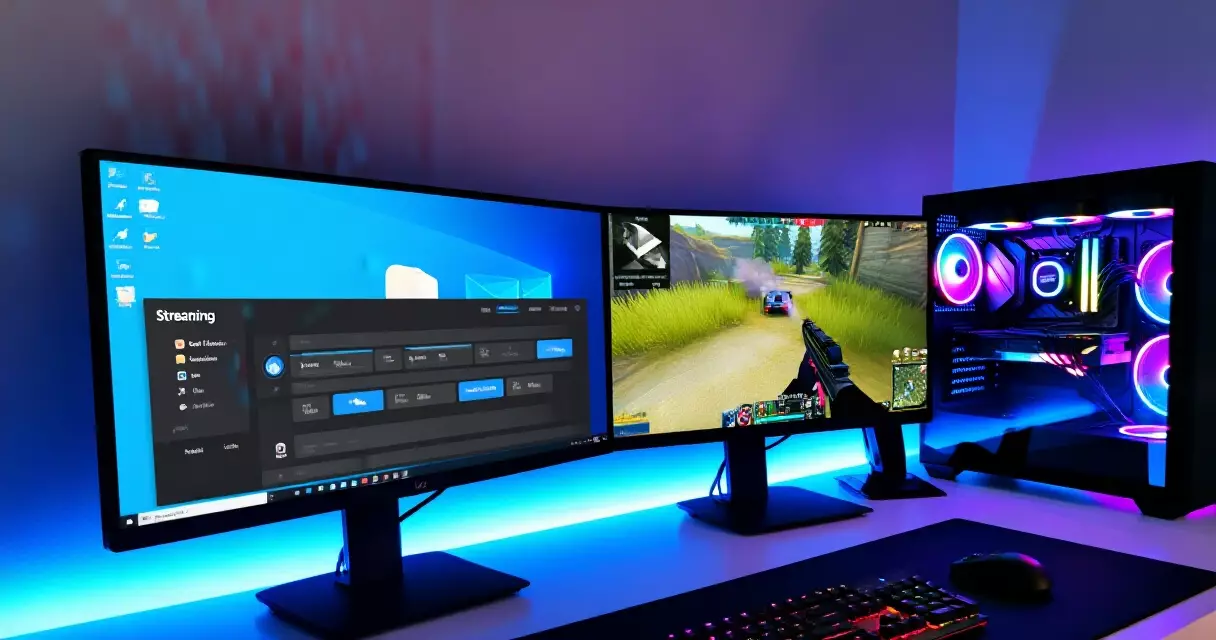
Streamlabs Desktop ships with a scene editor that behaves similarly to OBS Studio, letting you layer video sources, capture card feeds, browser overlays, and image assets into scenes you switch between mid-stream. What distinguishes it from a plain OBS install is the depth of creator-facing tooling baked directly into the interface rather than installed as separate plugins.
The Alert Box is the centerpiece feature for most streamers. It displays animated on-screen notifications for new followers, subscribers, donations, raids, hype trains, and channel point redemptions. Configuration happens inside Streamlabs’s cloud dashboard rather than requiring you to edit JSON files or manually wire up browser source URLs. The free tier ships with a solid alert library; Ultra subscribers unlock custom animated variants from the marketplace theme store.
Cloudbot handles chat moderation and loyalty point economies. It can auto-respond to viewer commands, filter spam by keyword or link, issue currency that viewers spend on giveaway entries or on-stream redemptions, and run polls or raffles. Basic configurations take under ten minutes. Advanced conditional rules, like keyword-triggered automated responses, require more patience with the settings panel but do not need any external tools or services.
The App Store inside Streamlabs Desktop connects to third-party services including Spotify for song request overlays, Discord for server activity notifications, and various game-specific stat trackers. Not every listed app is polished, but the range is useful for keeping your production interactive without leaving the main application window. The Highlighter tool runs in the background during your session and lets you flag notable moments with a single click; after you go offline, it assembles those clips into a shareable video automatically. For context on the hardware side of things, our guide to building a game streaming PC pairs well with this software overview.
Streamlabs Pricing: Free Plan vs. Ultra
The free plan covers the core workflow: streaming to one platform, the standard Alert Box, Cloudbot with base features, App Store integrations, scene editing, and a selection of free overlay themes. For a new streamer building an audience on Twitch or YouTube, the free tier is fully operational with no feature expiration or time-limited trial.
Ultra costs $19 per month on a monthly billing cycle, or $149 per year. At annual pricing, the monthly equivalent drops to roughly $12.42, a saving of around 35% over monthly billing. The annual plan is the better option for anyone committing to a consistent streaming schedule over the next twelve months.
| Feature | Streamlabs Free | Streamlabs Ultra ($19/mo) |
|---|---|---|
| Stream to one platform | Yes | Yes |
| Multistreaming (simultaneous) | No | Yes |
| Custom RTMP destinations | No | Yes |
| Alert Box and widgets | Basic library | Full library + custom animated |
| Overlay and scene themes | Free themes only | All Prime themes unlocked |
| Cloudbot | Standard features | Pro features unlocked |
| Merch store | No | Yes – 0% platform fee |
| Streamlabs Mobile | Basic access | Full feature access |
| Priority support | No | Yes |
Streamlabs vs. OBS Studio and Other Alternatives
OBS Studio is the most direct comparison point. Both applications share the same encoding engine at their core, since Streamlabs Desktop is built on OBS’s open-source codebase. Practical differences show up in ease of setup, resource consumption, and the scope of built-in features versus plugin-based flexibility.
OBS Studio has no paid tier, no integrated marketplace, and no built-in alert system. Its advantage is genuine flexibility: you install only what you need through community plugins, the application uses fewer CPU cycles under equivalent streaming conditions, and it runs on Windows, Mac, and Linux. The StreamElements OBS.Live plugin brings alert boxes and overlay management into OBS Studio without switching applications, which effectively closes the feature gap for most users willing to spend twenty minutes on configuration. Our equipment and settings guide covers the OBS encoder settings that make the most difference for streaming quality.
XSplit Broadcaster targets a similar audience but leans toward professional broadcast scenarios. Paid tiers start around $8.32 per month. The interface is polished and multistreaming is available on paid plans, but scene management can feel more rigid than either OBS Studio or Streamlabs for complex layered productions. XSplit runs on Windows only, which removes it from the conversation for Mac users entirely.
Nvidia ShadowPlay, part of GeForce Experience, deserves a mention for streamers on Nvidia GPUs who prioritize minimal CPU impact. ShadowPlay offloads encoding entirely to the GPU’s NVENC hardware encoder, delivering clean performance even on systems under heavy gaming load. It lacks the overlay, alert, and chatbot tooling of Streamlabs, making it a complementary recording and clip tool rather than a full streaming suite replacement.
| Software | Free Option | Paid Plan | Multistream | Built-in Alerts | CPU Overhead | OS Support |
|---|---|---|---|---|---|---|
| Streamlabs Desktop | Yes | $19/mo (Ultra) | Ultra only | Yes | Higher | Win / Mac |
| OBS Studio | Yes (only plan) | None | Via plugin | No (via plugin) | Lower | Win / Mac / Linux |
| XSplit Broadcaster | Limited | From $8.32/mo | Paid plans | Yes | Medium | Windows only |
| Nvidia ShadowPlay | Free | None | No | No | Very low (GPU) | Windows only |
Streamlabs wins on out-of-box convenience; OBS Studio wins on long-term flexibility and raw system efficiency.
Performance and System Requirements
The most consistent criticism directed at Streamlabs Desktop is elevated CPU and RAM usage compared to vanilla OBS Studio running an identical scene configuration. The extra overhead comes from the Chromium-based interface layer, marketplace integrations running as background processes, and the alert system polling donation and subscription APIs in real time. On modern hardware this rarely causes problems. On older or mid-range systems where the CPU is already under pressure from a demanding game, it can produce dropped frames or stream stuttering.
Streamlabs publishes minimum and recommended system requirements. The table below summarizes the key thresholds:
| Specification | Minimum | Recommended |
|---|---|---|
| Operating System | Windows 10 64-bit / macOS 10.14 | Windows 11 / macOS 12+ |
| CPU | Intel Core i5 / AMD Ryzen 5 | Intel Core i7 / AMD Ryzen 7 |
| RAM | 4 GB | 8 GB or more |
| GPU | NVIDIA GTX 700 series | NVIDIA GTX 1060 or better |
| Storage | 600 MB free | 2 GB+ free |
| Upload speed | 3 Mbps | 6 Mbps or higher |
If you are streaming and gaming on the same machine and your CPU sits above 80% utilization during sessions, switching to OBS Studio with NVENC hardware encoding (Nvidia) or AMF (AMD) is the fastest practical fix. The step-by-step beginner streaming guide covers encoder selection in plain terms that apply whether you use Streamlabs or OBS.
Streamlabs Pros and Cons
Where Streamlabs delivers: The all-in-one setup experience is genuinely fast for new streamers. Someone with no prior streaming experience can have animated alerts, a themed scene layout, and chat moderation running within an hour of installation. The free plan is legitimately competitive, the Cloudbot covers real moderation needs, and the Highlighter tool adds post-stream clip value without requiring additional software. Multistreaming on Ultra is reliable and does not require a separate relay service account.
Where Streamlabs falls short: Higher system resource usage than OBS Studio is a real concern on mid-range hardware. The application has a history of stability issues in the days following major version updates, with crashes or alert failures appearing temporarily after releases. The theme marketplace contains a large number of low-quality entries that require significant filtering before you find something usable. Some Ultra features, particularly the merch store fulfillment, have limited availability depending on your geographic region.
The 2021 trademark controversy also left a reputational mark in portions of the streaming community. Streamlabs recovered from it commercially, but some content creators publicly switched to OBS Studio during that period and have not returned. For most new streamers, this history carries no practical weight – the software itself is not affected by it.
For a beginner who wants to look professional on day one, Streamlabs Free removes every technical barrier between setup and going live.
Who Should Use Streamlabs?
New streamers starting on Twitch or YouTube are Streamlabs’s target audience and the group most likely to benefit from its approach. The guided onboarding sequence, pre-built themed templates, and integrated alert system remove the decision fatigue that slows down a first session when using a bare-bones tool.
Multi-platform creators who need to broadcast simultaneously to Twitch, YouTube, and Facebook Gaming will find the Ultra subscription a clean, centralized solution. Alternatives like Restream.io exist as standalone relay services, but keeping multistreaming native to your streaming application simplifies the technical stack and reduces the number of accounts to manage.
Experienced OBS Studio users are unlikely to switch. The performance difference on capable hardware is small, but OBS Studio offers more granular control over audio filters, scene transitions, and plugin-based feature additions. The open-source community has produced high-quality alert and overlay tools via StreamElements that match what Streamlabs provides, largely for free.
Mobile streamers should look at Streamlabs Mobile, a separate iOS and Android application that uses the phone’s camera and microphone to stream directly to supported platforms. It supports portrait and landscape orientations, on-screen alerts, and basic chat interaction. It is one of the more polished mobile streaming options and works as a practical entry point before investing in a desktop setup. For a complete picture of what the full desktop setup looks like from the hardware side, the game streaming equipment overview covers everything from capture cards to audio interfaces.
Frequently Asked Questions
Is Streamlabs free to use?
Yes. Streamlabs Desktop has a fully functional free tier that does not expire and carries no time-limited trial restrictions. It covers streaming to a single platform, the standard Alert Box, Cloudbot, App Store integrations, and the full scene editor. The features locked behind the Ultra paid plan ($19/month or $149/year) are: multistreaming to multiple platforms simultaneously, custom RTMP destinations, the full premium theme library, Cloudbot Pro advanced features, and the no-fee merchandise store. For the majority of solo streamers focusing on one platform, the free tier provides everything required to run a professional-looking live production without spending anything.
What is the difference between Streamlabs and OBS Studio?
Streamlabs Desktop is built on top of the OBS Studio open-source engine, meaning both applications use the same core encoding and streaming technology. The differences lie in the surrounding features and approach. Streamlabs adds a built-in alert system, a theme marketplace, an integrated chat bot, a clip highlighter, and a creator-friendly interface with guided setup. OBS Studio is entirely free with no paid tier, uses fewer system resources, and offers more flexibility through community plugins, but it requires more manual configuration to achieve the same level of on-stream interactivity. Neither is objectively superior; the right choice depends on your hardware, your technical comfort level, and whether you prefer built-in tooling or a configurable base.
Does Streamlabs use more CPU than OBS Studio?
Generally yes. Streamlabs Desktop runs a Chromium-based UI layer and background processes for its marketplace app integrations and alert polling, adding CPU and RAM overhead on top of the shared OBS encoding engine. In practical testing, the difference typically lands between 5% and 15% additional CPU usage under equivalent streaming conditions. On a modern eight-core processor like an AMD Ryzen 7 5800X or Intel Core i7-12700K, that gap is negligible. On a four-core or six-core CPU already under pressure from a demanding game, the extra load can cause dropped frames. If system resources are a concern for your specific hardware, OBS Studio with NVENC (Nvidia) or AMF (AMD) hardware encoding is the leaner path.
Is Streamlabs Ultra worth paying for?
Ultra makes financial sense in specific scenarios: you stream to multiple platforms at the same time, you want access to the full premium overlay and theme library, or you plan to sell merchandise through the platform at 0% platform fee. If you stream exclusively to one platform and are satisfied with free overlay themes, the free plan meets your needs without meaningful limitation. Paying $19 per month for features you never actively use is not a sound value proposition. The annual plan at $149 reduces the effective monthly cost to roughly $12.42, which becomes more defensible if multistreaming is a regular, scheduled part of your content operation rather than an occasional experiment.
Can Streamlabs stream to Twitch, YouTube, and Facebook at the same time?
Yes, but only on the Ultra paid plan. Multistreaming – sending your broadcast simultaneously to multiple destinations – is one of the defining differences between Ultra and the free tier. Streamlabs routes your stream through its servers to each platform in parallel. An alternative approach is to pair free OBS Studio with a standalone relay service like Restream.io, which achieves the same result without requiring a Streamlabs subscription, though it adds another account and billing relationship to manage. Each major platform’s terms of service permits simultaneous streaming from third-party tools, so there are no platform-side restrictions to navigate beyond each platform’s individual stream key setup.
Does Streamlabs work on Mac?
Yes. Streamlabs Desktop supports macOS 10.14 (Mojave) and later. The Mac version is functionally equivalent to the Windows version, covering alerts, Cloudbot, scene editing, and App Store integrations. The primary caveat is that Game Capture mode, which hooks directly into a DirectX game process on Windows, is not available on macOS. Mac users rely on Display Capture or Window Capture instead. On Apple Silicon Macs (M1, M2, M3, and later), Streamlabs has released native ARM builds that take full advantage of the M-series CPU architecture rather than running through Rosetta 2 emulation, resulting in better performance and lower power consumption.
Can I import my OBS Studio scenes into Streamlabs?
Streamlabs Desktop includes a built-in import tool that can bring in OBS Studio scene collections, sources, and basic filter configurations. The import works reliably for straightforward setups: game capture sources, webcam layers, image overlays, and standard audio sources transfer cleanly. Complex configurations that rely heavily on community plugins that Streamlabs does not natively support, or that use advanced audio filter chains, typically require manual adjustment after the import. The safest approach is to run a full test stream using a private stream key after importing, verifying each scene and source before going live publicly. Keeping your original OBS profile intact as a fallback costs nothing and provides a quick recovery path if anything fails to import correctly.
Is Streamlabs good for beginners?
Streamlabs is one of the most beginner-friendly starting points available. The onboarding wizard walks through platform connection, scene creation, alert configuration, and audio input setup in a guided sequence that takes most first-time users under thirty minutes to complete. Pre-built overlay themes let you launch with a visually polished broadcast without designing anything yourself. The Alert Box, Cloudbot, and App Store all operate from the same interface without requiring browser source URLs, external accounts, or configuration files. For a structured walkthrough of the full setup process from hardware selection to going live for the first time, the beginner’s game streaming guide covers the complete path in practical terms.
Related Reading
- Game Streaming Setup: Equipment, Software & Settings
- Game Streaming Setup: A Step-by-Step Beginner's Guide
- How to Build a Game Streaming PC: Hardware, Budget, and Specs
- Blue Yeti Review: Still the Go-To Streaming Mic in 2026?
- Elgato 4K60 Pro MK.2 Review: Best Capture Card for Console Streamers?
- Elgato Stream Deck Review: Does Every Streamer Need One?
- Logitech C922 Pro Review: Best Budget Webcam for Game Streamers?
- NVIDIA NVENC Encoder Review: GPU-Based Game Streaming in 2026
Sources
- Wikipedia – Streamlabs: https://en.wikipedia.org/wiki/Streamlabs
- Wikipedia – OBS Studio: https://en.wikipedia.org/wiki/OBS_Studio
- The Verge – Logitech acquires Streamlabs (2019): https://www.theverge.com
- OBS Project – Official documentation and download: https://obsproject.com
- Streamlabs – Ultra plan pricing and features: https://streamlabs.com/streamlabs-ultra
- Streamlabs Help Center – System requirements: https://help.streamlabs.com
Gaming Laptop Buyer’s Guide: Performance, Portability & Best Models