Summary
More than 7 million people broadcast live on Twitch in 2023, and live game streaming across all platforms now pulls hundreds of millions of watched hours every single month. Despite that scale, most newcomers hit exactly the same wall: they...
Table of contents
- 1 How Game Streaming Grew From Niche Hobby to Mainstream Career
- 2 What You Actually Need: The Core Streaming Stack
- 3 Audio: The One Thing Viewers Notice Most
- 4 Video: Webcams, Cameras, and Console Capture Cards
- 5 Streaming Software: OBS, Streamlabs, and the Rest
- 6 Bitrate, Resolution, and Encoder Settings Explained
- 7 Internet Requirements: Upload Speed, Latency, and Stability
- 8 Platform Comparison: Twitch, YouTube Live, and Kick
- 9 Budget Tiers: From $100 Starter to $1,000+ Pro Rig
- 10 Growth Habits That Matter More Than Gear
- 11 Frequently Asked Questions
- 11.1 What is the minimum PC specification to stream at 1080p 60fps?
- 11.2 Do I need a capture card to stream console games?
- 11.3 How much upload speed do I need to stream?
- 11.4 Is OBS Studio free, and is it good enough for professional streaming?
- 11.5 What games work best for new streamers starting from scratch?
- 11.6 Do I need a green screen for streaming?
- 11.7 Can I stream using a laptop instead of a desktop PC?
- 11.8 How long does it realistically take to grow a streaming audience?
- 12 Sources
- 13 Related Reading
More than 7 million people broadcast live on Twitch in 2023, and live game streaming across all platforms now pulls hundreds of millions of watched hours every single month. Despite that scale, most newcomers hit exactly the same wall: they don’t know which gear to buy first, which settings to dial in, or how to keep a stream running without it freezing mid-match.
How Game Streaming Grew From Niche Hobby to Mainstream Career
Live game streaming has a shorter history than it might seem. Justin.tv launched as a general-purpose live video platform in 2007, and its gaming section grew fast enough that the company spun it off as Twitch in 2011. Amazon acquired Twitch in 2014 for $970 million – a figure that signaled streaming had crossed from hobbyist pastime into a commercial industry. YouTube added dedicated live gaming features that same year. According to Wikipedia’s article on video game live streaming, the category has since expanded into one of the largest sectors of digital entertainment worldwide.
Microsoft launched Mixer in 2016 and signed several top streamers to exclusivity deals, before shutting the platform in 2020 and redirecting its audience to Facebook Gaming. Kick entered in 2023, attracting several high-profile names with a 95/5 revenue split in favor of creators and more permissive content policies. By 2025 it had carved out a real audience, particularly among viewers who prefer less-moderated content. The landscape today gives streamers genuine platform choice, each with different community cultures and monetization structures.
What You Actually Need: The Core Streaming Stack
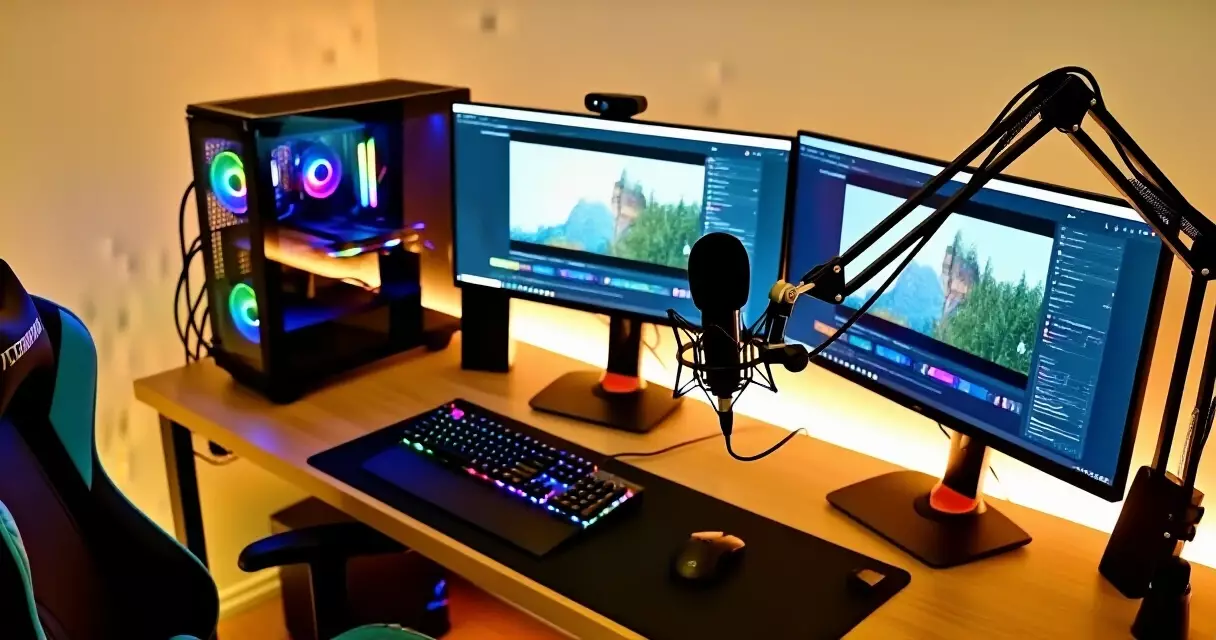
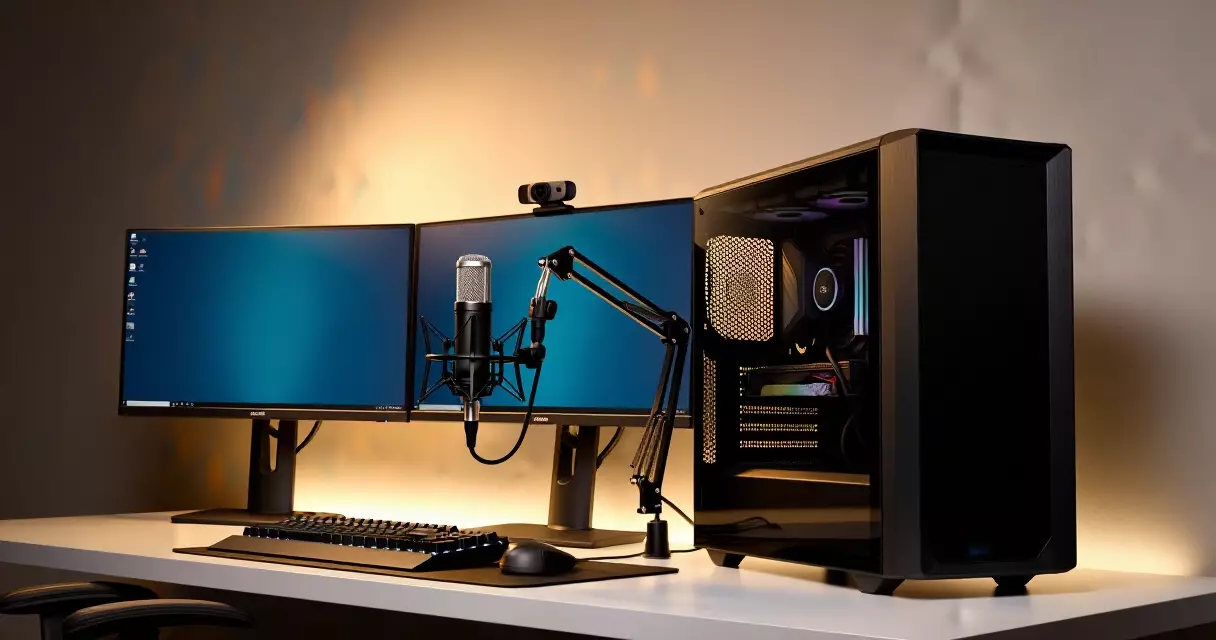
Before buying anything, map out the three layers every streaming setup requires: hardware (PC or console), peripherals (mic, camera, lighting), and software (streaming application, scene management). Skipping any one layer creates a hard ceiling on quality that no other upgrade can compensate for.
For PC streaming, the CPU matters more than most people realize. Encoding video in real time is processor-intensive unless you use a dedicated GPU encoder. NVIDIA’s NVENC encoder, built into RTX 30-series and 40-series cards, offloads encoding entirely from the CPU – letting you stream at high quality with almost zero frame-rate impact on your game. AMD’s equivalent is the AMF encoder, available on RX 6000- and RX 7000-series GPUs. Intel Quick Sync serves the same function on 12th-gen and newer Core processors. All three options are supported natively in OBS Studio.
Console streamers on PlayStation 5 or Xbox Series X can broadcast directly through each console’s built-in tools, though overlay options and bitrate control are limited. A capture card unlocks the ability to route console footage through a PC running OBS, giving you full control over scenes, alerts, and video quality. The Elgato HD60 X handles 4K30 or 1080p60 passthrough and is the most common mid-range choice. AVerMedia’s Live Gamer 4K offers similar specifications at a comparable price and is popular as an alternative.
Audio: The One Thing Viewers Notice Most
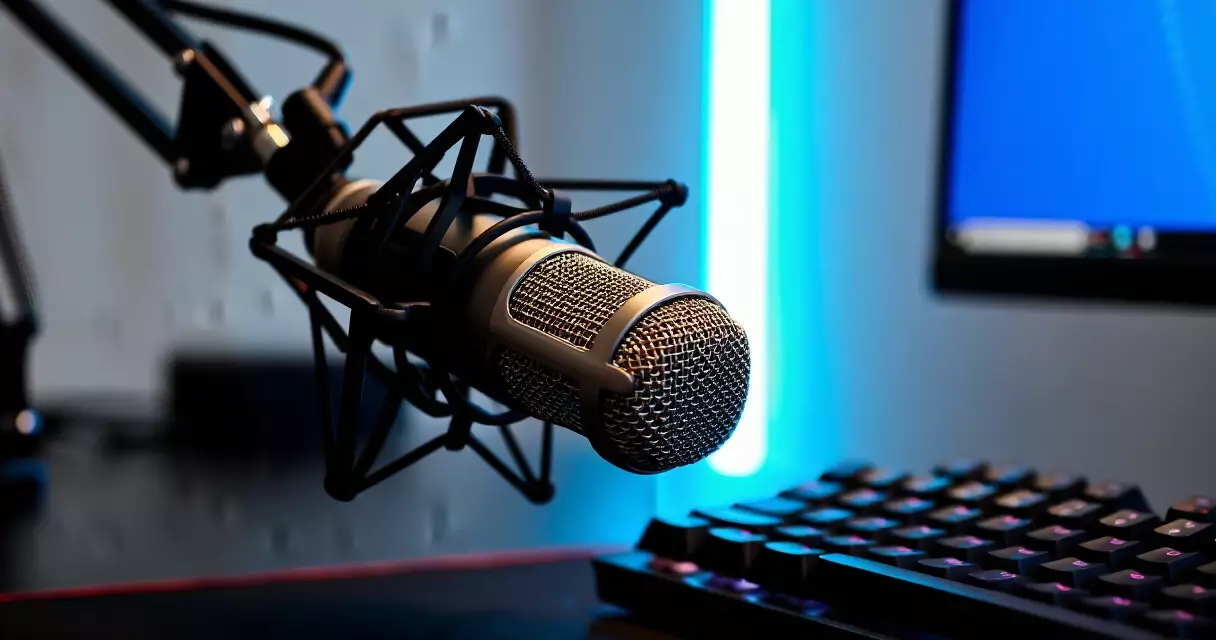
Bad audio kills streams faster than a low framerate. Viewers tolerate a blurry webcam – they will not tolerate echo, constant background noise, or a tinny headset mic. Getting audio right is the single highest-use upgrade available, especially in the early months of building an audience.
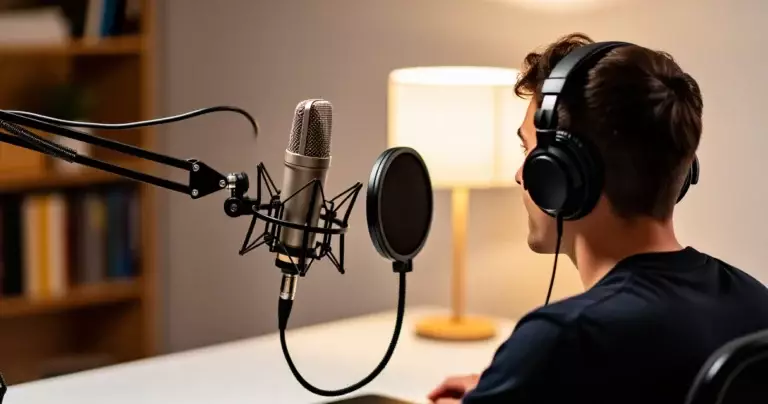
The Blue Yeti USB condenser microphone has been the beginner standard for over a decade. At around $100, it plugs directly into USB, needs no audio interface, and delivers broadcast-quality voice for streaming and commentary. Its cardioid polar pattern picks up your voice while rejecting sound from the sides and rear. The main limitation is sensitivity – it picks up keyboard noise and room reflections unless you mount it on a boom arm and add a pop filter.
The Shure SM7B is the professional benchmark. Used in radio stations and major podcast studios, it is a dynamic microphone that rejects background noise aggressively. It requires a USB audio interface – the Focusrite Scarlett Solo is the most common pairing – and costs around $400 combined. The SM7B was the recording microphone behind Michael Jackson’s Thriller, and today it sits on desks of some of the most-watched streamers on Twitch and YouTube. If you are serious about long-term streaming, the investment pays off in retention.
Mid-budget options: the Audio-Technica AT2020 USB+ hits a strong price-to-quality ratio near $120. The Rode PodMic USB at around $100 is a dynamic option that handles ambient noise better than most condensers without requiring an external interface, making it particularly good for setups in non-treated rooms.
Viewers will forgive a blurry webcam every time – but echo-filled audio makes people click away within the first thirty seconds.
Video: Webcams, Cameras, and Console Capture Cards
Face cam is optional but strongly recommended for building an audience. Viewers connect with faces. A visible presenter signals real engagement, and the vast majority of long-running successful channels on Twitch and YouTube use webcam or camera video as a standard part of their overlay.
The Logitech C922 Pro remains the most popular USB webcam for streaming in 2026. It shoots 1080p at 30fps or 720p at 60fps, handles low light reasonably well, and retails around $90. The Logitech Brio 4K is a step up, offering true 4K and better low-light handling – though most streaming platforms cap ingest at 1080p, so the 4K benefit only materializes if you also record locally for edited YouTube uploads.
For higher production values, many streamers use mirrorless cameras as webcams. The Sony ZV-E10 and Canon EOS M50 Mark II are popular choices because they accept interchangeable lenses, have large sensors for genuine background blur, and connect to a PC through Elgato’s CamLink 4K adapter. A 25mm or 35mm f/1.8 prime lens creates that shallow depth-of-field look for around $200 on top of the camera body cost. Trouble with your display output affecting capture quality is worth diagnosing early – our gaming monitor troubleshooting guide covers signal, flicker, and color accuracy issues that can flow through to your capture card.
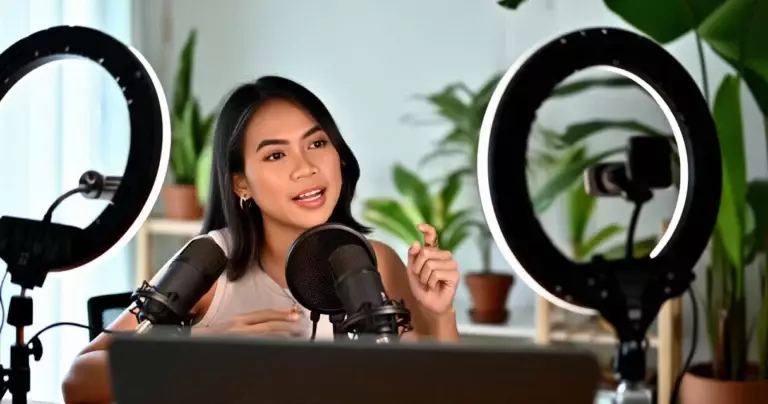
Lighting matters as much as the camera itself. An Elgato Key Light ($130) or any comparable studio LED panel positioned at eye level and slightly to one side will make any webcam look significantly better. Overhead room lighting casts unflattering shadows; a dedicated key light removes them entirely.
Streaming Software: OBS, Streamlabs, and the Rest
OBS Studio is the open-source standard. Free, maintained by a nonprofit foundation, and available on Windows, macOS, and Linux, it powers the majority of live streams on the internet. OBS handles scene management, audio mixing, stream encoding, and local recording simultaneously. Its plugin ecosystem adds features including virtual camera output, RNNoise-based noise suppression, browser sources for chat overlays and alerts, and automatic scene switching triggered by active window focus.
Streamlabs is a consumer-oriented fork of OBS aimed at beginners. It includes built-in alert overlays, a tip jar, chat widgets, and theme packs out of the box. The trade-off is heavier system resource usage and a “Prime” subscription at $19 per month for premium themes and features. Many streamers start on Streamlabs and migrate to vanilla OBS once they understand exactly which features they use and which they don’t need.
XSplit Broadcaster is a paid alternative with a polished interface and dedicated customer support, popular with professional broadcasters who want a stable commercial product without OBS’s configuration curve. Nvidia Broadcast – free for RTX card owners – adds AI-powered noise removal, virtual background segmentation, and eye contact correction, all of which can replace physical acoustic treatment and green screens at no additional hardware cost.
Bitrate, Resolution, and Encoder Settings Explained
Bitrate is the single most important number in your stream settings. It determines how much data you push per second and directly controls video quality – but it is capped by your upload speed and by each platform’s maximum ingest limit. Setting bitrate too high causes dropped frames and stream disconnects; too low produces blocky, pixelated video during fast action sequences.
Twitch caps non-partnered channels at 6,000 kbps. YouTube Live accepts up to 51,000 kbps, though 8,000–12,000 kbps is the practical target for 1080p60 with meaningful quality improvement over Twitch. Kick allows up to 8,000 kbps. The table below shows current recommended settings for each major platform and resolution combination.
| Platform | Resolution | Framerate | Recommended Bitrate | Platform Max |
|---|---|---|---|---|
| Twitch | 1080p | 60fps | 6,000 kbps | 6,000 kbps |
| Twitch | 720p | 60fps | 4,500 kbps | 6,000 kbps |
| YouTube Live | 1080p | 60fps | 8,000–12,000 kbps | 51,000 kbps |
| YouTube Live | 720p | 60fps | 5,000 kbps | 51,000 kbps |
| Kick | 1080p | 60fps | 6,000–8,000 kbps | 8,000 kbps |
| Facebook Gaming | 1080p | 60fps | 6,000 kbps | 8,000 kbps |
For encoder selection, use NVENC (NVIDIA), AMF (AMD), or Quick Sync (Intel) if your GPU or CPU supports it. Hardware encoders deliver equivalent or better quality compared to software x264 encoding at a fraction of the CPU cost. On older hardware without a dedicated GPU encoder, x264 at the “veryfast” preset handles 1080p30 reliably on an i7-8700 or Ryzen 5 3600 class CPU – expect 20–40% CPU overhead depending on game load and resolution.
Internet Requirements: Upload Speed, Latency, and Stability
Streaming is upload-bound. Your download speed – the large number your ISP advertises – is nearly irrelevant for going live. What matters is upload: sustained, stable megabits per second leaving your network and reaching the streaming platform’s ingest server without interruption.
The FCC’s broadband consumer guide recommends at least 3 Mbps upload for standard video streaming and 10+ Mbps for HD streaming activities. For simultaneous gaming and streaming at 1080p60, plan for a minimum of 10 Mbps of dedicated upload above all other household internet usage. A 50 Mbps or 100 Mbps upload plan removes all headroom concerns in households with multiple devices, smart TVs, and video calls running in parallel.
Packet loss matters more than raw speed. A 100 Mbps connection with 2% packet loss produces a worse stream than a 20 Mbps connection with 0% loss. Use wired Ethernet over Wi-Fi whenever possible – a gigabit Ethernet cable eliminates the interference and channel contention that cause dropped frames and stuttering. If Wi-Fi is unavoidable, use the 5 GHz band and stay physically close to the router to minimize signal degradation.
Platform Comparison: Twitch, YouTube Live, and Kick
Choosing a platform is more than a technical decision. Each has a different audience size, content discovery algorithm, monetization threshold, and community culture. The table below compares the three primary streaming platforms as of mid-2026.
| Feature | Twitch | YouTube Live | Kick |
|---|---|---|---|
| Audience size | Largest (dominant) | Very large | Growing, smaller |
| New streamer discovery | Poor (saturated) | Strong (SEO-driven) | Better (less competition) |
| VOD retention | 14 days (free tier) | Indefinite | Indefinite |
| Subscription revenue split | 50/50 (most accounts) | 70/30 | 95/5 |
| Max ingest bitrate | 6,000 kbps | 51,000 kbps | 8,000 kbps |
| Multi-streaming allowed | No (Partners restricted) | Yes | Yes |
YouTube Live has a structural advantage for new streamers: past stream recordings are indexed by Google and searchable forever, meaning a stream from six months ago can still bring in new viewers via organic search. Twitch VODs expire in 14 days for non-Partners. Starting from zero followers, YouTube’s search discoverability is a compounding edge that Twitch’s real-time browsing model cannot replicate.
For new streamers starting from zero, YouTube’s indefinite VOD archive turns every past stream into a search-discoverable asset – an advantage that Twitch’s 14-day expiry simply cannot match.
Budget Tiers: From $100 Starter to $1,000+ Pro Rig
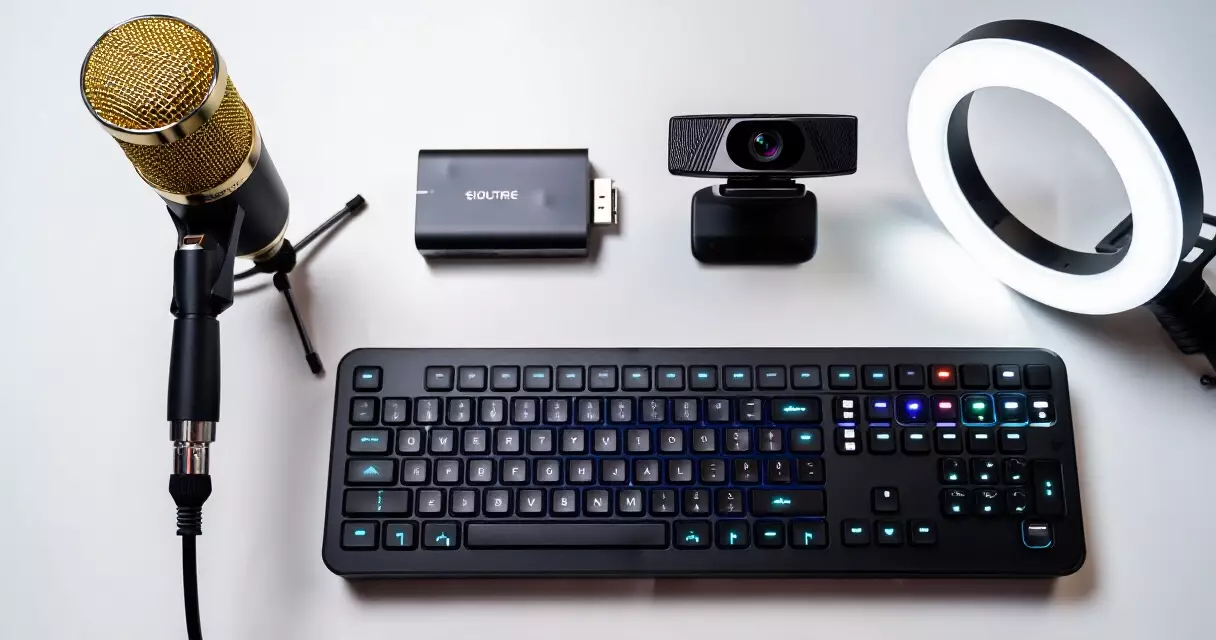
You don’t need to spend a thousand dollars to stream. Most viewers care about your personality and the games you play long before they care about webcam resolution. That said, there are real quality thresholds where specific upgrades produce a meaningful and audible or visible improvement in viewer experience.
Starter setup (under $200, assuming an existing gaming PC): Download OBS Studio for free, pick up a Blue Snowball iCE microphone ($45), and use your smartphone as a webcam via DroidCam (Android) or the iPhone’s Continuity Camera feature (iOS 16 and later). This gets you on air with genuinely decent audio for almost no additional cost beyond your existing rig.
Mid-tier setup ($300–$600): Step up to a Blue Yeti or Rode PodMic USB ($100), a Logitech C922 webcam ($90), an Elgato Key Light ($130), and an Elgato Stream Deck Mini ($80). At this level, audio and lighting are broadcast-quality and the Stream Deck cuts scene-switching time to a single button press. Streamers who focus on indie titles – like those highlighted in our guide to the best indie games – will find this tier produces a polished enough presentation to match any content quality.
Pro setup ($700–$1,200+): Shure SM7B with Focusrite Scarlett Solo ($400 combined), Sony ZV-E10 mirrorless with Elgato CamLink 4K ($500 combined), a pair of Elgato Key Light Air panels ($260), and a full-size Elgato Stream Deck XL ($200). Adding basic acoustic foam panels ($40–$80) to your room walls brings the total audio environment to a professional standard. Console players should add the AVerMedia Live Gamer 4K ($150–$180) to feed PS5 or Xbox Series X footage through the PC at full fidelity.
Growth Habits That Matter More Than Gear
Technical setup gets you on air. These habits are what actually bring viewers back.
Stream on a consistent schedule. Twitch and YouTube’s recommendation algorithms both favor channels that go live predictably and regularly. Pick two or three fixed days per week and hold them without exception for 90 days before evaluating growth metrics. Consistency compounds in ways that no single equipment purchase can replicate.
Clip and repurpose highlights. The engine behind most channel growth in 2025 and 2026 has been short-form video. A 60-second highlight clip posted to YouTube Shorts, TikTok, or Instagram Reels reaches thousands of potential new viewers who would never encounter your live channel otherwise. Tools like Medal.tv and Streamlabs Clip identify highlight moments automatically during your session.
Choose games strategically. Streaming the most-watched titles – Fortnite, League of Legends, Valorant – drops you into categories with thousands of simultaneous channels. Discovery for a newcomer is statistically near-impossible there. Mid-tier games with passionate communities offer far better viewer-to-streamer ratios. Titles with genuine narrative depth and emotional range, like those covered in our Hades review, generate the kind of on-stream reactions and discussions that make first-time visitors decide to follow.
Commentate continuously. The most common beginner error is playing in silence when chat is empty and only speaking when someone types. Treat your stream like live radio – think aloud, react to the game, explain decisions as you make them. Viewers who arrive to a quiet stream leave immediately. Constant commentary is what makes a channel feel alive to someone who just clicked over for the first time.
Frequently Asked Questions
What is the minimum PC specification to stream at 1080p 60fps?
For 1080p 60fps streaming without meaningfully impacting in-game performance, the minimum workable spec is an NVIDIA RTX 2060 or AMD RX 6600 for hardware encoding (NVENC or AMF), a 6-core CPU such as the Intel Core i5-12400 or AMD Ryzen 5 5600, and 16 GB of RAM. With hardware encoding enabled in OBS, the GPU handles stream output independently of game rendering, so you lose almost no in-game frames. On older systems without GPU encoder support, x264 encoding at the “veryfast” preset handles 1080p30 on an i7-8700 or Ryzen 5 3600 class chip, though expect 20–40% sustained CPU overhead during your stream. A fast SSD does not directly improve stream quality but helps with local recording write speeds and game load times between scenes.
Do I need a capture card to stream console games?
Not strictly. Both PlayStation 5 and Xbox Series X include built-in broadcast tools that push your stream directly to Twitch or YouTube without any extra hardware. The limitation is control: you cannot add custom overlays, manage multiple scenes, configure custom alerts, or fine-tune bitrate and encoder settings the way OBS does. A capture card – routing console HDMI output through a PC running OBS – unlocks all of that functionality. The Elgato HD60 X ($150) and AVerMedia Live Gamer Portable 2 Plus ($120) are the most common entry-level options. For the full streaming toolkit, including chat overlays, animated alerts, and scene transitions, a capture card plus a PC running OBS is the path to build toward once you outgrow the console’s native tools.
How much upload speed do I need to stream?
The practical minimum for 720p 30fps is 4–5 Mbps of dedicated upload, with 6 Mbps providing comfortable headroom at Twitch’s recommended bitrate for that resolution. For 1080p 60fps at Twitch’s maximum 6,000 kbps, plan for at least 8 Mbps above all other household usage simultaneously. YouTube Live’s much higher bitrate ceiling benefits from 20–25 Mbps upload if you want to stream at 12,000 kbps for noticeably sharper motion clarity. The FCC’s broadband speed guide provides household usage benchmarks that help contextualize these figures relative to other activities – video calls, 4K streaming, downloads – competing for your upload bandwidth.
Is OBS Studio free, and is it good enough for professional streaming?
Yes, OBS Studio is completely free and open-source under the GPLv2 license. It is used by the majority of professional streamers on both Twitch and YouTube, including full-time creators with audiences in the hundreds of thousands. It supports multiple scenes, multi-track audio mixing, real-time video filters, browser-source overlays for alerts and chat, virtual camera output for video conferencing, and simultaneous local recording at high bitrates. The learning curve is steeper than Streamlabs for first-time users, but OBS is substantially lighter on system resources, far more customizable, and not gated behind a subscription. For anything past the absolute beginner level, OBS is what experienced streamers use.
What games work best for new streamers starting from scratch?
The common mistake is streaming the most-watched titles – Fortnite, Call of Duty, League of Legends – where thousands of channels are simultaneously live and discovery for a newcomer is nearly impossible. A better approach is choosing mid-tier games with active but less saturated categories and viewers who regularly browse those sections. Indie titles with strong community followings offer far better viewer-to-streamer ratios on streaming platforms. Games with emotional depth, tight mechanical design, and conversation-generating moments – like those covered in our Celeste review – produce the kind of reactions and discussions that make first-time visitors decide to follow and return.
Do I need a green screen for streaming?
No. A physical green screen removes your background cleanly, but it is not a requirement for a quality stream. Many successful full-time streamers use a simple desk cam with no background removal at all. If you want a clean background without physical hardware, NVIDIA Broadcast is free for RTX card owners and uses AI segmentation to remove or replace backgrounds in real time. Collapsible physical green screens from Elgato and Webaround cost $70–$150 and fold away when not in use. The bigger production improvement per dollar comes from good lighting, not background removal – if forced to choose between a key light and a green screen at the same budget, pick the key light every time.
Can I stream using a laptop instead of a desktop PC?
Yes, with practical caveats. Gaming laptops with discrete NVIDIA or AMD GPUs support the same hardware encoding pipelines as desktop cards, so the OBS configuration process is identical. The real challenge is thermal management: sustained gaming combined with live encoding puts both GPU and CPU under continuous high load, and many laptops throttle clock speeds after 30–60 minutes to control heat. Use a quality cooling pad, set the Windows power plan to High Performance, and monitor CPU and GPU temperatures during your first few test streams before going live to an audience. A laptop with an RTX 3060 or higher and a well-ventilated chassis can handle 1080p streaming reliably for most current game titles.
How long does it realistically take to grow a streaming audience?
Growth timelines vary widely depending on niche selection, streaming consistency, content quality, and whether you promote clips off-platform. Streamers who clip highlights for short-form platforms (YouTube Shorts, TikTok) and maintain a fixed schedule typically see meaningful audience development within 6–12 months of consistent effort. Twitch Affiliate status – which requires 50 followers, 500 total broadcast minutes over 30 days, 7 unique broadcast days, and an average of 3 concurrent viewers – is achievable for committed streamers in 2–4 months. Twitch Partnership, requiring a sustained average of 75 concurrent viewers, typically takes 1–3 years for creators growing organically without a pre-existing social media audience to use.
Sources
- Twitch (service) – Wikipedia
- Video game live streaming – Wikipedia
- Open Broadcaster Software – Wikipedia
- Broadband Speed Guide – U.S. Federal Communications Commission (FCC)
Gaming Laptop Buyer’s Guide: Performance, Portability & Best Models
Related Reading
- Game Streaming Setup: A Step-by-Step Beginner's Guide
- How to Build a Game Streaming PC: Hardware, Budget, and Specs
- Blue Yeti Review: Still the Go-To Streaming Mic in 2026?
- Elgato 4K60 Pro MK.2 Review: Best Capture Card for Console Streamers?
- Elgato Stream Deck Review: Does Every Streamer Need One?
- Logitech C922 Pro Review: Best Budget Webcam for Game Streamers?
- NVIDIA NVENC Encoder Review: GPU-Based Game Streaming in 2026
- Streamlabs Review: Features, Performance, and Is Ultra Worth It?