
Summary
When NVIDIA introduced dedicated hardware encoding silicon on the Kepler architecture back in 2012, most streamers dismissed it as a curiosity. Fast-forward to 2026, and NVENC is built into every GeForce RTX 40-series GPU, supports AV1 at up to 8K...
Table of contents
- 1 What Is NVENC? A Brief History
- 2 How NVENC Works: The Technical Fundamentals
- 3 NVENC Quality by GPU Generation: How Much Does It Matter?
- 4 NVENC vs x264 vs AMD VCE vs Apple VideoToolbox: Full Comparison
- 5 AV1 Encoding: NVENC’s Biggest Leap Forward
- 6 OBS Studio Settings for NVENC: The Optimal Configuration
- 7 Real-World Performance: Frame Rate Impact and Latency
- 8 NVENC for Console Streaming via Capture Cards
- 9 NVENC and Streaming Software: Compatibility Overview
- 10 NVENC for Game Recording (Not Just Streaming)
- 11 Pros and Cons of NVENC for Game Streaming
- 12 Pricing Context: What GPU Do You Need?
- 13 Troubleshooting NVENC: The Most Common Errors and How to Fix Them
- 14 Advanced NVENC Tuning: Look-Ahead, Psycho-Visual AQ, and B-Frames Explained
- 15 Frequently Asked Questions
- 15.1 Is NVENC better than x264 for streaming?
- 15.2 Does NVENC affect gaming frame rate?
- 15.3 What is the best NVENC preset for Twitch streaming?
- 15.4 Can I use NVENC and x264 at the same time?
- 15.5 Does NVENC work with Streamlabs as well as OBS?
- 15.6 Which NVIDIA GPUs support AV1 NVENC encoding?
- 15.7 Is NVENC good enough for professional or monetized streaming?
- 15.8 What is Twitch Enhanced Broadcasting and how does NVENC enable it?
- 16 Sources
When NVIDIA introduced dedicated hardware encoding silicon on the Kepler architecture back in 2012, most streamers dismissed it as a curiosity. Fast-forward to 2026, and NVENC is built into every GeForce RTX 40-series GPU, supports AV1 at up to 8K resolution, and is the default encoder for the majority of OBS Studio users worldwide – a shift that happened because hardware encoding finally crossed the quality threshold where it no longer meant sacrificing visual fidelity for CPU headroom.
What Is NVENC? A Brief History
NVENC stands for NVIDIA Video Encoder, a fixed-function hardware block embedded directly into NVIDIA GPUs. It is separate from the shader cores and Tensor cores – it runs independently, meaning encoding a stream does not draw on the same compute resources your game uses for rendering. NVIDIA first shipped NVENC in 2012 with the Kepler (600-series) generation, but early iterations produced noticeably blockier output than software encoders at equivalent bitrates.
The real turning point came with the Turing architecture (RTX 20-series, 2018), which introduced a seventh-generation encoder capable of matching x264 Medium at the same bitrate – a milestone that made NVENC viable for professional-quality streams. Pascal (10-series) GPUs had already improved quality significantly over Kepler and Maxwell, but Turing was the first generation most experienced streamers began recommending without caveats.
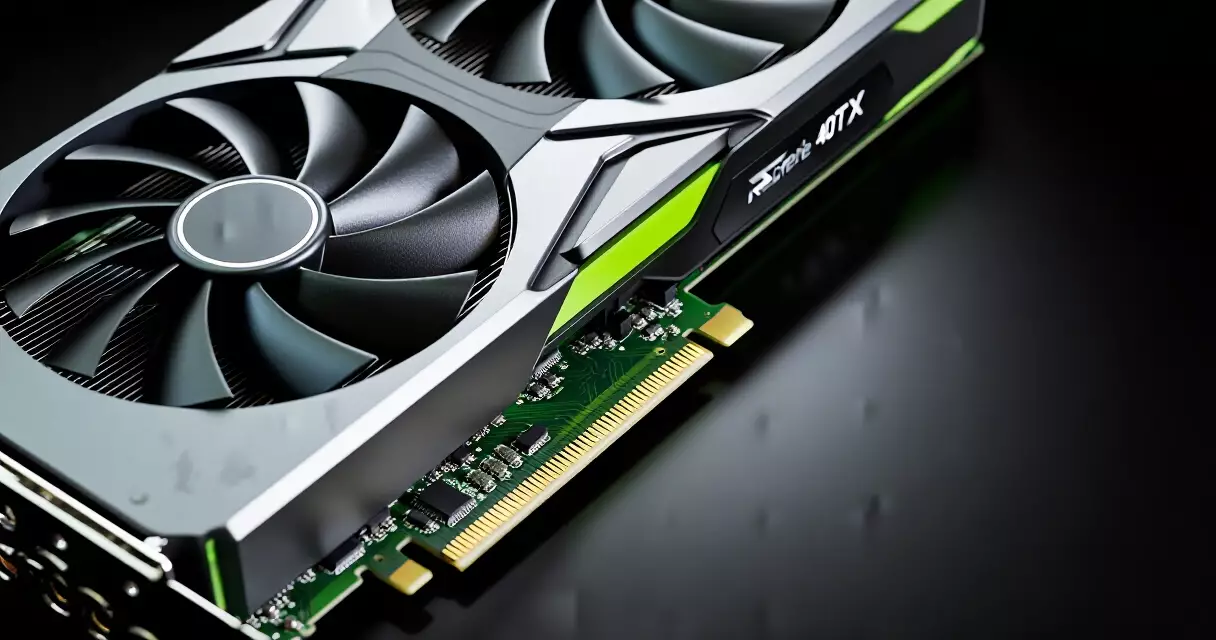
Ampere (RTX 30-series, 2020) added a dual NVENC engine on certain cards (the RTX 3090 and 3080 12GB carried two encoder units), which enabled parallel encoding sessions – useful for simultaneous streaming at multiple qualities or for content creators who record and stream at the same time. Ada Lovelace (RTX 40-series, 2022–2023) pushed further still, adding AV1 hardware encoding for the first time on a consumer GPU and refining the H.264 and HEVC pipelines once more.
How NVENC Works: The Technical Fundamentals
NVENC operates as a dedicated ASIC (application-specific integrated circuit) on the GPU die. When you set OBS Studio, Streamlabs, or XSplit to use NVENC, the encoder intercepts raw frame data directly from the GPU frame buffer before it is sent to your display. This zero-copy path from game render to encoder is one reason NVENC imposes almost no latency penalty on your gameplay loop – there is no round-trip through system RAM to a CPU encoder and back.
The encoder supports three codec families in 2026: H.264 (AVC), H.265 (HEVC), and AV1. H.264 remains the most universally compatible choice for streaming – every platform, every viewer device, every browser supports it. HEVC offers roughly 40–50% better compression than H.264 at equivalent quality, but is not accepted by Twitch for ingest and requires the viewer’s device to support HEVC decode. AV1, encoded via NVENC on RTX 40-series, combines near-HEVC efficiency with broad platform support and is now the preferred modern codec for YouTube and Twitch Enhanced Broadcasting.
Inside the encoder block, NVENC uses a hardware implementation of rate-distortion optimization, motion estimation, and entropy coding. The quality presets in OBS (P1 through P7, where P7 is slowest/highest quality) control how aggressively the hardware searches for optimal motion vectors. P7 on an RTX 40-series card is slow enough to sometimes introduce a one-frame encoding delay at 1080p60, so most streamers land on P5 or P6 as the sweet spot for quality without timing issues.
NVENC Quality by GPU Generation: How Much Does It Matter?
Not all NVENC is created equal. The encoder has been revised substantially across GPU generations, and the difference between a GTX 1060 and an RTX 4070 running NVENC at the same bitrate and preset is significant enough to affect viewer retention. The table below maps each NVENC generation to its real-world streaming capabilities.
| GPU Architecture | NVENC Generation | H.264 Quality | AV1 Support | Dual Encoder |
|---|---|---|---|---|
| Kepler / Maxwell (600–900 series) | 3rd–5th gen | Poor (blocky at 6 Mbps) | No | No |
| Pascal (10-series, 2016) | 6th gen | Good (competes with x264 Fast) | No | No |
| Turing (RTX 20-series, 2018) | 7th gen | Very Good (matches x264 Medium) | No | No |
| Ampere (RTX 30-series, 2020) | 8th gen | Excellent | No | Yes (3080/3090 only) |
| Ada Lovelace (RTX 40-series, 2022+) | 9th gen | Excellent+ | Yes (up to 8K) | Yes (most cards) |
The Pascal-to-Turing jump was the most important in NVENC history for streamers. Pre-Turing cards struggle with fast motion in games – think first-person shooters like Valorant or battle royale titles like Fortnite – producing macroblocking that viewers notice even at 6,000 Kbps. If you are still on a GTX 1070 or earlier, this is the strongest argument for upgrading: not game performance, but streaming quality.
NVENC vs x264 vs AMD VCE vs Apple VideoToolbox: Full Comparison
The three encoder families relevant to game streamers in 2026 are NVIDIA NVENC, AMD’s Advanced Media Framework (AMF/VCE), Intel Quick Sync, and software-based x264 (and x265). Apple Silicon users have VideoToolbox, which is hardware-accelerated through the M-series SoC. Each has trade-offs.
| Encoder | CPU Impact | H.264 Quality at 6 Mbps | AV1 (2026) | Best For |
|---|---|---|---|---|
| NVENC (RTX 40-series) | Near zero | Excellent | Yes | NVIDIA GPU owners, AV1 streaming |
| NVENC (RTX 30-series) | Near zero | Very Good | No | NVIDIA GPU owners on budget |
| AMD AMF (RX 7000-series) | Near zero | Very Good | Yes | AMD GPU owners |
| Intel Quick Sync (Arc / 13th-gen+) | Near zero | Good–Very Good | Yes (Arc) | Intel Arc users, secondary encoder |
| x264 Slow/Slower | Very High (60–80% CPU) | Best available | No | Dedicated streaming PCs with 12+ core CPUs |
| Apple VideoToolbox (M3/M4) | Near zero | Very Good | No (H.264/HEVC only) | Mac streamers |
The honest conclusion from years of blind quality tests (including the frequently-cited comparisons published by Wikipedia’s NVENC article referencing SSIM and PSNR measurements): x264 Slow still produces better-quality H.264 at equivalent bitrates than any hardware encoder, but the gap between NVENC (RTX 40-series) and x264 Medium has shrunk to near-imperceptible at 1080p60/6Mbps. Only dedicated streaming rigs with 12–16 CPU cores to spare should prefer x264; everyone else benefits from the CPU headroom NVENC returns to their game.
On an RTX 40-series GPU, the quality gap between NVENC and x264 Medium has shrunk to the point where most viewers cannot reliably tell them apart at 6 Mbps – and NVENC gives you back 25–40% of your CPU for the game itself.
AV1 Encoding: NVENC’s Biggest Leap Forward
AV1 is the codec story of the mid-2020s for streaming. Developed by the Alliance for Open Media – a consortium that includes Google, Mozilla, Amazon, Netflix, and Intel – AV1 is royalty-free, open-source, and delivers roughly 30–50% better compression than H.264 at equivalent quality. That means the same bitrate produces a sharper, cleaner stream – or you can halve your upload bandwidth while maintaining equivalent quality.
NVIDIA RTX 40-series was the first consumer GPU family to support AV1 hardware encoding when it launched in late 2022. Software AV1 encoding (via libaom or SVT-AV1) is extraordinarily slow – even a 16-core CPU cannot encode 1080p60 AV1 in real time at high quality. NVENC changes that equation entirely: encoding AV1 on an RTX 4070 takes roughly the same encoder block resources as H.264 encoding took on an RTX 30-series card.
Twitch’s Enhanced Broadcasting program, launched in beta in 2023 and expanded throughout 2024 and 2025, uses NVENC AV1 as its primary delivery codec – allowing partner and affiliate streamers to push multiple quality rungs to viewers without increasing upload bandwidth. YouTube Live has accepted AV1 streams since 2023. If you own an RTX 40-series card, switching from H.264 NVENC to AV1 NVENC in OBS is a straightforward settings change that immediately improves stream clarity, particularly in fast-motion gaming content.
OBS Studio Settings for NVENC: The Optimal Configuration
Getting the most from NVENC requires more than selecting it from a dropdown. OBS Studio exposes a range of NVENC-specific controls that most guides gloss over. The recommendations below are for RTX 30-series and 40-series cards; older cards may not support all options.
| Setting | Recommended Value | Why |
|---|---|---|
| Encoder | NVIDIA NVENC H.264 (new) or NVENC AV1 | “New” uses the updated SDK with better presets |
| Rate Control | CBR | Twitch and YouTube require CBR for stable ingest |
| Bitrate | 6,000 Kbps (Twitch) / up to 51,000 Kbps (YouTube) | Platform maximums; higher = better quality |
| Keyframe Interval | 2 seconds | Required by Twitch; YouTube accepts auto |
| Preset | P6 (Quality) | P7 can cause encoding lag at 1080p60 on mid-range cards |
| Tuning | High Quality | Overrides the preset’s lookahead behavior for streams |
| Multipass Mode | Quarter Resolution | Better quality than Single Pass with minimal latency cost |
| Profile | High (H.264) / Main (HEVC) | Broadest decoder compatibility at highest quality |
| Look-Ahead | Enabled | Allows encoder to pre-analyze frames for better bit distribution |
| Psycho Visual Tuning | Enabled | Improves perceived sharpness at lower bitrates |
| GPU | 0 (primary) or 1 if dual-GPU | Routes encoding to the correct device |
| Max B-frames | 2 | Standard for H.264 streaming; reduces size without artifacts |
One frequently overlooked setting is Multipass Mode. Single-pass encoding (the default in older OBS versions) makes one pass over each frame to decide how to allocate bits. Quarter-resolution multipass adds a fast preliminary analysis pass at 1/4 resolution, giving the encoder better context for motion and scene complexity. The quality improvement is visible in busy scenes – think Apex Legends or Overwatch 2 matches with particle effects and multiple simultaneous players on screen. For a full walkthrough of the broader streaming setup, see our Game Streaming Setup guide.
Real-World Performance: Frame Rate Impact and Latency
The most common question from streamers considering NVENC is: does it hurt frame rate? The answer on any GPU made after 2018 is effectively no. Because the encoder block is a separate fixed-function unit, your GPU’s shader array keeps rendering your game uninterrupted. Frame rate impact in controlled benchmarks (running the same game with and without a 1080p60 NVENC encode active) typically measures within the margin of benchmark variance – often less than 0.5 fps difference on RTX 30 and 40-series hardware.
The one area where NVENC adds system overhead is VRAM. The encoder needs to keep a buffer of recent frames in GPU memory for lookahead analysis. At 1080p60 with two B-frames and quarter-resolution multipass, this overhead is typically 200–400 MB of VRAM. On an RTX 4060 with 8 GB of VRAM running a VRAM-intensive game like Cyberpunk 2077 at 1440p, this could push you over capacity in edge cases. In practice, most streamers game at 1080p on a second monitor or reduce in-game resolution when streaming, which alleviates this pressure.
Encode latency – the delay from frame capture to encoded output – is roughly 30–60 ms for NVENC at standard streaming presets, compared to 60–200 ms for x264 Medium. This is not a factor for Twitch or YouTube streaming (both buffers introduce seconds of additional delay), but it matters if you use NVENC for low-latency broadcasting or peer-to-peer streaming via tools like Parsec or Moonlight.
NVENC for Console Streaming via Capture Cards
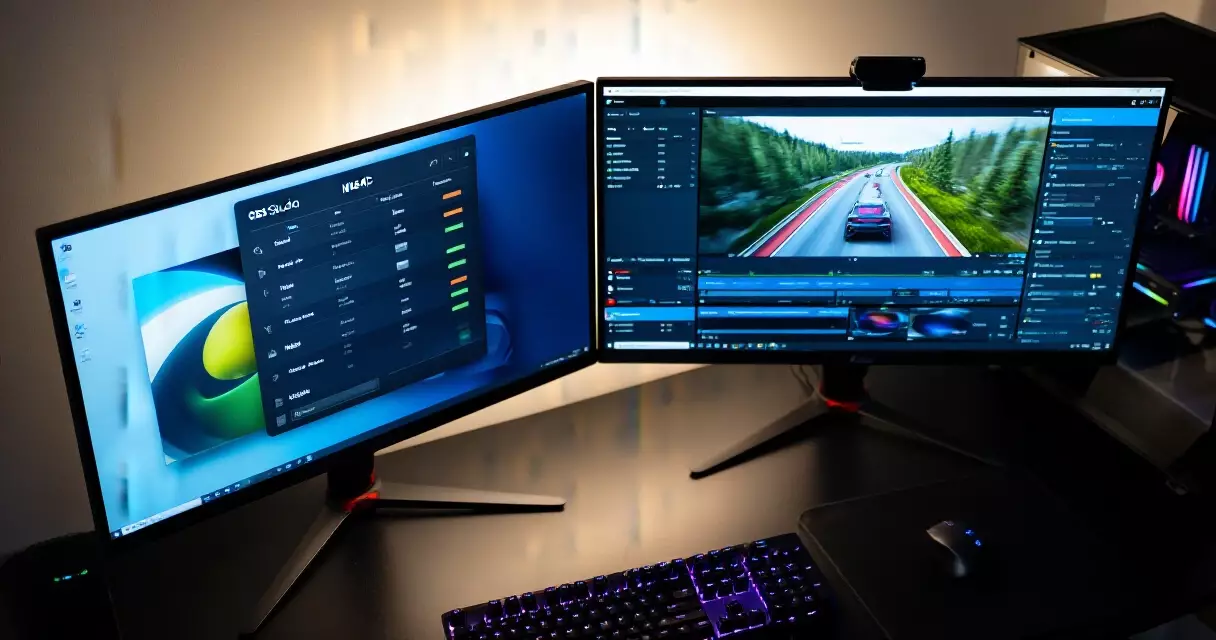
Console streamers using a PC as the encoding machine – passing PlayStation 5 or Xbox Series X output through a capture card into OBS – benefit from NVENC in exactly the same way PC game streamers do. The GPU encodes the HDMI capture feed rather than a rendered game, but the process is identical from the encoder’s perspective. This setup is covered in detail in our Elgato 4K60 Pro MK.2 review.
Where NVENC becomes especially valuable for console streamers is at 4K capture. Encoding a 4K60 capture feed in software requires a very powerful CPU – x264 at Fast preset needs roughly 30–40% of a 16-core processor at 4K. NVENC handles 4K60 H.264 or HEVC encoding with the same near-zero CPU overhead as 1080p, making it the practical choice for anyone running 4K console capture on a mid-range PC.
NVENC and Streaming Software: Compatibility Overview
NVENC is exposed to streaming and recording software via the NVIDIA Video Codec SDK, which NVIDIA maintains and updates regularly. Any software that implements this SDK can use NVENC. The major streaming applications all support it.
OBS Studio has the deepest NVENC integration, exposing all preset, tuning, multipass, and B-frame controls. The “NVENC H.264 (new)” encoder option (available since OBS 28) uses the updated SDK with P1–P7 presets rather than the legacy preset names. Streamlabs wraps OBS’s encoder stack, so it inherits the same NVENC options – though the UI surfaces fewer controls by default. You can read our full take on the software in the Streamlabs review. XSplit Broadcaster supports NVENC H.264 and HEVC but as of early 2026 has not shipped AV1 NVENC support. NVIDIA Broadcast and ShadowPlay (via the GeForce Experience overlay) use NVENC internally but expose far fewer settings – useful for one-click recording but not for serious stream quality tuning.
NVENC for Game Recording (Not Just Streaming)
NVENC shines just as brightly for local game recording as it does for streaming. Recording uncompressed or losslessly-compressed game footage produces enormous files – a 60-minute 1080p60 session at near-lossless quality via Lagarith or Huffyuv can exceed 150 GB. NVENC H.264 at a high bitrate (50–100 Mbps, which is above streaming platforms’ limits but fine for local storage) produces files that are 3–10% of that size while remaining visually lossless at normal viewing distances.
For recording, the recommended OBS setup differs from streaming: use VBR (variable bitrate) instead of CBR, set a target bitrate of 50–80 Mbps with a peak of 100 Mbps, and enable CQ (Constant Quality) mode if your OBS version supports it. CQ mode tells NVENC to maintain a consistent quality level rather than a consistent bitrate, which produces better results during highly variable content – dark scenes get fewer bits than complex particle-effect sequences, keeping quality consistent rather than bitrate.
For local game recording, NVENC in CQ mode at 50–80 Mbps is the practical sweet spot – visually lossless output, manageable file sizes, and zero impact on in-game frame rates.
Pros and Cons of NVENC for Game Streaming
After years of GPU encoder maturation, NVENC has a clear strengths-and-limitations profile. Understanding both helps set correct expectations, especially if you are coming from a background in x264 or from an older GPU.
| Pros | Cons |
|---|---|
| Zero measurable frame-rate impact on RTX 30/40-series | Quality still marginally below x264 Slow at equivalent bitrate |
| AV1 hardware encoding on RTX 40-series (unique capability) | AV1 NVENC only available on RTX 40-series and newer |
| 30–60 ms encode latency (excellent for low-latency use cases) | VRAM overhead (200–400 MB) can cause pressure on 8 GB cards at 4K gaming |
| Works with OBS, Streamlabs, XSplit, ShadowPlay | Pre-Turing NVENC quality (GTX 10-series and older) is noticeably inferior |
| Dual encoder on RTX 3080/3090 and all RTX 40-series | No software-tunable lookahead length in some OBS versions |
| Handles 4K60 encoding at same overhead as 1080p60 | Less community documentation than x264 (fewer tuning guides) |
| Integrates with NVIDIA Broadcast AI noise removal | Requires NVIDIA GPU – no cross-platform option |
Pricing Context: What GPU Do You Need?
NVENC quality is tied to GPU generation, which means encoding quality has a hardware cost. That said, you do not need a flagship GPU to get excellent streaming results in 2026. The table below maps GPU tier to streaming capability and approximate street prices as of mid-2026.
| GPU | NVENC Gen | 1080p60 H.264 Quality | AV1 | Approx. Street Price (2026) |
|---|---|---|---|---|
| GTX 1660 Super | 7th (Turing) | Very Good | No | ~$120–150 used |
| RTX 3060 | 8th (Ampere) | Excellent | No | ~$200–240 new |
| RTX 4060 | 9th (Ada) | Excellent+ | Yes | ~$299 new |
| RTX 4070 | 9th (Ada) | Excellent+ | Yes | ~$549 new |
| RTX 4080 Super | 9th (Ada) | Excellent+ | Yes | ~$999 new |
The RTX 4060 is the minimum buy for AV1 NVENC, and at $299 it represents strong value for a streamer who wants the best available hardware encoder without paying flagship prices. For those building a dedicated streaming machine, the GPU choice has direct streaming quality implications – something covered in detail in our streaming PC build guide.
Troubleshooting NVENC: The Most Common Errors and How to Fix Them
Even experienced streamers run into NVENC failures that produce cryptic error messages. Knowing exactly what causes each error saves hours of frustration. Here are the most common issues, their root causes, and precise fixes.
Error: “Failed to open NVENC codec” or “No NVENC capable devices found” This almost always means the NVIDIA driver is outdated. NVENC AV1 support, for example, requires driver version 522.25 or later (NVIDIA driver release notes, 2022). Open Device Manager on Windows, uninstall the current display driver completely using DDU (Display Driver Uninstaller), then install the latest Game Ready or Studio driver from NVIDIA’s site. Do not use Windows Update drivers, as these lag several versions behind.
Error: “Maximum supported clients” or encoder initialization failure during gaming This happens when another application has already claimed NVENC sessions. On consumer GPUs (GTX/RTX series up to RTX 3000), NVIDIA historically capped simultaneous NVENC sessions at 3, though this cap was removed for RTX 30 and 40 series via a driver update in 2021 (NVIDIA developer blog, 2021). If you are on an older card, close shadow-play overlays, browser hardware acceleration, or any screen recording software running in the background. In Chrome, navigate to chrome://settings/system and disable “Use graphics acceleration when available.”
Bitrate fluctuation and corrupted output If your recorded or streamed video shows blockiness during fast motion despite a high bitrate setting, the culprit is usually VBR mode under heavy GPU load. Switch OBS to CQP (Constant Quantizer Parameter) mode with a value between 18 and 24 for recording, or CBR mode locked to your target bitrate for streaming. CQP lets NVENC allocate bits where the scene needs them, eliminating the quality dips that VBR produces when the GPU encoder is competing with the game for resources.
Audio and video desync on long recordings This is a known issue when recording to MKV with NVENC on systems that use variable refresh rate monitors (NVIDIA GeForce forums, 2023). The fix is to set OBS to record in MKV format and remux to MP4 after recording via File, Remux Recordings. Alternatively, lock your desktop refresh rate to a fixed value (144 Hz or 60 Hz) before recording. Never record directly to MP4 if you want to avoid file corruption on unexpected shutdowns.
Green or pink screen artifacts in output This typically points to a VRAM bandwidth conflict. Lower your game resolution or texture settings, or switch the OBS encoder preset from P1 (fastest) to P4 (balanced). P1 pushes frames through the encoder pipeline with minimal buffering, which can cause color space errors under sustained VRAM pressure according to testing by Linus Media Group (2024).
Advanced NVENC Tuning: Look-Ahead, Psycho-Visual AQ, and B-Frames Explained
Most streamers stop at selecting “NVENC H.264” and setting a bitrate, leaving significant quality on the table. The advanced encoder settings in OBS, Streamlabs, and Voicemeeter expose controls that can meaningfully improve visual quality at the same bitrate, but they need to be understood before being enabled.
Look-Ahead Look-ahead allows NVENC to analyze upcoming frames before encoding the current one, distributing bits more intelligently across scene changes. NVIDIA’s whitepaper on NVENC (2023) states that look-ahead improves SSIM scores by 3 to 7 percent on typical gaming content at equivalent bitrates. The tradeoff is latency: look-ahead introduces a buffer of 8 to 32 frames depending on your setting. For recording this is irrelevant, but for interactive game streaming to Twitch or YouTube, keep look-ahead off or set it to a maximum of 8 frames to avoid encoder lag that viewers can perceive as stream delay drift.
Psycho-Visual AQ (Adaptive Quantization) Spatial AQ and Temporal AQ adjust quantization across regions of a frame based on perceptual importance. Spatial AQ allocates more bits to areas with fine detail like foliage or text and fewer to flat surfaces. Temporal AQ does the same across time, protecting high-motion frames. Digital Foundry’s encoder comparison (2024) found that enabling Spatial AQ at strength 8 on RTX 40 series reduced perceived blockiness in dark scenes by a visible margin without increasing average bitrate. Set Spatial AQ strength between 8 and 15 for game content. Above 15, the encoder over-sharpens flat gradients and introduces ringing artifacts around HUD elements.
B-Frames B-frames (bidirectional predictive frames) reference both past and future frames, compressing redundant information more efficiently than P-frames alone. RTX 20 series and later GPUs support B-frames in NVENC H.264 and HEVC. NVIDIA’s own benchmarks show that setting B-frames to 2 reduces bitrate requirements by approximately 15 percent for equivalent quality on static or slow-moving content (NVIDIA encoder documentation, 2022). For fast-paced shooters with constant motion, 2 B-frames is the practical ceiling before encoding latency outweighs the compression benefit.
| Setting | Recommended for Recording | Recommended for Live Streaming | GPU Requirement |
|---|---|---|---|
| Look-Ahead | 16-32 frames | Off or 8 frames max | GTX 900 series and later |
| Spatial AQ | Strength 10-15 | Strength 8-10 | GTX 900 series and later |
| Temporal AQ | On | On | GTX 900 series and later |
| B-Frames | 2 | 2 | RTX 20 series and later only |
| Reference Frames | 4 | 2 | All NVENC GPUs |
To apply these in OBS, navigate to Settings, Output, switch to Advanced output mode, select your NVENC encoder, and click the encoder settings panel. Changes take effect on the next stream or recording start. Test with a 2-minute local recording of a demanding scene before going live to confirm there are no artifacts introduced by your specific GPU and driver combination.
Frequently Asked Questions
Is NVENC better than x264 for streaming?
The answer depends on your GPU generation and CPU. On an RTX 30-series or RTX 40-series GPU, NVENC matches x264 Medium at equivalent bitrates and comes very close to x264 Fast at fast motion. The decisive advantage is that NVENC uses none of your CPU, leaving those resources for your game. x264 Slow and x264 Slower still produce better H.264 output than any hardware encoder at equivalent bitrate – but using them requires a CPU powerful enough to encode in real time (typically a 12-core or better chip running at moderate utilization from the game itself). For anyone on a single gaming PC (not a dedicated encoding machine), NVENC on RTX 20-series or newer is the right choice. The only group who should consistently prefer x264 are streamers running a two-PC setup with a dedicated encode machine that has no gaming workload.
Does NVENC affect gaming frame rate?
On RTX 20-series and newer cards, NVENC has effectively zero impact on gaming frame rate. The encoder block is a physically separate fixed-function unit on the GPU die – it does not compete with shader cores, tensor cores, or RT cores for compute resources. Controlled benchmark comparisons (running the same title with and without an active NVENC 1080p60 encode) consistently show less than 0.5 fps difference on modern hardware. The one nuance is VRAM: lookahead encoding consumes 200–400 MB of GPU memory, which can in theory reduce the headroom for game textures on 8 GB VRAM cards running very VRAM-intensive titles at 4K. Streaming at 1080p output (even from a 4K game capture) keeps VRAM impact minimal. Older cards (GTX 10-series and earlier) may show a small frame-rate impact because their encoder design shares memory bandwidth more aggressively with the rendering pipeline.
What is the best NVENC preset for Twitch streaming?
For Twitch streaming at 1080p60 on an RTX 30-series or 40-series GPU, the recommended OBS configuration is: Encoder set to NVIDIA NVENC H.264 (new) or NVENC AV1 (40-series only), Rate Control set to CBR at 6,000 Kbps (Twitch’s non-partner limit) or up to 8,500 Kbps for partners. Set the Preset to P6 (Quality) rather than P7 (Highest Quality), because P7 can occasionally introduce a one-frame encoding lag at 1080p60 on mid-range GPUs. Enable Look-Ahead and Psycho Visual Tuning. Set Multipass Mode to Quarter Resolution. Keyframe Interval must be set to 2 seconds for Twitch ingest compatibility. If you stream at 720p60 (for viewers on slow connections), P7 is safe to use and produces noticeably better output than P6 at that resolution.
Can I use NVENC and x264 at the same time?
Yes, in OBS Studio you can configure multiple outputs simultaneously, each with different encoders. A common setup is: streaming output uses NVENC H.264 or AV1 at platform bitrate limits, while the local recording output uses x264 Slow at a high bitrate (20–50 Mbps) for archival quality. The streaming NVENC encode adds zero CPU overhead, leaving headroom for the x264 recording encode. On RTX 30-series and 40-series cards with dual NVENC engines, you can also run two simultaneous NVENC encodes – for example, streaming at 1080p via NVENC on one engine while recording at 4K via NVENC on the second engine. This is sometimes called a “dual NVENC” setup and is particularly useful for streamers who want maximum quality recordings alongside their stream without the CPU cost of x264 recording.
Does NVENC work with Streamlabs as well as OBS?
Yes. Streamlabs uses OBS’s encoding stack under the hood, so all NVENC capabilities available in OBS Studio are technically available in Streamlabs as well. The difference is UI depth: Streamlabs exposes fewer NVENC options by default in its simplified settings view, whereas OBS Studio surfaces the full preset, tuning, multipass, B-frame, and lookahead controls. Streamlabs does expose these settings if you switch to its Output (Advanced) mode. For most users, Streamlabs’s simplified defaults produce good NVENC output automatically. If you want to fine-tune every parameter, OBS Studio gives you more control. See our Streamlabs review for a full comparison of the two applications from a streamer’s perspective.
Which NVIDIA GPUs support AV1 NVENC encoding?
AV1 hardware encoding via NVENC is exclusive to the Ada Lovelace architecture (RTX 40-series), which launched in late 2022. This includes the RTX 4060, 4060 Ti, 4070, 4070 Super, 4070 Ti, 4070 Ti Super, 4080, 4080 Super, and 4090. No prior NVIDIA GPU – including the RTX 30-series (Ampere) – supports AV1 encoding via NVENC, though RTX 30-series GPUs can decode AV1 (they have AV1 decode hardware). The GTX 16-series (Turing) and RTX 20-series (also Turing) support only H.264 and HEVC NVENC encoding. If AV1 encoding is a priority – for Twitch Enhanced Broadcasting or YouTube’s preferred codec – an RTX 40-series card is the minimum requirement. AMD’s RX 7000-series (RDNA 3) and Intel’s Arc GPUs also support AV1 hardware encoding as alternatives.
Is NVENC good enough for professional or monetized streaming?
NVENC on RTX 30 and 40-series hardware is used daily by thousands of monetized Twitch Partners, YouTube Live creators, and professional esports broadcasters. The quality ceiling at 6–8 Mbps is more than sufficient for viewer retention and platform requirements. What determines professional-level stream quality is not solely the encoder – it also includes your capture resolution, frame rate, internet upload consistency, microphone quality, and camera clarity. A good microphone (see our Blue Yeti review) and a decent webcam (see our Logitech C922 Pro review) have a larger impact on audience perception than the encoding difference between NVENC and x264 Medium. NVENC is fully professional-grade for streaming in 2026; the remaining gaps versus software encoding are measurable in objective tests but rarely visible to stream viewers watching at platform-compressed bitrates.
What is Twitch Enhanced Broadcasting and how does NVENC enable it?
Twitch Enhanced Broadcasting is Twitch’s server-side transcoding system that allows a streamer to upload a single high-quality stream and have Twitch automatically offer multiple quality rungs (1080p60, 720p60, 480p, 360p) to viewers based on their connection speed – similar to how YouTube processes uploaded videos. Historically, Twitch’s transcoding quality was inconsistent and not guaranteed for non-partner streamers. Enhanced Broadcasting uses the AV1 codec to more efficiently transcode and deliver streams, and specifically leverages AV1 NVENC as the recommended encoder for creators participating in the program. Streamers with RTX 40-series GPUs can enable AV1 NVENC in OBS, join the Enhanced Broadcasting program (available to partners and selected affiliates), and deliver better-quality streams to viewers at lower bandwidth cost than legacy H.264 delivery.
Sources
- Wikipedia: NVENC – Technical overview, codec support, and generation history
- NVIDIA Video Codec SDK – developer.nvidia.com – Official SDK documentation, supported features by GPU generation
- Alliance for Open Media – aomedia.org – AV1 codec standard, royalty-free open media formats
Gaming Laptop Buyer’s Guide: Performance, Portability & Best Models