
Summary
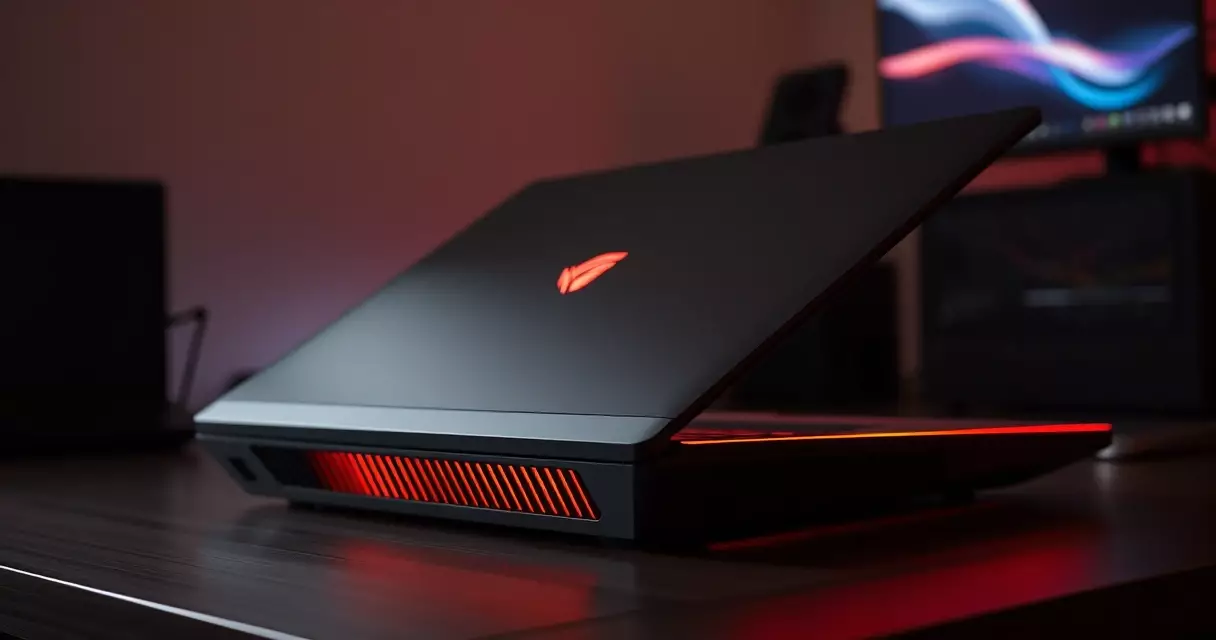
A gaming laptop can push its processor to a junction temperature near 100 degrees Celsius within seconds of launching a demanding title, the ceiling that chipmakers such as Intel document as the safe upper limit for many mobile parts. Cross...
Table of contents
- 1 Why Gaming Laptops Run Hot in the First Place
- 2 A Short History of Laptop Cooling Technology
- 3 How Gaming Laptop Cooling Systems Work
- 4 Understanding Thermal Throttling and Safe Temperatures
- 5 Software and Settings That Lower Temperatures
- 6 Physical Maintenance and Cooling Accessories
- 7 Liquid Metal and Advanced Thermal Interfaces
- 8 Frequently Asked Questions
- 8.1 What temperature is too hot for a gaming laptop?
- 8.2 Do laptop cooling pads actually work?
- 8.3 Why does my gaming laptop get so loud?
- 8.4 How often should I clean the dust from my laptop?
- 8.5 Is undervolting safe for a gaming laptop?
- 8.6 Should I replace the thermal paste on my laptop?
- 8.7 Does using a gaming laptop on a bed cause overheating?
- 8.8 Can software alone fix an overheating gaming laptop?
- 9 Related Reading
- 10 Sources
A gaming laptop can push its processor to a junction temperature near 100 degrees Celsius within seconds of launching a demanding title, the ceiling that chipmakers such as Intel document as the safe upper limit for many mobile parts. Cross that line and the machine defends itself by cutting clock speeds, a reflex that trades frame rates for survival. Cooling is therefore not an accessory bolted onto gaming performance. It is the quiet subsystem that decides whether the silicon you paid for ever runs at full tilt for more than a few minutes.
This guide breaks down how portable cooling works, why slim chassis trap heat, and the practical steps that keep temperatures inside a safe band. You will find temperature thresholds, a comparison of cooling hardware, software tweaks, and answers to the questions buyers ask most. The aim is steady, sustained performance rather than a brief burst followed by a throttled crawl.
Why Gaming Laptops Run Hot in the First Place
Heat is simply the byproduct of electrical work. Every watt a processor draws is eventually shed as thermal energy, and gaming hardware draws a great deal. According to Wikipedia’s overview of thermal design power, mobile CPUs commonly fall in a 15 to 55 watt envelope while discrete laptop graphics chips can be rated anywhere from roughly 35 to 175 watts. Combine the two under load and a thin notebook may need to dissipate well over 200 watts through a shell barely two centimeters thick.
Desktops solve this with volume. A tower has room for large heatsinks, multiple 120 millimeter fans, and generous airflow. A laptop has none of those luxuries. Designers must move the same heat through copper pipes a few millimeters wide, then exhaust it with blowers the size of a coin. The physics do not bend for marketing, which is why even premium machines warm up quickly. Readers weighing portability against raw thermal headroom may find our guide to choosing a gaming laptop useful before deciding how much cooling capacity they actually need.
Two more factors stack on top of the size problem. Ambient room temperature sets the floor: a machine that idles fine at 21 degrees can struggle in a warm bedroom in August. Dust is the slow killer, coating fins and fans until airflow chokes. Both are manageable, and later sections cover how to keep them in check.
A Short History of Laptop Cooling Technology
Early portable computers of the 1990s ran cool because their processors were modest. As clock speeds climbed past the gigahertz mark around 2000, passive metal plates no longer sufficed, and the first active fans appeared inside consumer notebooks. The breakthrough that made modern gaming laptops possible was the heat pipe, a sealed copper tube that moves heat by evaporating and condensing a working fluid. As Wikipedia’s article on heat pipes explains, these devices achieve effective thermal conductivities thousands of times higher than a solid copper bar, which lets a slim laptop carry heat from the chip to a distant radiator with almost no temperature drop.
Vapor chambers arrived next as a flattened relative of the heat pipe, spreading heat across a two dimensional plane rather than along a single line. Engineering studies published through IEEE journals on electronics packaging, indexed at IEEE, have repeatedly shown that vapor chambers even out hot spots more effectively than a single pipe, which matters when a CPU and GPU sit close together. By the mid 2010s, manufacturers were stacking five or six heat pipes, dual fans, and dedicated exhausts to handle ever hungrier graphics silicon.
The most recent shift has been at the contact layer. Premium gaming notebooks began shipping with liquid metal compounds instead of conventional paste around 2019, a change covered widely in outlets such as The Verge. That single material swap can lower processor temperatures by several degrees, and it marks how far the field has moved from a simple aluminum slab pressed against a chip.
How Gaming Laptop Cooling Systems Work
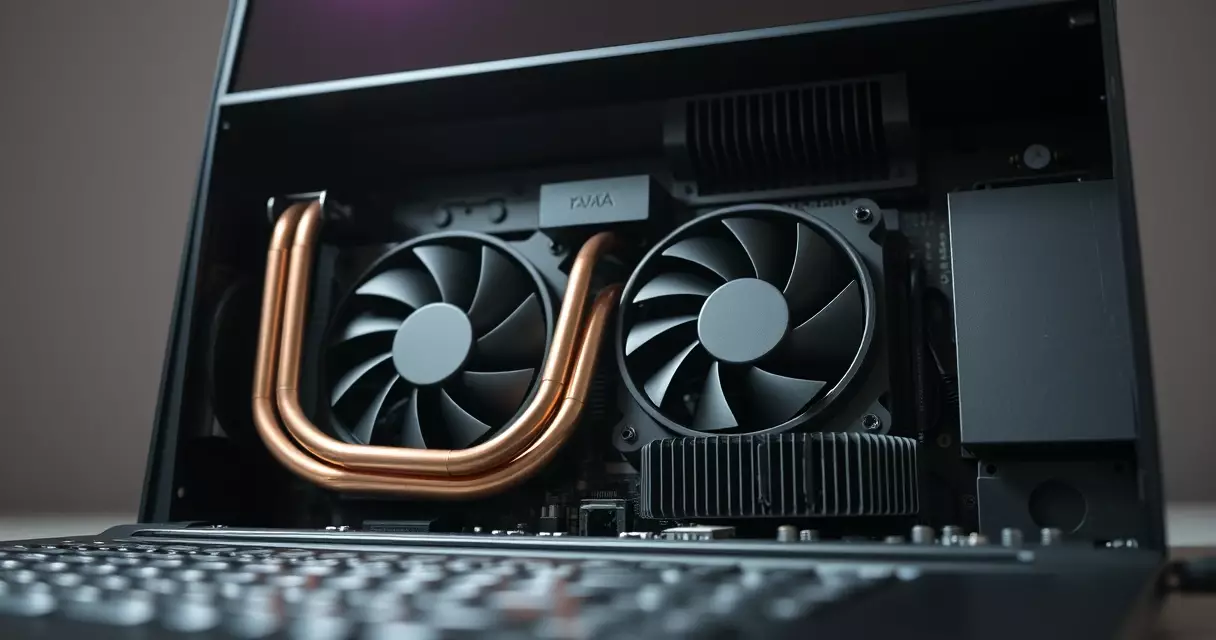
A modern cooling assembly is a relay team. Heat leaves the processor die through a thermal interface material, crosses into a copper baseplate, travels along heat pipes or across a vapor chamber, reaches a stack of thin metal fins, and finally rides out of the chassis on a stream of air pushed by centrifugal fans. Each handoff has to be efficient, because the weakest link sets the temperature of the whole chain.
The thermal interface deserves special attention. Air is a poor conductor, so the microscopic gaps between a chip and its heatsink must be filled. Standard silicone based thermal grease conducts heat at roughly 3 to 12 watts per meter-kelvin according to Wikipedia’s entry on thermal grease, while the gallium alloy known as Galinstan is listed at about 16.5 watts per meter-kelvin in its own Wikipedia article. Commercial liquid metal products tuned for electronics rate even higher, which is why enthusiasts prize them.
Fans matter just as much as metal. Blade count, bearing quality, and exhaust design all influence how much air moves and how loudly. Many machines now use a dual fan layout with shared heat pipes, so the CPU and GPU help cool each other when only one is busy. Build quality separates good cooling from marketing, a theme explored further in our roundup of the best gaming laptops of 2024.
The table below compares the main components that carry heat through a portable system, including the rough conductivity figures that make each one effective.
| Component | Role in the system | Approximate conductivity or effect | Source |
|---|---|---|---|
| Solid copper baseplate | First metal contact with the chip | About 400 watts per meter-kelvin | Wikipedia, Heat pipe |
| Heat pipe | Moves heat to distant fins by phase change | Thousands of times copper, effectively | Wikipedia, Heat pipe |
| Vapor chamber | Spreads heat across a flat plane | Evens hot spots better than a single pipe | IEEE electronics packaging research |
| Standard thermal grease | Fills micro gaps at the chip surface | Roughly 3 to 12 watts per meter-kelvin | Wikipedia, Thermal grease |
| Galinstan liquid metal | High conductivity contact layer | About 16.5 watts per meter-kelvin | Wikipedia, Galinstan |
Understanding Thermal Throttling and Safe Temperatures
Throttling is a safety mechanism, not a malfunction. When a sensor reports that the chip has reached its limit, the firmware reduces voltage and frequency to cut heat output. This behavior is part of dynamic frequency scaling, described in Wikipedia’s article on the subject, and it is the reason a benchmark may start strong and then sag after a minute or two of load.
Knowing the numbers helps you judge whether your machine runs hot or merely warm. Intel documents a maximum junction temperature near 100 degrees Celsius for many mobile processors, and Nvidia rates a large share of its laptop graphics chips for operation up to roughly 87 degrees before they begin to scale back. Hitting those ceilings briefly during a heavy scene is normal. Sitting at them constantly is a sign that something in the cooling chain needs attention.
| Reading | CPU interpretation | GPU interpretation | Source |
|---|---|---|---|
| Below 60 C | Idle or light load, healthy | Idle or light load, healthy | General manufacturer guidance |
| 70 to 85 C | Normal gaming range | Normal gaming range | General manufacturer guidance |
| About 87 C | Warm but acceptable | Nvidia typical throttle point | Nvidia published specifications |
| Near 100 C | Intel maximum junction temperature | Approaching shutdown territory | Wikipedia, Junction temperature |
Sustained throttling is where the cost shows up. A laptop pinned at its ceiling may lose a noticeable share of its frame rate compared with the same chip kept ten degrees cooler. This gap is one reason many players compare portable and stationary systems before buying, a trade off we lay out in detail in our piece on gaming laptops versus desktops.
Software and Settings That Lower Temperatures
Plenty of heat can be tamed without opening the chassis. The fastest win is the power profile. Most gaming laptops ship with vendor software that offers balanced, performance, and turbo modes, each pairing a fan curve with a power limit. Choosing a setting that lets fans spin up earlier keeps temperatures lower at a small cost in noise.
Undervolting is the enthusiast favorite. By asking the processor to do the same work at slightly lower voltage, you cut heat at the source with little or no performance loss. Results vary by chip, and recent firmware has locked the feature on some platforms, so test stability carefully after any change. Frame rate caps help too. A title locked to 60 or 90 frames per second stops the graphics chip from sprinting needlessly, which trims both heat and fan noise.
Resolution and graphics settings are blunt but effective levers. Dropping shadow quality or ray tracing reduces the load that the GPU must dissipate. Monitoring software that displays live temperatures lets you see the effect of each tweak in real time, turning guesswork into measurement. The pillar overview in our gaming laptop buyer’s guide explains how these performance settings interact with the hardware you choose at purchase.
Physical Maintenance and Cooling Accessories
Hardware care prevents most slow declines in cooling. Dust is the chief enemy, packing into fin stacks until air can barely pass. A can of compressed air aimed through the vents every few months clears the worst of it, and a deeper clean with the bottom panel removed restores airflow that owners often did not realize they had lost.
Elevation is the simplest accessory of all. Raising the rear of the laptop a couple of centimeters, with a stand or even a pair of small risers, opens the intake vents on the underside and feeds the fans cooler air. Cooling pads add active fans beneath the chassis, and independent testing suggests they typically shave a few degrees rather than transform a machine. They help most on notebooks that pull intake air from below.
Repasting is the advanced option. Factory thermal paste can dry out after a few years, and replacing it with fresh compound often recovers lost headroom. This task voids some warranties and carries real risk if done carelessly, so weigh it against the value of the machine. Surface choice matters as well: a hard desk lets a laptop breathe, while a bed or couch blocks the intake and traps heat almost instantly.
Liquid Metal and Advanced Thermal Interfaces
The contact layer between chip and heatsink has become a battleground for a few extra degrees. Liquid metal compounds based on gallium alloys conduct heat far better than silicone paste, which is why several premium brands now apply them at the factory. Coverage in outlets such as Wired has tracked this shift from a niche modding trick to a mainstream feature on flagship gaming machines.
The benefit comes with caveats. Liquid metal is electrically conductive and can corrode aluminum, so it demands careful application and protective barriers around nearby components. A spill onto the board can be fatal to a laptop. For that reason, hand application is best left to experienced users or professionals, and most owners will simply enjoy the lower temperatures when a manufacturer has done the work for them.
Looking ahead, research into thermal interfaces continues in academic and industry labs, with graphene films and phase change materials among the candidates studied in journals indexed by IEEE. None of these has displaced the heat pipe and fan as the backbone of portable cooling, but the steady gains at the contact layer show that the field is far from settled.

Frequently Asked Questions
What temperature is too hot for a gaming laptop?
Short spikes toward 100 degrees Celsius on the CPU are within the limit that Intel publishes as the maximum junction temperature, so a brief touch of that ceiling during an intense scene is not cause for alarm. The warning sign is a constant reading at the limit. A processor that lives at 95 to 100 degrees under any load, or a graphics chip parked above its roughly 87 degree throttle point for long stretches, is telling you that airflow is blocked, paste has degraded, or the ambient room is too warm. Aim to keep gaming temperatures in the 70 to 85 degree range for healthy, sustained performance.
Do laptop cooling pads actually work?
Cooling pads help, but their effect is modest rather than dramatic. Independent testing generally finds they lower temperatures by a few degrees, and they work best on laptops that draw intake air from vents on the underside. A pad does two useful things at once: it elevates the rear of the chassis to open those intakes, and its fans feed slightly cooler air into the system. On a notebook that pulls air only from the sides or back, the elevation alone may deliver most of the benefit. Treat a pad as a helpful supplement to clean fans and good placement, not as a cure for a clogged or poorly designed cooling system.
Why does my gaming laptop get so loud?
Fan noise rises in direct proportion to the heat the system must remove. When a graphics chip draws its full rated wattage, sometimes more than 150 watts, the fans must spin fast to exhaust that energy, and small high speed blowers are inherently louder than the large slow fans inside a desktop. You can reduce the noise by capping frame rates, lowering graphics settings, choosing a quieter fan profile in the vendor software, or undervolting the processor. Cleaning dust from the fins also helps, because clogged airflow forces the fans to work harder for the same cooling. Some noise during heavy gaming is unavoidable on any thin machine.
How often should I clean the dust from my laptop?
A light cleaning every three to six months suits most owners, with the interval depending on the environment. A machine used in a carpeted room, near pets, or around smoke collects dust far faster than one in a clean office. A quick blast of compressed air through the vents handles routine buildup without opening anything. Once a year, consider a deeper clean with the bottom panel removed so you can clear the fin stacks directly, which is where the heaviest dust gathers. Watch for the warning signs between cleanings: rising temperatures, louder fans, and more frequent throttling all point to airflow that has started to choke.
Is undervolting safe for a gaming laptop?
Undervolting is generally safe because it lowers voltage rather than raising it, which reduces heat and stress instead of adding them. The main risk is instability: push the voltage too low and the system may crash or freeze, though it will not damage the hardware. Test any setting with a stress tool and real gaming sessions before trusting it. Two caveats matter. Some recent processors and firmware have locked undervolting for security reasons, so the option may be unavailable on your machine. Results also vary from chip to chip, meaning a profile that works for one laptop may need adjustment on another even within the same model line.
Should I replace the thermal paste on my laptop?
Repasting can recover several degrees of headroom on an older machine, because factory thermal compound tends to dry out and lose effectiveness after a few years. If your laptop runs hotter than it once did and a thorough dust cleaning has not helped, fresh paste is a reasonable next step. The decision carries real trade offs. Opening the chassis may void the warranty, and applying compound incorrectly, or using electrically conductive liquid metal without proper barriers, can harm the board. For a newer machine still under warranty, leave it alone. For an out of warranty laptop running hot, repasting by a careful owner or a technician is often worthwhile.
Does using a gaming laptop on a bed cause overheating?
Yes, soft surfaces are one of the most common causes of avoidable overheating. Most gaming laptops draw intake air through vents on the underside, and a bed, couch, or lap blocks those openings while the fabric traps the heat that would otherwise escape. Temperatures can climb sharply within minutes, triggering throttling and loud fans. The fix is simple: use the laptop on a hard, flat surface such as a desk, or place a rigid lap board or cooling stand underneath. Elevating the rear edge a couple of centimeters further improves airflow. If you game frequently away from a desk, a stand is a small investment that pays off in steadier performance.
Can software alone fix an overheating gaming laptop?
Software can take you a long way, though not all the way. Power profiles, frame rate caps, lower graphics settings, and undervolting collectively cut a meaningful amount of heat at no hardware cost, and they are the right first step for anyone whose machine runs hot. Where software hits its limit is physical degradation. No setting can clear dust from clogged fins, restore dried out thermal paste, or open intake vents pressed against a soft surface. Think of it as a two part approach: use software to reduce the heat your system generates, and use maintenance and placement to make sure the cooling hardware can actually remove the heat that remains.
Related Reading
- Gaming Laptop Buyer's Guide: Performance, Portability & Best Models
- Best Gaming Laptops 2024: Top Picks for Every Budget
- Gaming Laptop Battery Life: Tips to Maximize Performance
- Gaming Laptop Maintenance: Keep Your System Like New
- Gaming Laptop Specs Explained: GPU, CPU, RAM & More
- Gaming Laptop Upgrade Guide: What Can You Upgrade?
- Gaming Laptop vs Desktop: Which Should You Buy?
- How to Choose a Gaming Laptop: Complete Buyer's Guide
- Alienware M15 Gaming Laptop Review: Specs, Power & Value
- ASUS ROG Strix Gaming Laptop Review
- HP Omen 16 Gaming Laptop Review (2026 Update)
- Lenovo Legion 5 Gaming Laptop Review: Specs, Power & Value
- MSI Raider Gaming Laptop Review
- Razer Blade 15 Gaming Laptop Review
Sources
- Thermal design power, Wikipedia – https://en.wikipedia.org/wiki/Thermal_design_power
- Heat pipe, Wikipedia – https://en.wikipedia.org/wiki/Heat_pipe
- Thermal grease, Wikipedia – https://en.wikipedia.org/wiki/Thermal_grease
- Galinstan, Wikipedia – https://en.wikipedia.org/wiki/Galinstan
- Junction temperature, Wikipedia – https://en.wikipedia.org/wiki/Junction_temperature
- Dynamic frequency scaling, Wikipedia – https://en.wikipedia.org/wiki/Dynamic_frequency_scaling
- IEEE, electronics packaging and thermal management research – https://www.ieee.org
- The Verge, technology news – https://www.theverge.com
- Wired, technology news – https://www.wired.com