
Summary
A gaming laptop pushed through a demanding title can drive its processor past 90°C within minutes, and at those temperatures the chip starts slowing itself down on purpose to avoid damage. That self-defense behavior, known as thermal throttling, explains why...
Table of contents
- 1 Why Maintenance Matters More for Gaming Laptops
- 2 A Short History of Laptop Cooling
- 3 Dust, Heat, and Thermal Throttling
- 4 A Practical Cleaning and Care Schedule
- 5 Battery Care That Actually Extends Lifespan
- 6 Software Side: Drivers, Storage, and Background Load
- 7 Hardware Upgrades and When to Repaste
- 8 Recognizing Warning Signs Before Failure
- 9 Frequently Asked Questions
- 9.1 How often should I clean a gaming laptop?
- 9.2 Is it safe to use compressed air on the fans?
- 9.3 Should I keep my gaming laptop plugged in all the time?
- 9.4 What temperature is too hot for a gaming laptop?
- 9.5 How long should a gaming laptop battery last?
- 9.6 Can I replace the thermal paste myself?
- 9.7 Does maintenance really make a gaming laptop last longer?
- 10 Related Reading
- 11 Sources
- 11.1 Further reading
- 11.2 Further reading
A gaming laptop pushed through a demanding title can drive its processor past 90°C within minutes, and at those temperatures the chip starts slowing itself down on purpose to avoid damage. That self-defense behavior, known as thermal throttling, explains why a two-year-old machine so often feels sluggish compared with the day it arrived. The hardware has not worn out. It has simply been buried under dust, dried-out thermal paste, and a software load that nobody trimmed back. Regular upkeep reverses most of that decline, and it costs far less than a replacement.
This guide walks through the maintenance routine that keeps a portable gaming rig performing close to its original specification: cleaning intervals, battery habits, thermal care, software hygiene, and the warning signs that mean a deeper repair is due. The aim is a practical schedule you can actually follow, backed by named sources for every figure.
Why Maintenance Matters More for Gaming Laptops
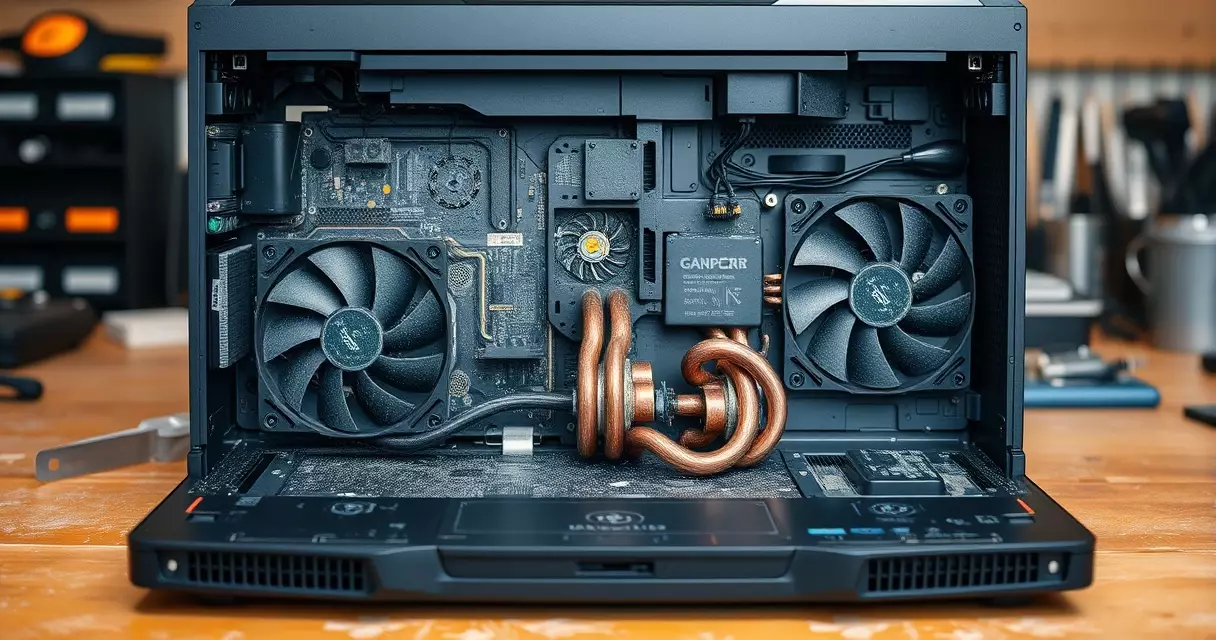
Desktops have room to breathe. A tower spreads its components across a large case with multiple fans and open airflow, so heat has somewhere to go. A gaming laptop compresses a high-wattage processor and a dedicated graphics chip into a chassis barely thicker than a notebook, then asks two small fans and a few flattened copper heat pipes to move all of that warmth out through narrow vents. When those vents clog, the whole thermal balance collapses.
Heat is the central enemy. Sustained high temperatures degrade nearly every part of the system, from the battery cells to the solder joints. According to the Wikipedia entry on lithium-ion batteries, elevated temperature is one of the primary drivers of permanent capacity loss, and the cells age fastest when they sit hot and fully charged at the same time. A laptop that runs warm because of trapped dust therefore ages on two fronts at once: the silicon throttles, and the battery quietly loses range.
There is an environmental argument too. The UN Global E-waste Monitor 2024, published by UNITAR and the International Telecommunication Union, reported that the world generated 62 million tonnes of electronic waste in 2022, up 82 percent from 2010, with only about 22.3 percent formally collected and recycled. Keeping a working laptop in service for an extra two or three years is one of the most direct ways an individual can keep hardware out of that stream. Maintenance is, in a real sense, a sustainability practice.
If you are still deciding whether a portable machine fits your needs at all, our breakdown of the trade-offs between a gaming laptop and a desktop covers the cooling and upgrade limits that make maintenance such a recurring theme for portable systems.
A Short History of Laptop Cooling
Portable gaming was not always plausible. Early notebooks ran low-power chips that produced little heat, and dedicated graphics in a laptop was a rarity reserved for bulky, short-lived machines. As mobile processors gained desktop-class performance through the 2000s and 2010s, the heat they produced climbed with them, and cooling design became the limiting factor for the whole category.
Manufacturers answered with heat pipes, vapor chambers, and increasingly aggressive fan profiles. The underlying physics never changed, though. Moving heat out of a thin enclosure depends on clear airflow, and airflow depends on clean vents. Dynamic frequency scaling, described in detail on Wikipedia, became the universal safety valve: when a chip approaches its maximum junction temperature, the firmware lowers clock speed to stay within a safe envelope. That mechanism protects the silicon, but it also means a poorly maintained laptop sacrifices the very performance the buyer paid for. Understanding this history makes the maintenance routine feel less like a chore and more like protecting an investment that was always thermally constrained by design.
Dust, Heat, and Thermal Throttling
Dust is the slow killer. Air pulled across the intake grilles carries fine particles that settle on fan blades and pack into the radiator fins where the heat pipes meet the exhaust. A thin felt of dust there behaves like insulation, blocking the exact spot where heat is supposed to leave the machine. Owners rarely notice the gradual change because the fans simply spin faster to compensate, until one day a game stutters and the surface grows uncomfortably hot.
Clearing that buildup is the single highest-impact maintenance task. Compressed air aimed through the vents, in short bursts, dislodges most surface dust without opening the chassis. Hold the fans still with a toothpick or a soft object while you spray, because letting them spin freely under air pressure can generate a small reverse voltage that stresses the fan circuitry. For a machine that has run for a year or more, opening the bottom panel and cleaning the radiator fins directly produces a far larger temperature drop than blowing air through the grilles alone.
Thermal paste is the second variable. The grey compound between each chip and its heatsink fills microscopic gaps so heat transfers efficiently, and over two to four years it dries and cracks. Replacing it, a process commonly called repasting, can lower load temperatures by several degrees and is one of the most cost-effective upgrades a confident owner can perform. Our companion article on gaming laptop cooling solutions covers cooling pads, fan curves, and undervolting in more depth for readers who want to push temperatures lower still.
How hot is too hot? The table below collects the ranges most component makers publish for gaming workloads. Treat them as guidance rather than hard limits, since a brief spike under load is normal and the firmware will protect the hardware regardless.
| Component | Typical gaming load | Concern threshold | What it means |
|---|---|---|---|
| CPU | 75–90°C | 95–100°C | Sustained readings near 100°C trigger throttling described by Wikipedia |
| GPU | 70–85°C | Above 90°C | Clean vents or repaste if reached consistently |
| NVMe SSD | 30–55°C | Above 70°C | Drives throttle to protect data; improve airflow |
| Battery | Below 35°C | Above 45°C | Heat accelerates capacity loss per Wikipedia lithium-ion data |
A Practical Cleaning and Care Schedule
Consistency beats intensity. A short routine done on a predictable cadence prevents the slow buildup that forces a major intervention later. The schedule below splits tasks by how often they genuinely need attention, so nothing gets neglected and nothing gets fussed over more than it deserves.
| Task | Frequency | Notes |
|---|---|---|
| Wipe vents and keyboard | Weekly | Microfiber cloth; clears surface dust before it migrates inside |
| Blow out vents with compressed air | Monthly | Short bursts; hold fans still to protect the circuitry |
| Update GPU and chipset drivers | Monthly | Stability and game-ready performance fixes |
| Check storage free space and temps | Quarterly | Keep at least 15 percent of the drive free |
| Open panel, clean radiator fins | Every 6–12 months | Largest temperature gains; check warranty terms first |
| Replace thermal paste (repaste) | Every 2–4 years | Or sooner if load temps climb after cleaning |
Environment matters as much as the schedule. A laptop used on a carpet, a bed, or a couch draws fibers straight into the intake and blocks airflow at the same time, so a hard, flat surface or a stand makes a measurable difference. Keep the machine out of direct sun and away from heat sources, and give the exhaust side a few centimeters of clearance. None of this is dramatic, yet the cumulative effect over a year of use is the difference between a laptop that holds its clocks and one that throttles within minutes.
Battery Care That Actually Extends Lifespan
The battery is the one major component that wears out on a fixed clock no matter how careful you are, but habits decide how quickly. Lithium-ion cells are commonly rated for roughly 300 to 500 full charge-and-discharge cycles before their usable capacity falls to about 80 percent of the original, a figure documented in the Wikipedia entry on lithium-ion batteries. A cycle counts the equivalent of one full drain, so two half-discharges add up to a single cycle rather than two.
Two stresses age the cells fastest: heat and sitting at a very high state of charge. The U.S. Department of Energy, through its Energy.gov explainers on how lithium-ion batteries work, notes that these chemistries are sensitive to temperature extremes, and the practical takeaway is to avoid leaving a hot laptop plugged in at 100 percent for long stretches. Many gaming laptops now ship with a charge-limit setting in their control software, capping the battery around 80 percent for desk use. Enabling that single option is the highest-use battery habit available.
For a machine that lives on a desk and rarely moves, running on mains power with the charge limit engaged keeps the cells in their comfortable middle band. If you store a laptop for weeks, leave it near 50 percent rather than full or empty. Readers who want to squeeze more runtime from each charge will find dedicated tactics in our guide to maximizing gaming laptop battery life, which pairs naturally with the longevity habits described here.
Software Side: Drivers, Storage, and Background Load
Not every slowdown is thermal. A surprising share of complaints trace back to software that has accumulated unchecked. Graphics drivers are the obvious starting point, since GPU makers ship regular updates that fix stutters and add optimizations for new releases. Keeping the driver current, and doing a clean reinstall when a game misbehaves, resolves a large class of performance problems without touching a screwdriver.
Storage pressure is the quiet culprit behind general sluggishness. Solid-state drives slow down noticeably as they approach full, and many games perform worse when the system has no room for shader caches and temporary files. A good rule keeps at least 15 percent of the drive free. Background processes deserve the same scrutiny: launchers, overlays, and update services all consume memory and CPU cycles that a game would rather have. Trimming the startup list and closing overlays before a session frees real headroom.
Operating-system updates round out the routine. They patch security holes and, just as often, improve power management and scheduler behavior in ways that matter for sustained performance. A laptop that is clean inside but neglected in software will still disappoint, so the two halves of maintenance belong together. If you are setting up a new machine and want to start these habits from day one, the advice in our piece on how to choose a gaming laptop flags the features, such as user-accessible panels and charge limiters, that make long-term upkeep far easier.
Hardware Upgrades and When to Repaste
Portable machines limit what you can swap, yet two upgrades remain accessible on most models and extend useful life considerably. Adding memory, where the slots are user-accessible, smooths multitasking and helps games that lean on large asset pools. Replacing or adding an NVMe solid-state drive gives faster load times and the free space that keeps the system responsive. Both upgrades are reversible and rarely void a warranty when the panel is designed to open, though checking the manufacturer terms first is always wise.
Repasting sits one step up in difficulty. The job means removing the heatsink, cleaning the old compound off the chips with isopropyl alcohol, applying a fresh thin layer, and reseating everything to the correct torque. Done carefully, it can drop load temperatures by several degrees and buy back lost performance on an older machine. Done carelessly, it risks bent pins or cracked dies, so the cautious path is to attempt it only after watching a model-specific teardown and gathering the right tools. For owners who would rather not open the chassis, a reputable repair shop performs the same service for a modest fee, which is still far cheaper than a new laptop.
When the cost of repairs starts to approach the price of a current machine, it may be time to plan a replacement instead. Our roundup of the best gaming laptops for every budget is a useful reference point for judging whether your aging system is worth maintaining further or whether the money is better spent on hardware that will hold up for years to come.
Recognizing Warning Signs Before Failure
Hardware rarely fails without notice. Fans that scream at idle, a chassis too hot to rest a wrist on, sudden shutdowns mid-game, and frame rates that collapse after a few minutes of play all point to a cooling system that can no longer keep up. A battery that drains in under an hour, swells against the trackpad, or reports wildly inconsistent charge levels has reached the end of its service life and should be replaced promptly, since a swollen cell is a genuine safety concern rather than a mere inconvenience.
Catching these signals early turns an expensive emergency into a routine fix. A laptop that throttles after cleaning usually needs fresh thermal paste, not a new motherboard. A drive throwing errors should be backed up immediately and swapped before it fails outright. Treating the warning signs as a maintenance prompt rather than a death sentence is what keeps a capable machine in service well past the point where a neglected one would have been discarded. When recycling does become necessary, the U.S. Environmental Protection Agency notes through its electronics stewardship program that recovering materials from old electronics conserves significant energy and raw materials compared with mining them new.
For a wider view of how cooling, battery, and build quality factor into a purchase decision, the cluster pillar, our gaming laptop buyer’s guide covering performance and portability, ties these maintenance themes back to the specifications you evaluate before buying.
Frequently Asked Questions
How often should I clean a gaming laptop?
Wipe the vents and keyboard weekly and blow compressed air through the grilles roughly once a month for a machine used several hours a week. Once or twice a year, open the bottom panel and clean the radiator fins directly, since that is where dust does the most damage to airflow and where surface cleaning cannot reach. If you game in a carpeted room, keep pets, or live somewhere dusty, lean toward the more frequent end of those intervals. The clearest signal that a deep clean is overdue is fans running loud at light load and a chassis that grows hot faster than it used to.
Is it safe to use compressed air on the fans?
Compressed air is the standard tool, but use it correctly. Spray in short bursts from a small distance, keep the can upright so it does not eject cold liquid, and hold the fan blades still with a toothpick or soft object while you clean. Letting the fans spin freely under the air stream can spin the motor faster than its rated speed and generate a small reverse current that stresses the circuitry over time. Avoid vacuum cleaners against the vents, since they can build static charge. For internal cleaning, a soft brush paired with brief air bursts lifts packed dust from the radiator fins more effectively than air alone.
Should I keep my gaming laptop plugged in all the time?
For a laptop that mostly stays on a desk, running on mains power is fine as long as you enable the charge-limit feature found in most modern control software, which caps the battery around 80 percent. The harmful combination is heat plus a constant 100 percent charge, which the Wikipedia entry on lithium-ion batteries identifies as a leading cause of capacity loss. Capping the charge keeps the cells in their healthiest middle range while still letting you unplug for portability when needed. If your model lacks a charge limiter, simply unplugging once it reaches full and topping up before it drops too low achieves a similar result.
What temperature is too hot for a gaming laptop?
Brief spikes into the 90s Celsius under heavy load are normal for many gaming processors, and the firmware will protect the hardware through thermal throttling, the safety mechanism described on Wikipedia. The concern is sustained operation near 100°C on the CPU or consistently above 90°C on the GPU, which usually points to clogged vents or dried thermal paste. Solid-state drives prefer to stay below about 55°C and will slow themselves above 70°C to protect your data. Monitoring software gives you the real numbers; if temperatures stay high even after a thorough cleaning, fresh thermal paste is the most likely remedy.
How long should a gaming laptop battery last?
The cells themselves are commonly rated for around 300 to 500 full charge cycles before usable capacity drops to roughly 80 percent, according to the Wikipedia entry on lithium-ion batteries. In calendar terms that is often two to four years of regular use, though heat and constant high-charge storage shorten it and good habits extend it. Runtime per charge varies enormously with the workload: light browsing might last several hours, while a demanding game can drain a full charge in well under two. When the battery drains far faster than it once did, will not hold a charge, or physically swells, replacement is the right move rather than a repair.
Can I replace the thermal paste myself?
Yes, if you are comfortable opening the chassis and following a model-specific teardown. The process involves removing the heatsink, cleaning the old compound from the chips with isopropyl alcohol, applying a thin fresh layer, and reseating everything carefully. The payoff is often a drop of several degrees under load and restored performance on an older machine. The risk is real, though: bent pins, cracked dies, or a poorly seated heatsink can do more harm than the original problem. If you are uncertain, a reputable repair shop performs the same service affordably, which is still far cheaper than replacing the laptop and avoids the chance of a costly mistake.
Does maintenance really make a gaming laptop last longer?
Considerably so. Most of the slowdown owners blame on aging hardware comes from reversible causes: dust blocking airflow, dried thermal paste, a full drive, and bloated background software. Address those and a machine typically returns close to its original behavior. Keeping a laptop in service longer also reduces electronic waste, which the UN Global E-waste Monitor 2024 measured at 62 million tonnes worldwide in 2022 with only about 22 percent formally recycled. A modest routine of cleaning, sensible charging, and occasional repasting can add years of useful life, which is good for both your wallet and the environment.
Related Reading
- Gaming Laptop Buyer's Guide: Performance, Portability & Best Models
- Best Gaming Laptops 2024: Top Picks for Every Budget
- Gaming Laptop Battery Life: Tips to Maximize Performance
- Gaming Laptop Cooling: Solutions to Prevent Overheating
- Gaming Laptop Specs Explained: GPU, CPU, RAM & More
- Gaming Laptop Upgrade Guide: What Can You Upgrade?
- Gaming Laptop vs Desktop: Which Should You Buy?
- How to Choose a Gaming Laptop: Complete Buyer's Guide
- Alienware M15 Gaming Laptop Review: Specs, Power & Value
- ASUS ROG Strix Gaming Laptop Review
- HP Omen 16 Gaming Laptop Review (2026 Update)
- Lenovo Legion 5 Gaming Laptop Review: Specs, Power & Value
- MSI Raider Gaming Laptop Review
- Razer Blade 15 Gaming Laptop Review
Sources
- Wikipedia, Lithium-ion battery – https://en.wikipedia.org/wiki/Lithium-ion_battery
- Wikipedia, Dynamic frequency scaling – https://en.wikipedia.org/wiki/Dynamic_frequency_scaling
- Wikipedia, Electronic waste – https://en.wikipedia.org/wiki/Electronic_waste
- U.S. Department of Energy, How does a lithium-ion battery work – https://www.energy.gov/energysaver/articles/how-does-lithium-ion-battery-work
- U.S. Environmental Protection Agency, Electronics donation and recycling – https://www.epa.gov/recycle/electronics-donation-and-recycling
- UNITAR / International Telecommunication Union, Global E-waste Monitor 2024 – https://www.itu.int/en/ITU-D/Environment/Pages/Spotlight/Global-E-waste-Monitor-2024.aspx