
Summary
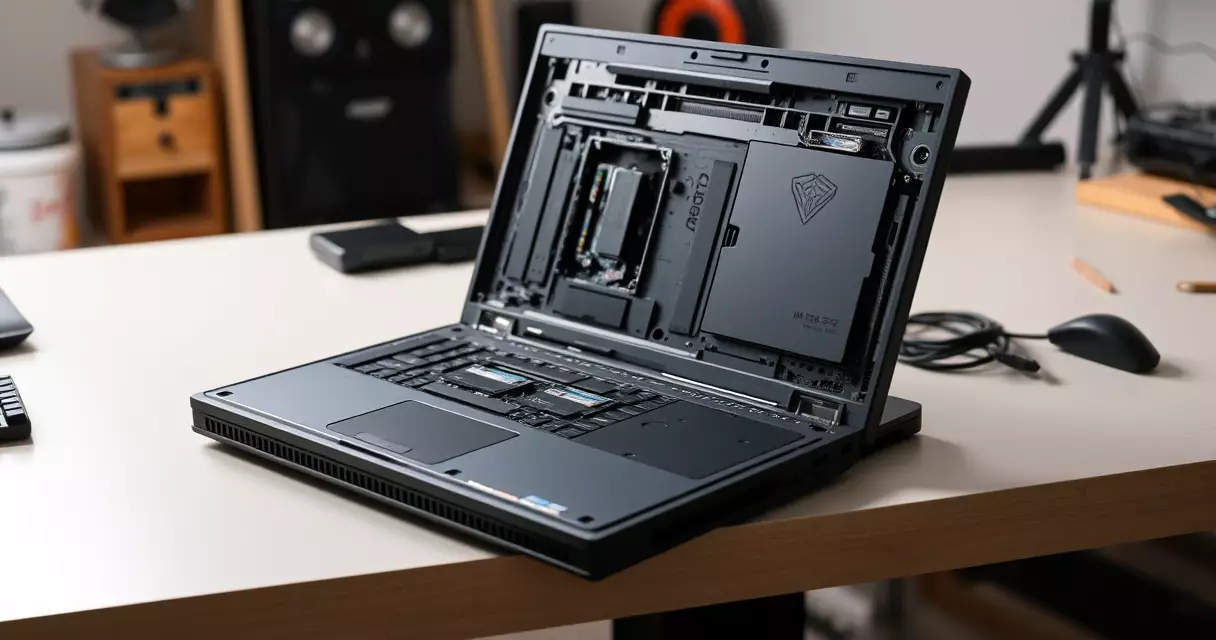
A modern gaming laptop can lose a noticeable slice of its real-world speed simply because one component falls behind the rest, yet many owners assume the whole machine is sealed shut. That assumption is only half true. Two parts, system...
Table of contents
- 1 Why Upgrading a Gaming Laptop Works Differently From a Desktop
- 2 A Short History of Laptop Upgradability
- 3 What You Can Actually Upgrade
- 4 Upgrading RAM in a Gaming Laptop
- 4.1 Check whether your memory is even removable
- 4.2 How much memory is enough
- 5 Upgrading Storage: The Easiest Win
- 5.1 Identify your slot before you buy
- 5.2 Clone or fresh install
- 6 The Parts You Usually Cannot Upgrade
- 7 External Upgrades That Sidestep the Sealed Chassis
- 8 Tools, Preparation, and Safety
- 9 How to Tell If a Laptop Is Upgradeable Before You Buy
- 10 Upgrade or Replace? Weighing Cost Against Benefit
- 11 Frequently Asked Questions
- 11.1 Can I upgrade the graphics card in my gaming laptop?
- 11.2 How do I know if my laptop’s RAM is soldered or removable?
- 11.3 Will adding more RAM increase my frame rate?
- 11.4 What is the difference between SATA and NVMe storage?
- 11.5 Does opening my laptop void the warranty?
- 11.6 Can I replace the processor in a gaming laptop?
- 11.7 How much storage do I need for a gaming laptop in 2026?
- 11.8 Is an external GPU worth it for a laptop?
- 12 Related Reading
- 13 Sources
A modern gaming laptop can lose a noticeable slice of its real-world speed simply because one component falls behind the rest, yet many owners assume the whole machine is sealed shut. That assumption is only half true. Two parts, system memory and storage, remain replaceable on a large share of current models, and a PCIe 5.0 solid-state drive can push sequential reads toward 14,000 MB/s, roughly double what a PCIe 4.0 drive delivers, according to testing reported by Tom’s Hardware. Knowing which parts you can touch, which you cannot, and when the effort pays for itself is the difference between a smart refresh and a wasted afternoon with a screwdriver.
This guide walks through every realistic upgrade path for a gaming laptop in 2026, the parts that are soldered down for good, the tools you need, and a clear cost-versus-benefit view so you can decide whether to upgrade or replace. If you are still shopping, the companion gaming laptop buyer’s guide covers how to pick a model with headroom built in.
Why Upgrading a Gaming Laptop Works Differently From a Desktop
Desktops are designed around standard slots and sockets, so almost anything inside can come out. Laptops trade that openness for thinness, weight, and battery life. Engineers solder components directly to the mainboard to save millimeters and to keep signal paths short at high clock speeds. The result is a sliding scale: some laptops behave almost like small desktops with two memory slots and two drive bays, while others fuse memory, storage, and the processor into a single non-serviceable board.
Heat is the second constraint that shapes what you can change. A gaming laptop already runs its processor and graphics chip close to their thermal ceiling, so the firmware and cooling system are tuned for the exact parts shipped in the chassis. Swapping a part for one that draws more power can push the machine past what its heat pipes can move. That is why memory and storage, which sip power, are the practical upgrade targets, while the graphics chip, which can draw well over 100 watts, almost never is.
The third factor is firmware. The system BIOS validates memory timings and drive compatibility at boot. A part that is electrically fine can still be rejected or run at a reduced speed if the firmware does not recognize it. Reading your manufacturer’s service manual before buying any component saves you from this trap. For a refresher on what each component actually does, the specs explained breakdown is a useful companion.
A Short History of Laptop Upgradability
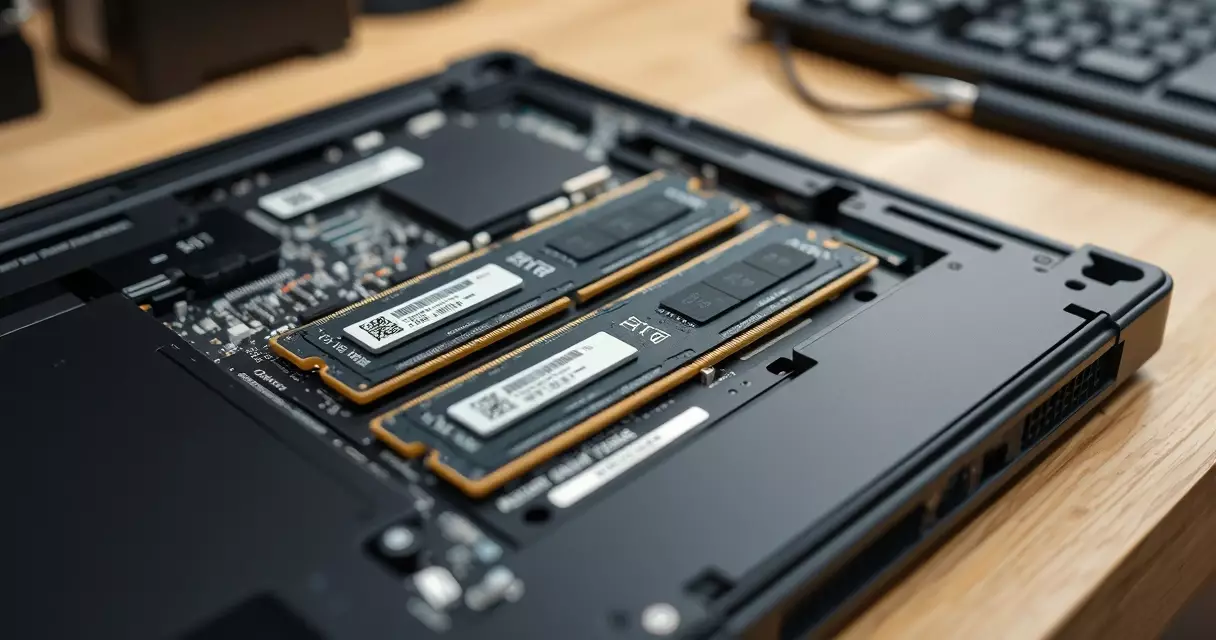
Portable computers of the late 1990s and 2000s were surprisingly open. Memory used socketed SO-DIMM modules, hard drives slid into removable caddies, and some larger machines even accepted swappable optical bays. The SO-DIMM form factor, standardized by the memory industry body JEDEC, made laptop memory upgrades nearly as simple as desktop ones for two decades, as documented by the SO-DIMM reference at Wikipedia.
The shift toward ultra-thin designs around 2015 changed the trajectory. To shave height, manufacturers began soldering memory chips directly onto the board using ball grid array packaging, the same low-profile mounting used for processors. Storage moved from 2.5-inch drives to the compact M.2 stick, which kept upgradability alive even as everything else shrank. The M.2 2280 card, measuring 22 millimeters wide and 80 millimeters long, became the dominant slot in gaming laptops, as catalogued in the M.2 specification overview.
A new chapter opened in 2023 and 2024. JEDEC published the CAMM2 standard, a flat memory module that bolts to the board and aims to restore upgradable memory in thin laptops without the height penalty of stacked SO-DIMMs. Its low-power sibling, LPCAMM2, started shipping in select premium notebooks, and JEDEC describes the family in its CAMM2 standard documentation. For now this format is rare in gaming models, but it signals that the industry has not abandoned serviceability entirely.
What You Can Actually Upgrade
Before opening anything, it helps to map each component against how likely it is to be user-serviceable. The table below summarizes the realistic picture for mainstream gaming laptops sold in 2024 through 2026. Treat it as a starting point, then confirm against your own model’s service manual, because the same brand can ship both upgradable and sealed variants.
| Component | Upgradable? | Typical method | Notes |
|---|---|---|---|
| System memory (RAM) | Often | SO-DIMM slots or CAMM2 module | Soldered on many thin models; check first |
| Storage (SSD) | Usually | M.2 slot, sometimes a second free slot | Most flexible upgrade by far |
| Wireless card | Sometimes | M.2 2230 slot | Many are now soldered |
| Battery | Sometimes | Internal connector | Glued packs on slim designs |
| Graphics chip (GPU) | Rarely | Soldered to mainboard | External GPU is the practical route |
| Processor (CPU) | Almost never | Soldered (BGA package) | Fixed for the life of the machine |
| Display panel | Possible | Connector swap | Match resolution and refresh rate exactly |
| Cooling paste | Yes | Manual reapplication | Maintenance, not a performance upgrade |
Two rows carry almost all of the value: memory and storage. Everything else is either a maintenance task, a rare exception, or a job better handled by replacing the laptop. The sections that follow focus first on the two upgrades worth doing, then explain honestly why the rest usually are not.
Upgrading RAM in a Gaming Laptop
Memory is the most rewarding upgrade when your laptop allows it. Games and the background apps people leave running, browsers, voice chat, streaming software, all compete for the same pool. When that pool fills, the system spills data onto the much slower drive, and you feel it as stutter. Moving from 8 GB to 16 GB, or from 16 GB to 32 GB, often smooths frame delivery more than any single setting change.
Current gaming laptops use DDR5 memory, which the JEDEC standard defines with a base data rate starting at 4800 mega-transfers per second and an operating voltage of 1.1 volts, lower than the 1.2 volts DDR4 used, as detailed in the DDR5 SDRAM reference. The practical takeaway is that you cannot mix DDR4 and DDR5; the slot, the notch, and the voltage are all different. You must buy memory that matches both the generation and the speed your laptop supports.
Check whether your memory is even removable
Start with the manufacturer’s specification sheet or service manual. Look for the phrase “SO-DIMM” or “user-upgradable memory.” If the listing says memory is “onboard,” “soldered,” or “fixed,” the chips are mounted to the board and no upgrade is possible. A free diagnostic tool from your memory vendor, or the system information panel in your operating system, will report how many physical slots exist and how many are occupied.
Some thin gaming laptops use a hybrid layout: a block of soldered memory plus one open SO-DIMM slot. In that case you can add a single module, but for the best speed you generally want matched capacities so the system can run in dual-channel mode. Mismatched sizes still work, they simply run part of the memory in slower single-channel mode for the portion that is unmatched.
How much memory is enough
For most 2026 titles, 16 GB remains the comfortable floor and 32 GB is the sweet spot for players who stream or keep many apps open. Going beyond 32 GB rarely helps games today, so spending on 64 GB is money better kept unless you also do heavy creative work like video editing or three-dimensional rendering. Buy a matched kit when you can, since two identical modules from one package are tested to run together.
| Memory capacity | Best suited for | Expected effect on gaming |
|---|---|---|
| 8 GB | Older or lightweight titles | Frequent stutter in modern games; upgrade recommended |
| 16 GB | Mainstream 2026 gaming | Smooth for most single-task play |
| 32 GB | Streaming, multitasking, modded games | Headroom for background apps and large mods |
| 64 GB | Creative work plus gaming | Little extra gaming benefit; useful for editing and rendering |
Upgrading Storage: The Easiest Win
Storage is the upgrade nearly every gaming laptop supports and the one with the clearest payoff. Game installs have ballooned, with several flagship titles now demanding well over 100 GB each, so a 512 GB drive fills fast. Adding capacity, or replacing a slow drive with a faster one, improves load times, reduces texture pop-in, and lets you keep more of your library installed at once.
The connector to know is M.2, and the protocol to want is NVMe. NVMe drives talk to the processor over the PCI Express bus rather than the older SATA path, which removes a major bottleneck. A SATA solid-state drive caps out near 600 MB/s, while a PCIe 4.0 NVMe drive reaches roughly 7,000 MB/s and a PCIe 5.0 drive can approach 14,000 MB/s, figures drawn from the NVM Express overview and storage testing at Tom’s Hardware.
Identify your slot before you buy
Most gaming laptops include at least one M.2 2280 slot, and many include a second slot you can populate without removing the original drive. Confirm three things: the physical length the slot accepts, usually 2280 but sometimes the shorter 2242; the keying, almost always M-key for NVMe drives; and the PCIe generation the slot supports. A PCIe 5.0 drive will run in a 4.0 slot, it simply tops out at the slot’s slower ceiling, so match the generation only if you want the full speed you paid for.
Heat matters here too. Fast NVMe drives can throttle under sustained load if they lack a heatsink, and a cramped laptop offers little airflow. Several models ship with a thin thermal pad over the drive bay; reuse it when you install a new drive. If your laptop runs hot in general, the wider problem of airflow is worth addressing, and the cooling guide explains how to keep temperatures in check.
Clone or fresh install
If you are replacing your only drive, you have two paths. Cloning copies your existing system to the new drive using a USB enclosure and free software, which preserves your installed games and settings. A fresh install wipes the slate, which often produces a cleaner, faster system but means reinstalling everything. When you add a second drive rather than replacing the first, neither step is needed; you simply point new installs to the extra space.
| Drive type | Interface | Approx. peak read | Best use |
|---|---|---|---|
| SATA SSD (2.5-inch or M.2) | SATA III | ~600 MB/s | Budget capacity, older laptops |
| NVMe PCIe 3.0 | PCI Express 3.0 | ~3,500 MB/s | Solid mainstream performance |
| NVMe PCIe 4.0 | PCI Express 4.0 | ~7,000 MB/s | Current gaming standard |
| NVMe PCIe 5.0 | PCI Express 5.0 | ~14,000 MB/s | Fastest available; needs a 5.0 slot |
The Parts You Usually Cannot Upgrade
Honesty here saves money. The two components players most wish they could swap, the graphics chip and the processor, are the two least likely to be replaceable. Understanding why prevents a costly mistake.
Graphics chips in laptops are soldered to the mainboard using ball grid array packaging. There is no socket, no slot, and no standard module. Even if you could unsolder one, the replacement would need identical power delivery, identical cooling design, and matching firmware support. For practical purposes, the graphics power your laptop ships with is the graphics power it keeps. This is the single biggest reason a sensible buyer pays for more graphics capability up front, a point the how to choose guide stresses repeatedly.
Processors follow the same logic. Modern mobile chips ship in BGA packages soldered to the board rather than the removable sockets desktops use. The handful of older or specialized laptops that used socketed mobile processors have largely vanished from the gaming market. Treat the processor, like the graphics chip, as a fixed quantity chosen at purchase.
Displays sit in a gray zone. Replacing a panel is physically possible, and some owners swap a slower screen for a higher refresh-rate one. The catch is matching the connector, resolution, and signaling exactly, and the panel must be one the laptop’s display controller already supports. Without that match the swap fails or runs at reduced capability, so this remains a job for confident, well-researched owners only.
External Upgrades That Sidestep the Sealed Chassis
When the parts inside are off-limits, the ports on the outside open other doors. External upgrades do not require opening the case at all, and several meaningfully change how the machine performs or feels.
An external graphics enclosure, often called an eGPU, connects a desktop graphics card to the laptop over a high-bandwidth port such as Thunderbolt or USB4. It will not match a desktop’s full speed because the connection adds overhead, and it only helps when the laptop is plugged in at a desk. For someone who games at home but needs portability on the road, though, it is the closest thing to a graphics upgrade a laptop allows. Whether this route makes sense often comes down to the same trade-offs covered in the laptop versus desktop comparison.
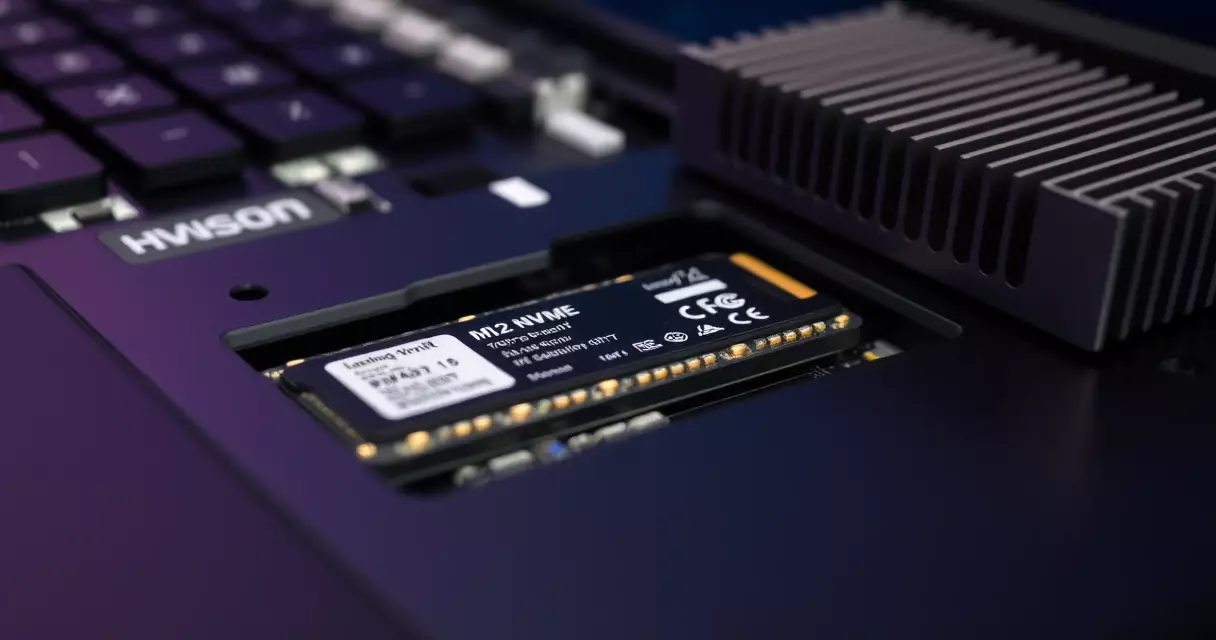
External storage is the simplest external upgrade of all. A USB or Thunderbolt NVMe enclosure gives you a fast, portable library that travels between machines. A laptop cooling pad or vertical stand improves airflow under the chassis, which can lift sustained performance on a machine that throttles. Better peripherals, a mechanical keyboard, a low-latency mouse, a calibrated external monitor, change the experience without touching the internals at all.
Tools, Preparation, and Safety
Internal upgrades are not difficult, but they are unforgiving of carelessness. A few precautions protect both you and the hardware. Gather the right tools first so you are not improvising halfway through.
- A precision screwdriver set, usually Phillips and Torx bits in small sizes
- A plastic pry tool or spudger to release clips without scratching the case
- An anti-static wrist strap to prevent a stray discharge from damaging chips
- A small dish or magnetic mat to keep tiny screws organized by location
- Your laptop’s official service manual or a reputable teardown reference
Power down fully before you begin, unplug the charger, and where the design allows it, disconnect the internal battery before touching any component. Static electricity is the silent killer of memory and drives, so ground yourself with the wrist strap and work on a hard, non-carpeted surface. Keep screws sorted by where they came from, because laptop screws often differ in length by location and forcing the wrong one can crack a board.
Warranty terms deserve a careful read. In the United States, the Magnuson-Moss Warranty Act limits a manufacturer’s ability to void a warranty simply because you opened the case, yet damage you cause during a self-installed upgrade is your responsibility. Photograph each step as you go; the pictures make reassembly far easier and give you a record if something needs to be undone. Pairing upgrades with a regular maintenance routine keeps the machine healthy between changes.
How to Tell If a Laptop Is Upgradeable Before You Buy
The best moment to think about upgrades is before purchase, not after. A few minutes of research on a model’s serviceability tells you how long it will stay relevant. Look for these signals when comparing machines.
- The specification sheet lists memory as “SO-DIMM” rather than “onboard” or “soldered”
- The manufacturer publishes a service manual showing accessible memory and drive bays
- The model includes a second, empty M.2 slot for future storage
- Independent teardown videos confirm an easy-to-remove bottom panel
- Replacement parts and batteries are listed as available from the maker
A machine that scores well on these points can grow with you for years, absorbing more memory and storage as games demand it. A fully sealed model may be thinner and lighter, which suits some buyers, but it locks your specification on day one. Battery serviceability is part of this calculation too, since a pack that can be replaced extends the useful life of an otherwise healthy laptop, a topic the battery life guide explores in depth.
Upgrade or Replace? Weighing Cost Against Benefit
Not every slowdown is solved by a new part. The smart question is whether the upgrade closes a real gap or merely delays the inevitable. Memory and storage upgrades are usually worth it because they are inexpensive relative to a new laptop and they target the bottlenecks people actually hit. When the limiting factor is the graphics chip or processor, no internal upgrade exists, and the money is better saved toward a replacement.
Use a simple test. If your frame rates are low even at modest settings and your memory and storage are already healthy, the bottleneck is the fixed silicon, and upgrading parts will not rescue the machine. If instead you see stutter, long load screens, or a full drive, memory and storage upgrades address exactly those symptoms at a fraction of replacement cost. Aging machines that are three to five years past their fixed components often make more sense to replace, and the current best gaming laptops roundup is a good place to compare.
There is an environmental angle as well. Extending a laptop’s life through a memory or storage upgrade keeps a working machine out of the waste stream, and electronic waste is one of the fastest-growing waste categories worldwide according to the U.S. Environmental Protection Agency. A cheap upgrade that buys two more good years is rarely the wrong call.
Frequently Asked Questions
Can I upgrade the graphics card in my gaming laptop?
In nearly all cases, no. The graphics chip in a gaming laptop is soldered directly to the mainboard using ball grid array packaging, with no socket or slot that would let you remove it. The cooling system and power delivery are also designed around that specific chip, so even a hypothetical swap would not work without matching firmware and thermal support. The realistic alternative is an external graphics enclosure connected over Thunderbolt or USB4, which adds desktop graphics power when the laptop sits at a desk. Because the graphics chip is fixed for life, it pays to buy as much graphics capability as your budget allows at the time of purchase.
How do I know if my laptop’s RAM is soldered or removable?
Check the manufacturer’s specification sheet or service manual for the exact model. Language such as “SO-DIMM” or “user-upgradable memory” means removable modules, while “onboard,” “soldered,” or “fixed” means the chips are mounted to the board and cannot be changed. Your operating system’s system information panel will also report how many physical memory slots exist and how many are in use. Some thin gaming laptops use a hybrid design with soldered memory plus one open slot, which lets you add a single module. When in doubt, an independent teardown video for your exact model usually shows the memory layout clearly before you commit to buying anything.
Will adding more RAM increase my frame rate?
It depends on what is limiting you. If your laptop runs out of memory while gaming, which is common at 8 GB with modern titles, adding memory removes the stutter caused by the system spilling data to the slower drive, and the experience feels much smoother. If you already have 16 GB or more and your frame rate is held back by the graphics chip, extra memory will not raise the numbers. The honest rule is that memory fixes stutter and multitasking limits, not raw graphics performance. For most 2026 games, 16 GB is the comfortable floor and 32 GB gives breathing room for streaming and background apps.
What is the difference between SATA and NVMe storage?
The difference is the path each drive uses to reach the processor. A SATA solid-state drive uses an older interface that caps out near 600 MB/s, while an NVMe drive communicates over the PCI Express bus and runs far faster, roughly 7,000 MB/s on PCIe 4.0 and up to about 14,000 MB/s on PCIe 5.0. Both can live in an M.2 slot, so check which protocol your slot supports before buying. For gaming, an NVMe drive shortens load times and reduces texture pop-in compared with SATA. If your laptop offers a free M.2 slot, adding an NVMe drive is usually the single most cost-effective upgrade you can make.
Does opening my laptop void the warranty?
In the United States, the Magnuson-Moss Warranty Act prevents a manufacturer from voiding your warranty simply because you opened the case to perform a permitted upgrade such as adding memory or storage. That protection has limits: if you damage a component during the work, the repair is your responsibility, not the maker’s. Some manufacturers place tamper stickers over screws, and removing them can complicate a claim even where the law is on your side. The safest approach is to read your specific warranty terms, photograph each step, and keep the original parts. When unsure, contact the manufacturer’s support line before you begin.
Can I replace the processor in a gaming laptop?
For practically all current gaming laptops, no. Modern mobile processors ship in BGA packages soldered to the mainboard rather than the removable sockets found in desktops. The small number of older or specialized laptops that used socketed mobile processors have effectively disappeared from the gaming market. Like the graphics chip, the processor should be treated as a fixed choice made at purchase, so it is worth selecting a capable one up front. If processing power becomes your bottleneck years later, replacing the laptop is the only real path, since no internal processor upgrade is available on a soldered design.
How much storage do I need for a gaming laptop in 2026?
Plan for more than you think. Several flagship 2026 titles each require well over 100 GB, so a 512 GB drive holds only a handful of large games once the operating system takes its share. A 1 TB drive is the practical minimum for active players, and 2 TB gives comfortable room for a larger library plus recordings and creative files. Because storage is the easiest upgrade on most laptops, you can start smaller and add a second NVMe drive later if your model has a free M.2 slot. Matching the slot’s PCIe generation ensures you get the full speed the drive is capable of delivering.
Is an external GPU worth it for a laptop?
An external graphics enclosure can be worthwhile in specific situations, though it is not a perfect substitute for desktop graphics. The high-bandwidth connection over Thunderbolt or USB4 adds overhead, so you lose some performance compared with the same card in a desktop, and the setup only helps while the laptop is plugged in at a desk. For a player who values portability during the day but wants stronger graphics at home, an eGPU bridges the gap without buying a second machine. Weigh the cost of the enclosure plus a graphics card against simply buying a more capable laptop or a desktop, since the totals are often close.
Related Reading
- Gaming Laptop Buyer's Guide: Performance, Portability & Best Models
- Best Gaming Laptops 2024: Top Picks for Every Budget
- Gaming Laptop Battery Life: Tips to Maximize Performance
- Gaming Laptop Cooling: Solutions to Prevent Overheating
- Gaming Laptop Maintenance: Keep Your System Like New
- Gaming Laptop Specs Explained: GPU, CPU, RAM & More
- Gaming Laptop vs Desktop: Which Should You Buy?
- How to Choose a Gaming Laptop: Complete Buyer's Guide
- Alienware M15 Gaming Laptop Review: Specs, Power & Value
- ASUS ROG Strix Gaming Laptop Review
- HP Omen 16 Gaming Laptop Review (2026 Update)
- Lenovo Legion 5 Gaming Laptop Review: Specs, Power & Value
- MSI Raider Gaming Laptop Review
- Razer Blade 15 Gaming Laptop Review
Sources
- DDR5 SDRAM – https://en.wikipedia.org/wiki/DDR5_SDRAM
- M.2 specification – https://en.wikipedia.org/wiki/M.2
- NVM Express – https://en.wikipedia.org/wiki/NVM_Express
- SO-DIMM – https://en.wikipedia.org/wiki/SO-DIMM
- JEDEC CAMM2 standard (JESD318) – https://www.jedec.org/standards-documents/docs/jesd318
- Tom’s Hardware SSD coverage – https://www.tomshardware.com/pc-components/ssds
- U.S. Environmental Protection Agency, electronic waste – https://www.epa.gov/international-cooperation/cleaning-electronic-waste-e-waste