
Summary
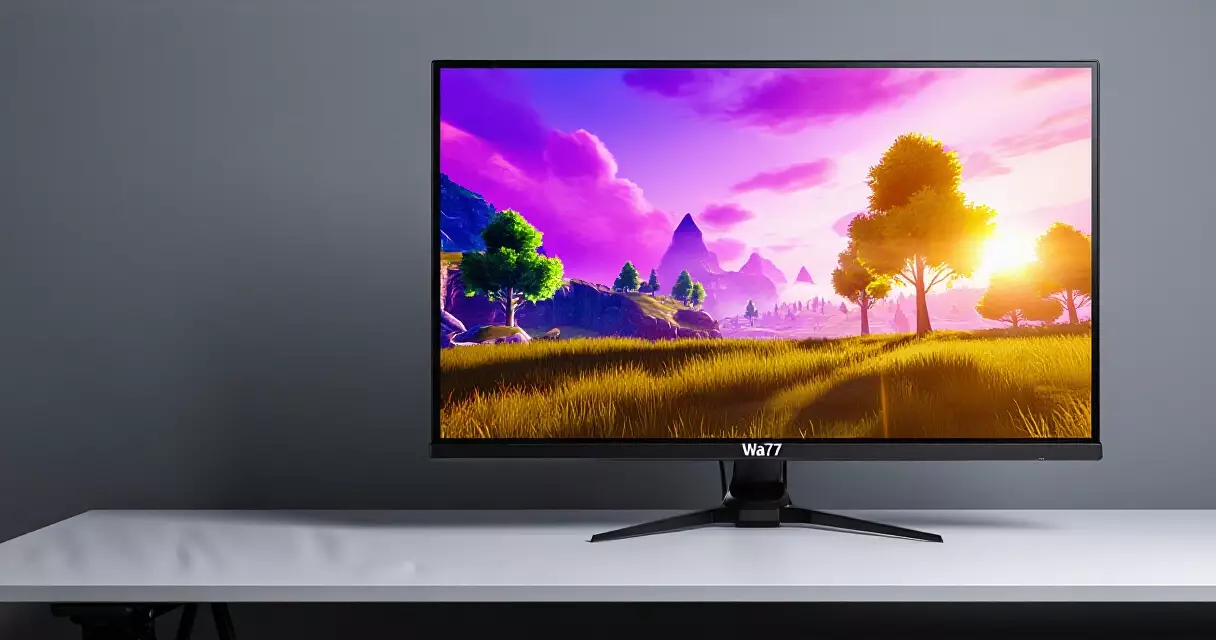
For roughly the price of a mid-range graphics card accessory, the Gigabyte M27Q tries to fold three things gamers usually pay separately for into one chassis: a 27-inch 1440p panel, a 170Hz refresh rate, and a full keyboard-video-mouse switch. Gigabyte...
Table of contents
- 1 Where the M27Q Fits in Gigabyte’s Monitor Lineup
- 2 Gigabyte M27Q Specifications at a Glance
- 3 Panel and Image Quality: The SS IPS Story
- 4 The BGR Subpixel Controversy Explained
- 5 Motion Performance: 170Hz, Response Time, and Adaptive Sync
- 6 The KVM Switch and Connectivity
- 7 Design, Stand, and On-Screen Controls
- 8 Gigabyte M27Q vs the Competition
- 9 Pricing and Value in 2026
- 10 Who Should Buy the Gigabyte M27Q
- 10.1 Pros
- 10.2 Cons
- 11 Frequently Asked Questions
- 11.1 Does the Gigabyte M27Q have a BGR or RGB subpixel layout?
- 11.2 Is the Gigabyte M27Q good for competitive gaming?
- 11.3 Can the Gigabyte M27Q run at 170Hz over HDMI?
- 11.4 Does the Gigabyte M27Q support HDR properly?
- 11.5 What is the KVM switch on the M27Q used for?
- 11.6 Is the Gigabyte M27Q worth it in 2026?
- 11.7 Do I need to replace the stand on the Gigabyte M27Q?
- 12 Related Reading
- 13 Sources
- 13.1 Further reading
For roughly the price of a mid-range graphics card accessory, the Gigabyte M27Q tries to fold three things gamers usually pay separately for into one chassis: a 27-inch 1440p panel, a 170Hz refresh rate, and a full keyboard-video-mouse switch. Gigabyte lists the panel as a Super Speed IPS type rated at 92% of the DCI-P3 color space and a 0.5ms moving-picture response time, according to the company’s official product specifications. Those numbers read like a flagship spec sheet, yet the M27Q has spent most of its life selling near the $300 mark. That gap between ambition and price is exactly why this monitor became a community favorite, and also why it carries one of the most discussed quirks in recent display history.
This review walks through the panel, motion handling, the KVM feature that gives the monitor its identity, build quality, and how it stacks up against rivals in 2026. We will also address the subpixel layout story that split early buyers, because it still affects which revision you want to track down.
Where the M27Q Fits in Gigabyte’s Monitor Lineup
Gigabyte split its display business into two families. The premium AORUS branding covers tactical features and higher refresh rates, while the plain M-series targets value buyers who still want gaming-grade motion. The M27Q sits at the heart of that value line. It launched as a 1440p companion to the cheaper 1080p M27F, and it shares design DNA with the larger M32Q and the ultrawide M34WQ that followed.
The monitor arrived during a period when 1440p high-refresh panels were finally dropping below the $350 line. Before that shift, gamers who wanted both sharpness and speed generally chose one or the other. A 27-inch 1440p display gives roughly 109 pixels per inch, which is sharp enough that most people stop noticing individual pixels at a normal desk distance. Pairing that density with a 170Hz ceiling put the M27Q in a sweet spot that the cheaper 1080p crowd could not match and the pricier OLED tier could not undercut.
If you are still deciding whether 1440p is the right target for your hardware, our breakdown of 1080p vs 1440p vs 4K gaming resolution covers the GPU cost of each step. The short version is that 1440p at high refresh asks more of your graphics card than 1080p but stays far more achievable than 4K for fast frame rates.
Gigabyte M27Q Specifications at a Glance
The table below collects the headline figures from Gigabyte’s official specification sheet. These are the manufacturer’s rated values, and real-world measurements from independent testing tend to land close on color and slightly behind on the most aggressive response-time claims, which is normal for any monitor.
| Specification | Gigabyte M27Q (rated) |
|---|---|
| Screen size | 27 inches, flat |
| Resolution | 2560 x 1440 (QHD / 1440p) |
| Panel type | Super Speed IPS |
| Refresh rate | 170Hz (165Hz base, overclock to 170Hz) |
| Response time | 0.5ms MPRT |
| Color gamut | 92% DCI-P3, around 120% sRGB |
| Color depth | 8-bit (10-bit via 8-bit + FRC) |
| Brightness | 350 cd/m² typical |
| Contrast ratio | 1000:1 static |
| HDR | HDR Ready (no DisplayHDR tier badge) |
| Adaptive sync | FreeSync Premium, G-Sync Compatible |
| Pixel density | ~109 PPI |
| Stand adjustment | Tilt only (-5° to +20°) |
| VESA mount | 100 x 100 mm |
Two figures deserve a flag before we move on. The 170Hz number is an overclock applied on top of a 165Hz base, which the panel reaches reliably over DisplayPort. The 0.5ms response figure uses the MPRT method, a measure tied to backlight strobing rather than the pixel transition timing most buyers picture. Our guide to refresh rate versus response time explains why those two specs describe different parts of motion clarity and why a single millisecond figure rarely tells the whole story.
Panel and Image Quality: The SS IPS Story
Gigabyte markets the M27Q panel as Super Speed IPS, a faster variant of the in-plane switching technology that has dominated gaming displays for years. The appeal of IPS is consistent color and wide viewing angles, and the M27Q delivers both. Colors hold up when you sit slightly off-center, and the rated 178-degree viewing angles mean a friend watching from the side sees roughly what you do.
Color coverage is the panel’s strongest claim. Gigabyte rates it at 92% of DCI-P3, the wide gamut used in digital cinema, which translates to vivid, saturated output in games and video. Out of the box the display runs in its native wide gamut, so standard sRGB content can look oversaturated until you select an sRGB emulation mode in the on-screen menu. Independent reviewers have noted that factory color accuracy is decent for the price but benefits from calibration if you do creative work. If you plan to tune it, our walkthrough on how to calibrate a gaming monitor covers the steps that matter most.
Contrast is where the IPS foundation shows its age. The rated 1000:1 static contrast is typical for the technology, which means blacks look gray in a dark room compared with a VA or OLED display. The 350 cd/m² typical brightness is fine for a lit room but not bright enough to make high dynamic range content shine. The M27Q advertises HDR support, yet it lacks a local dimming backlight and carries no VESA DisplayHDR certification tier. Treat HDR here as a compatibility checkbox rather than a feature you will leave on.
If you want to understand why VA and OLED panels handle dark scenes so differently, our comparison of IPS vs VA vs TN vs OLED panels lays out the trade-offs in contrast, motion, and burn-in risk that separate the M27Q from pricier alternatives.
The BGR Subpixel Controversy Explained
No M27Q review is honest without addressing the subpixel layout. Most monitors arrange their red, green, and blue subpixels in RGB order from left to right. Early M27Q units shipped with a BGR layout instead, reversing that order. Games and video do not care about the arrangement, but desktop text rendering does. Operating systems tune their font smoothing for the standard RGB order, so on a BGR panel some users saw faint color fringing on the edges of text, a side effect explained by how subpixel rendering works.
How much this bothered people varied widely. Heavy text users and anyone who spent long hours reading documents tended to notice it, while gamers who treated the monitor as a play-first display often never spotted it. Workarounds existed, including third-party tools that retune ClearType for BGR panels, but they were a patch rather than a fix.
Gigabyte addressed the complaint with a later hardware revision. Newer M27Q units use a standard RGB subpixel layout, which removes the text-fringing issue entirely. If text clarity matters to you and you buy the monitor for mixed work and play, confirm you are getting the revised RGB panel before you commit. This single detail is the most important thing to verify when shopping for a used or older-stock unit.
Motion Performance: 170Hz, Response Time, and Adaptive Sync
Speed is the reason most buyers look at the M27Q, and the panel mostly delivers. Running at 170Hz over DisplayPort, motion feels markedly smoother than a 60Hz or even a 144Hz display, and the SS IPS pixel transitions are quick enough that fast camera pans stay clean. Gigabyte ships several overdrive settings in the menu. The balanced level produces crisp motion with minimal overshoot, while the most aggressive setting introduces visible inverse-ghosting artifacts that most players will want to avoid.
The 0.5ms MPRT figure relies on a backlight strobing mode that reduces motion blur by flashing the backlight. Strobing cuts perceived brightness and cannot run at the same time as adaptive sync, so it is a situational tool rather than an everyday setting. For most people, leaving strobing off and relying on the high refresh rate plus variable refresh gives the best balance.
On the sync front, the M27Q supports FreeSync Premium, the AMD tier built on the FreeSync implementation of VESA Adaptive-Sync. It also carries Nvidia G-Sync Compatible behavior, so the variable refresh range works across both GPU brands to eliminate tearing within its window. If the difference between these standards is unclear, our explainer on G-Sync vs FreeSync breaks down what each badge guarantees and where they overlap.
Competitive players chasing the lowest possible latency will find the M27Q capable but not class-leading. A 170Hz IPS panel cannot match the input feel of a 240Hz or 360Hz esports display, and serious ranked players may want more headroom. For the vast majority of gamers across single-player and multiplayer titles, the refresh ceiling here is more than enough. Tuning matters too, and our list of best gaming monitor settings for competitive play can squeeze the most responsiveness out of any panel in this class.
The KVM Switch and Connectivity
The built-in KVM switch is the M27Q’s signature trick and the feature that separates it from most rivals at this price. A KVM switch lets a single keyboard and mouse control two computers, swapping between them with a button or a menu shortcut. On the M27Q, you plug a keyboard and mouse into the monitor’s USB hub, connect two systems, and toggle which machine receives both the display signal and the peripherals.
That is genuinely useful for anyone running a desktop and a laptop, or a work machine alongside a gaming rig. Rather than buying a separate KVM box or fumbling with two sets of peripherals, you press one control and the whole setup follows. The implementation is not flawless, and some users report the switching shortcut can feel finicky until you learn its rhythm, but the convenience outweighs the quirks for dual-system desks.
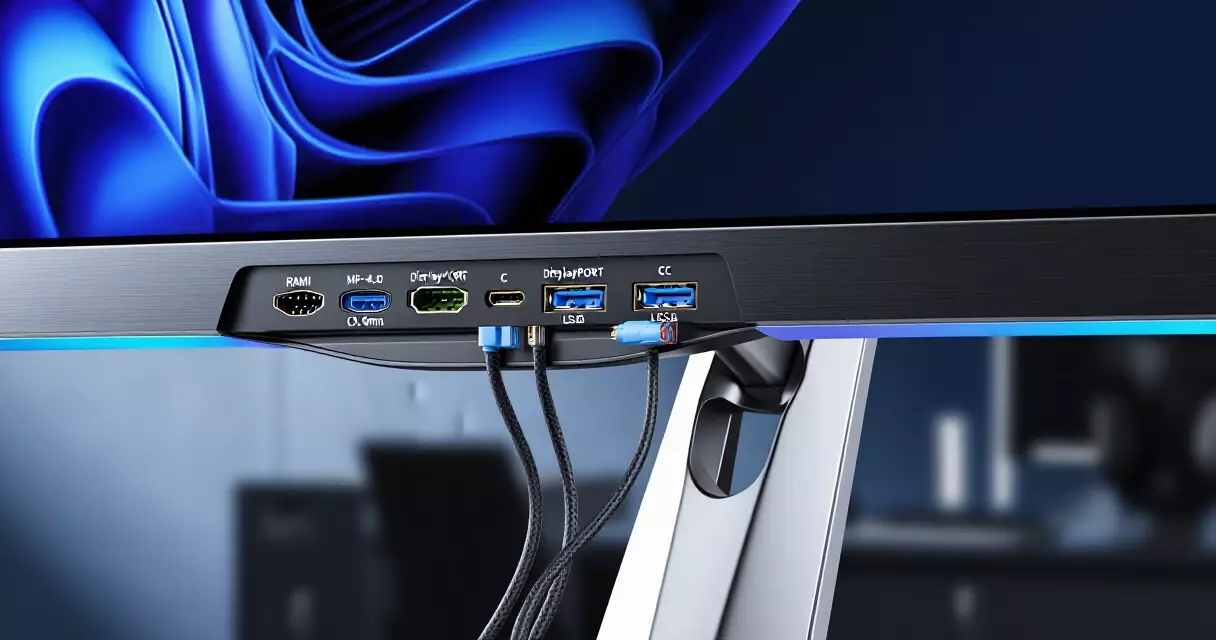
Port selection rounds out the package. Gigabyte’s specifications list two HDMI 2.0 inputs, one DisplayPort 1.2, and a USB Type-C connection that carries video through DisplayPort Alternate Mode along with power. A USB 3.0 hub feeds the KVM and adds downstream ports for accessories. The USB-C input is the quiet standout, because it lets a compatible laptop send picture, receive charge, and tie into the KVM over a single cable. The table below maps out the connectivity.
| Port / Feature | Detail |
|---|---|
| HDMI | 2 x HDMI 2.0 |
| DisplayPort | 1 x DisplayPort 1.2 |
| USB-C | 1 x USB-C (DisplayPort Alt Mode + power delivery) |
| USB hub | USB 3.0 upstream + downstream ports |
| Audio | 3.5mm headphone jack |
| KVM switch | Yes, hardware-based across two sources |
| Max refresh by input | 170Hz over DisplayPort; HDMI capped lower |
One practical note: to hit the full 170Hz, use the DisplayPort connection. HDMI 2.0 lacks the bandwidth to drive 1440p at the top refresh rate, so a console or a device limited to HDMI will run at a lower ceiling.
Design, Stand, and On-Screen Controls
The M27Q keeps its styling restrained. There is no aggressive gamer aesthetic, no RGB lighting on the back, and the bezels are thin on three sides. The build is mostly plastic, which is expected at this price, and the panel feels solid enough once mounted. It blends into a home office as easily as a gaming den.
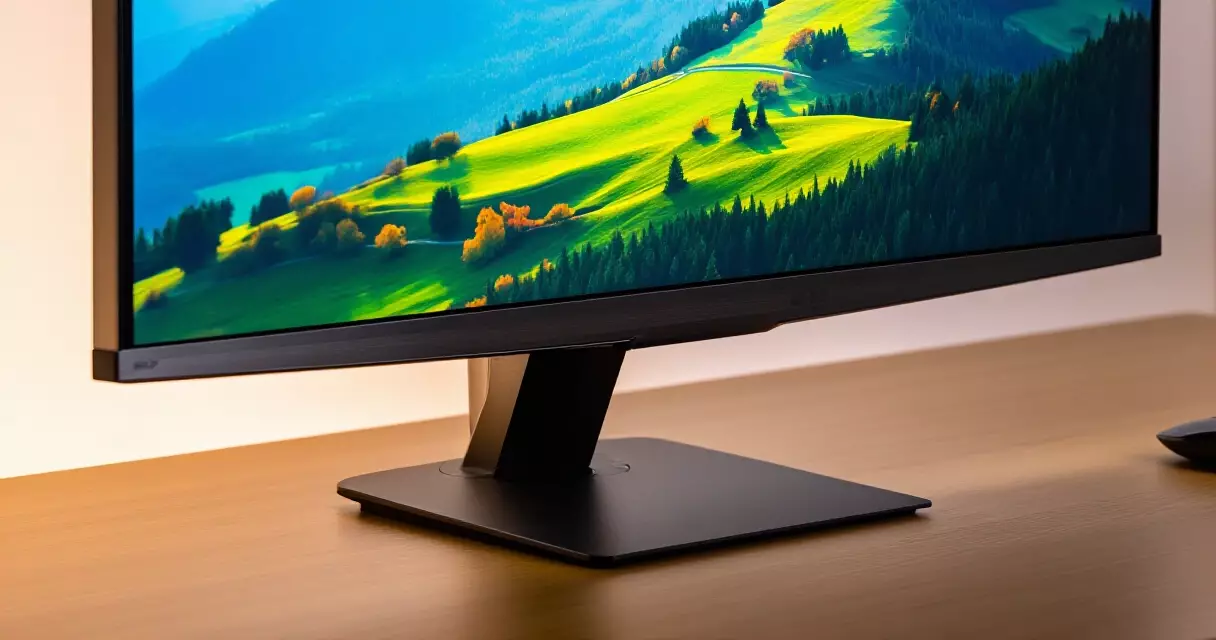
The included stand is the biggest compromise. It offers tilt only, with no height adjustment, swivel, or pivot. Anyone who likes to raise a screen to eye level or rotate it will feel that absence quickly. The saving grace is the 100 x 100 mm VESA mount, so swapping in a monitor arm or a third-party stand solves the ergonomics problem for a small extra cost. Poor desk posture is worth taking seriously, and our piece on whether gaming monitors are bad for your eyes covers why screen height and viewing distance affect comfort during long sessions.
Software control comes through Gigabyte’s on-screen display, navigated with a rear joystick, plus a desktop utility that mirrors many settings in Windows. The menu includes the usual gaming extras: a crosshair overlay, a frame-rate counter, a black equalizer that lifts shadow detail, and the aim-stabilizer strobing mode. None of these reinvent the category, but they are handy and easy to reach.
Gigabyte M27Q vs the Competition
The 1440p high-refresh value segment is crowded in 2026, and the M27Q now competes against several strong rivals. Its closest match on paper is the MSI MAG 274QRF QD E2, which pairs a similar IPS panel with a Quantum Dot layer for wider color and a slightly higher refresh rate. The table below compares the key headline figures.
| Feature | Gigabyte M27Q | MSI MAG 274QRF QD E2 |
|---|---|---|
| Size / resolution | 27″ / 1440p | 27″ / 1440p |
| Panel | SS IPS | Rapid IPS + Quantum Dot |
| Refresh rate | 170Hz | 180Hz |
| Color gamut | 92% DCI-P3 | Wider via Quantum Dot |
| KVM switch | Yes | Yes |
| USB-C video | Yes | Varies by revision |
| Stand | Tilt only | Height adjustable |
The MSI counters with a more adjustable stand and a Quantum Dot color advantage, while the Gigabyte often wins on price and on a proven KVM implementation. Our full MSI MAG 274QRF QD E2 review digs into where that monitor pulls ahead and where it costs more. Both displays serve the same buyer, so the decision often comes down to which one is discounted when you shop.
Step up in budget and the comparison shifts entirely. OLED options like the LG UltraGear 27GR95QE deliver near-instant pixel response and true blacks the M27Q cannot approach, at a meaningfully higher price and with burn-in to manage. The M27Q is not trying to win that fight. It targets the buyer who wants strong fundamentals and useful extras without paying the OLED premium.
Pricing and Value in 2026
The M27Q launched around the $329 mark and has spent most of its life selling between $250 and $300 depending on sales, according to Gigabyte’s listed pricing and general retail tracking. That positioning is the core of its appeal. Few monitors at this price bundle 1440p, 170Hz, wide color, USB-C video, and a hardware KVM in one unit.
Value is not the same as flawless, and the M27Q carries real compromises. The tilt-only stand, the limited HDR, the IPS contrast, and the subpixel history on older units all temper the package. None of these are deal-breakers for the target buyer, but they explain why the monitor sits in the value tier rather than the premium one. You are trading polish for capability, and for many gamers that is a smart trade.
When you weigh the price, factor in the cost of a monitor arm if ergonomics matter to you, since the stand will likely need replacing. Even with that addition, the total usually stays competitive with rivals that include a better stand but skip the KVM or the wide-gamut panel.
Who Should Buy the Gigabyte M27Q
The M27Q suits a specific buyer well. If you run two computers at one desk, want sharp 1440p visuals with smooth high-refresh motion, and care more about features than a fancy stand, this monitor earns its keep. The KVM and USB-C combination is rare at the price and genuinely simplifies a dual-machine setup.
Look elsewhere if your priorities are deep blacks for cinematic single-player games, where a VA or OLED panel serves better, or if you need a height-adjustable stand out of the box and refuse to add an arm. Competitive players who live in fast shooters and want the absolute lowest latency should also consider a higher-refresh esports display instead.
Pros
- Sharp 1440p resolution with a smooth 170Hz refresh rate
- Wide 92% DCI-P3 color gamut for vivid output
- Built-in hardware KVM switch, rare at this price
- USB-C input with video and power over one cable
- FreeSync Premium and G-Sync Compatible support
- Strong value compared with similarly specified rivals
Cons
- Tilt-only stand with no height adjustment
- HDR is a checkbox feature with no local dimming or DisplayHDR tier
- Typical IPS contrast means gray blacks in dark rooms
- Older units shipped with a BGR subpixel layout that affects text
- 170Hz is fine but not in the esports refresh class
Frequently Asked Questions
Does the Gigabyte M27Q have a BGR or RGB subpixel layout?
It depends on the revision you buy. Early M27Q units shipped with a BGR subpixel layout, which reverses the standard red-green-blue order. Because operating systems tune text smoothing for RGB panels, some users saw faint color fringing on the edges of fonts. Gigabyte later released a revised version that uses a standard RGB layout and removes the issue. Games and video are unaffected either way, so the concern only matters for heavy desktop text work. If you do a lot of reading or office tasks, confirm you are getting the newer RGB revision before buying, especially when shopping used or older stock.
Is the Gigabyte M27Q good for competitive gaming?
It is capable for competitive play but not the absolute fastest option available. The 170Hz refresh rate and quick SS IPS response handle fast shooters and action games smoothly, and the FreeSync Premium support keeps motion tear-free within its range. Serious ranked players who chase the lowest possible input latency may prefer a dedicated 240Hz or 360Hz esports display for the extra headroom. For the large majority of players who mix competitive and casual sessions, the M27Q offers more than enough speed. Pairing it with optimized in-game and on-screen settings closes most of the gap to pricier panels.
Can the Gigabyte M27Q run at 170Hz over HDMI?
No. To reach the full 170Hz refresh rate at 1440p, you must use the DisplayPort connection. The monitor uses HDMI 2.0 inputs, which lack the bandwidth to drive 1440p resolution at 170Hz, so an HDMI connection caps the refresh rate at a lower figure. This matters most for console players or anyone connecting a device limited to HDMI output, since those sources will not hit the top refresh number. For PC gamers, a single DisplayPort cable unlocks the full experience, and the USB-C input also carries a high-refresh signal through DisplayPort Alternate Mode.
Does the Gigabyte M27Q support HDR properly?
The M27Q accepts HDR signals, but it does not deliver a strong HDR experience. It lacks a local dimming backlight and carries no VESA DisplayHDR certification tier, and its rated 350 cd/m² brightness is too low for HDR highlights to stand out. The 1000:1 static contrast typical of IPS panels further limits the effect, since HDR relies on a wide range between bright and dark. Treat HDR support here as a compatibility feature rather than a reason to buy. For everyday gaming in standard dynamic range, the wide color gamut and accurate panel are the real strengths.
What is the KVM switch on the M27Q used for?
The KVM switch lets one keyboard and one mouse control two connected computers through the monitor. You plug your peripherals into the monitor’s USB hub, connect two systems, and toggle which machine receives both the video signal and the keyboard and mouse. This is ideal for a desk with a desktop and a laptop, or a separate work and gaming rig, because it removes the need for two sets of peripherals or a standalone KVM box. The switching control can feel a little particular until you learn it, but the convenience for dual-system setups is a standout feature at this price.
Is the Gigabyte M27Q worth it in 2026?
For the value-focused buyer, yes. The M27Q still bundles 1440p resolution, a 170Hz refresh rate, wide color, USB-C video, and a hardware KVM for a price most rivals cannot match feature for feature. Newer competitors offer brighter panels, Quantum Dot color, or OLED contrast, but usually at a higher cost or without the KVM. The compromises are real, including the tilt-only stand and weak HDR, yet none undermine the core gaming experience. If you can find a current RGB-layout revision at a typical street price, it remains one of the smarter value picks in the segment.
Do I need to replace the stand on the Gigabyte M27Q?
Not necessarily, but many users choose to. The included stand offers tilt adjustment only, with no height, swivel, or pivot options. If your seating position already places the screen at a comfortable eye level, the stock stand is fine. If you want to raise the display or rotate it, the 100 x 100 mm VESA mount lets you attach a monitor arm or a third-party stand for a modest extra cost. Factoring in an arm when budgeting is reasonable, since proper screen height supports better posture and reduces neck strain during long gaming or work sessions.
Related Reading
- Gaming Monitors Explained: Specs, Tech & Top Picks 2026
- 1080p vs 1440p vs 4K: Best Gaming Resolution?
- Are Gaming Monitors Bad for Your Eyes? Blue Light & Setup
- Best Gaming Monitor Settings for Competitive FPS Players
- G-Sync vs FreeSync: Adaptive Sync for Tear-Free Gaming
- Gaming Monitor Troubleshooting: Flicker, Black Screens & More
- How to Calibrate a Gaming Monitor for Color & Low Lag
- IPS vs VA vs TN vs OLED: Gaming Monitor Panels Compared
- Refresh Rate vs Response Time: Why Both Decide Game Feel
- Alienware AW2725DF Review: 360Hz QD-OLED Tested
- ASUS ROG Swift OLED PG27AQDP Review: 480Hz 1440p OLED
- Dell (Alienware) vs ASUS ROG Gaming Monitors Compared
- LG UltraGear 27GR95QE-B Review: The OLED Sweet Spot?
- MSI MAG 274QRF QD E2 Review: Budget 1440p 180Hz Monitor
- Samsung Odyssey OLED G9 Review: Is the 49-Inch Worth It?
Sources
- Gigabyte M27Q official product specifications – https://www.gigabyte.com/Monitor/M27Q
- IPS panel (in-plane switching), Wikipedia – https://en.wikipedia.org/wiki/IPS_panel
- DCI-P3 color space, Wikipedia – https://en.wikipedia.org/wiki/DCI-P3
- FreeSync and VESA Adaptive-Sync, Wikipedia – https://en.wikipedia.org/wiki/FreeSync
- KVM switch, Wikipedia – https://en.wikipedia.org/wiki/KVM_switch
- Subpixel rendering, Wikipedia – https://en.wikipedia.org/wiki/Subpixel_rendering
- VESA DisplayHDR standard, VESA – https://www.vesa.org/featured-articles/vesa-introduces-industrys-first-fully-open-standard-specifying-display-hdr-performance/
Further reading
Gaming Laptop Buyer’s Guide: Performance, Portability & Best Models